EasyManua.ls Logo

LMI Technologies MikroCAD premium - User Manual

LMI Technologies MikroCAD premium
26 pages
Print Icon
To Next Page IconTo Next Page
Loading...
Quick Start Guide
15236-01.01_MANUAL_Quickstart_MikroCAD_premium80x60_premium140x105_revB
MikroCAD
premium 80 x 60
premium 140 x 105
Question and Answer IconNeed help?

Do you have a question about the LMI Technologies MikroCAD premium and is the answer not in the manual?

Summary

Getting Started with MikroCAD Scanner

Download MikroCAD Software

Instructions for downloading the MikroCAD installer from the official website.

MikroCAD Customer Support Contact

Contact information for technical support services for different regions.

MikroCAD Scanner Hardware Overview

MikroCAD Scanner Included Components

Lists the physical hardware components provided with the MikroCAD scanner.

MikroCAD Power and FireWire Requirements

Details essential power supply voltage and FireWire card specifications.

MikroCAD Cable Description

MikroCAD Cable Identification

Visual guide and description of all cables used with the MikroCAD scanner.

Installing MikroCAD Software

MikroCAD Software Installation Procedure

Step-by-step guide for installing the MikroCAD software application.

MikroCAD Software Component Selection

Options for selecting specific software components during installation.

Completing MikroCAD Software Installation

Final steps and restart instructions for software setup completion.

Installing MikroCAD Drivers

Installing Projector Driver

Guide to installing the necessary driver for the projector.

Installing Camera Driver

Comprehensive steps to install the driver for the camera.

Connecting MikroCAD Cables

Connecting Camera and Projector Cables

How to connect the camera and projector to the scanner unit.

Connecting Scanner to Computer

Steps for connecting the scanner's USB and FireWire to the PC.

Connecting Column Control Box

Column Control Box Installation

Instructions for connecting the column control box and its power.

Using the MikroCAD Scanner

Initial Scanner Setup

Powering on and initial configuration steps for the scanner.

Adjusting Brightness and Focus

Guide for setting scanner brightness and focusing the device.

Performing Scans and Measurements

Procedures for capturing scans and conducting measurements.

MikroCAD Troubleshooting

Troubleshooting Power and Connections

Solutions for power supply and cable connection problems.

Troubleshooting Projector Driver

Steps to resolve issues related to projector driver installation.

Summary

Getting Started with MikroCAD Scanner

Download MikroCAD Software

Instructions for downloading the MikroCAD installer from the official website.

MikroCAD Customer Support Contact

Contact information for technical support services for different regions.

MikroCAD Scanner Hardware Overview

MikroCAD Scanner Included Components

Lists the physical hardware components provided with the MikroCAD scanner.

MikroCAD Power and FireWire Requirements

Details essential power supply voltage and FireWire card specifications.

MikroCAD Cable Description

MikroCAD Cable Identification

Visual guide and description of all cables used with the MikroCAD scanner.

Installing MikroCAD Software

MikroCAD Software Installation Procedure

Step-by-step guide for installing the MikroCAD software application.

MikroCAD Software Component Selection

Options for selecting specific software components during installation.

Completing MikroCAD Software Installation

Final steps and restart instructions for software setup completion.

Installing MikroCAD Drivers

Installing Projector Driver

Guide to installing the necessary driver for the projector.

Installing Camera Driver

Comprehensive steps to install the driver for the camera.

Connecting MikroCAD Cables

Connecting Camera and Projector Cables

How to connect the camera and projector to the scanner unit.

Connecting Scanner to Computer

Steps for connecting the scanner's USB and FireWire to the PC.

Connecting Column Control Box

Column Control Box Installation

Instructions for connecting the column control box and its power.

Using the MikroCAD Scanner

Initial Scanner Setup

Powering on and initial configuration steps for the scanner.

Adjusting Brightness and Focus

Guide for setting scanner brightness and focusing the device.

Performing Scans and Measurements

Procedures for capturing scans and conducting measurements.

MikroCAD Troubleshooting

Troubleshooting Power and Connections

Solutions for power supply and cable connection problems.

Troubleshooting Projector Driver

Steps to resolve issues related to projector driver installation.

Overview

The MikroCAD Premium 3D Scanner is a precision instrument designed for detailed 3D scanning and measurement. It comes in two primary models: the MikroCAD Premium 80 x 60 and the MikroCAD Premium 140 x 105, indicating different scanning areas. The device is manufactured by LMI Technologies, a company specializing in 3D scanning and inspection solutions.

Function Description

The MikroCAD Premium 3D Scanner is used to capture the three-dimensional surface data of objects. It employs structured light technology, where a projector casts a pattern onto the object, and a camera captures the distorted pattern. This captured data is then processed by the MikroCAD software to generate a 3D model of the object. The scanner is designed for high-precision applications, making it suitable for quality control, reverse engineering, and other tasks requiring accurate dimensional data.

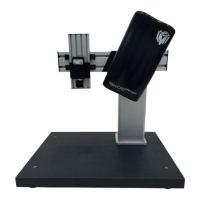
The system includes a 3D scanner head mounted on a stand, a calibration kit for ensuring accuracy, and a column control box for adjusting the scanner's height. The scanner connects to a computer via FireWire B and USB interfaces, allowing for data transfer and control through the MikroCAD software. A software dongle is required for using the measurement tools within the software, indicating a licensing mechanism for advanced functionalities.

Important Technical Specifications

While specific numerical specifications for resolution, accuracy, and scanning speed are not provided in the manual, several key technical aspects can be inferred:

  • Scanning Technology: Structured light projection, utilizing a projector and a camera to capture 3D data.
  • Connectivity:
    • Camera: FireWire B (IEEE 1394) for high-speed data transfer. The manual emphasizes the need for a FireWire adapter capable of providing 8-36 VDC and 2.75 W, highlighting power requirements over the FireWire interface. It also mentions a 12-pin camera connector.
    • Projector: USB for data communication and a 4-pin connector for projector trigger. A 7-pin projector connector is also mentioned.
    • Column Control Box: Connects to a column control power supply, which then plugs into a wall outlet.
  • Power Supply: Separate power supplies are provided for the scanner and the column control. The scanner power supply connects to the cable power connector.
  • Software Requirements: Requires MikroCAD software, which includes support for .NET Runtime 4.0. The software installer includes options for MikroCAD Lite & Premium 1.6x1.2, suggesting different software versions or capabilities.
  • Driver Requirements: Specific drivers are needed for both the projector (LMI Alligator USB driver) and the camera (Basler Pylon driver, specifically pylon IEEE 1394 Drives). The manual details the installation process for these drivers, emphasizing the importance of selecting the correct components during installation.
  • Computer Compatibility: The manual highlights the importance of a compatible FireWire adapter, especially for laptops, and recommends Point Grey Research FireWire cards (part number FWB-PCIE-02) for optimal performance.

Usage Features

  • Software-Controlled Scanning: The MikroCAD software provides a user interface for initiating scans, adjusting brightness, and focusing the scanner.
  • Brightness Configuration: Users can configure brightness using a slider in the MikroCAD software, guided by an "Intensity Profile" graph to ensure optimal data capture. The goal is to keep most peaks below 256 and near the middle of the graph.
  • Focusing Mechanism: The scanner is focused by aligning a projected cross pattern with a red cross in the MikroCAD software. The column control box allows for physical adjustment of the camera's height to achieve focus.
  • Data Acquisition and Measurement: After a scan, the acquired data can be transferred to measurement tools within the MikroCAD software for analysis. A software dongle is necessary for accessing these measurement functionalities.
  • Safety Warning: A critical safety warning advises users to avoid looking into the light projector for more than one minute due to potential vision risk.

Maintenance Features

The manual primarily focuses on initial setup and troubleshooting, rather than ongoing maintenance. However, some aspects can be considered maintenance-related:

  • Driver Installation and Updates: The detailed instructions for installing and updating projector and camera drivers are crucial for maintaining the scanner's functionality and compatibility with the operating system. This includes ensuring the correct Basler Pylon and LMI Alligator drivers are installed.
  • Software Updates: While not explicitly stated as "maintenance," the process of downloading and installing the MikroCAD software implies that updates would follow a similar procedure, ensuring the system benefits from bug fixes and new features.
  • Connection Verification: The troubleshooting section emphasizes checking all power and data connections (FireWire B, 12-pin camera, 18-pin projector, 4-pin projector, USB, power supplies) as a primary step in resolving issues, which is a fundamental aspect of system maintenance.
  • Proper Shutdown Procedure: The manual explicitly states the importance of closing the MikroCAD software before disconnecting the scanner to prevent damage, indicating a critical operational maintenance step.

In summary, the MikroCAD Premium 3D Scanner is a sophisticated tool for precise 3D data acquisition, designed with robust connectivity and software integration for professional applications. Its setup and operation require careful attention to driver installation and connection protocols to ensure optimal performance and longevity.

LMI Technologies MikroCAD premium Specifications

General IconGeneral
BrandLMI Technologies
ModelMikroCAD premium
CategoryScanner
LanguageEnglish