®
REMOTE CONTROLS
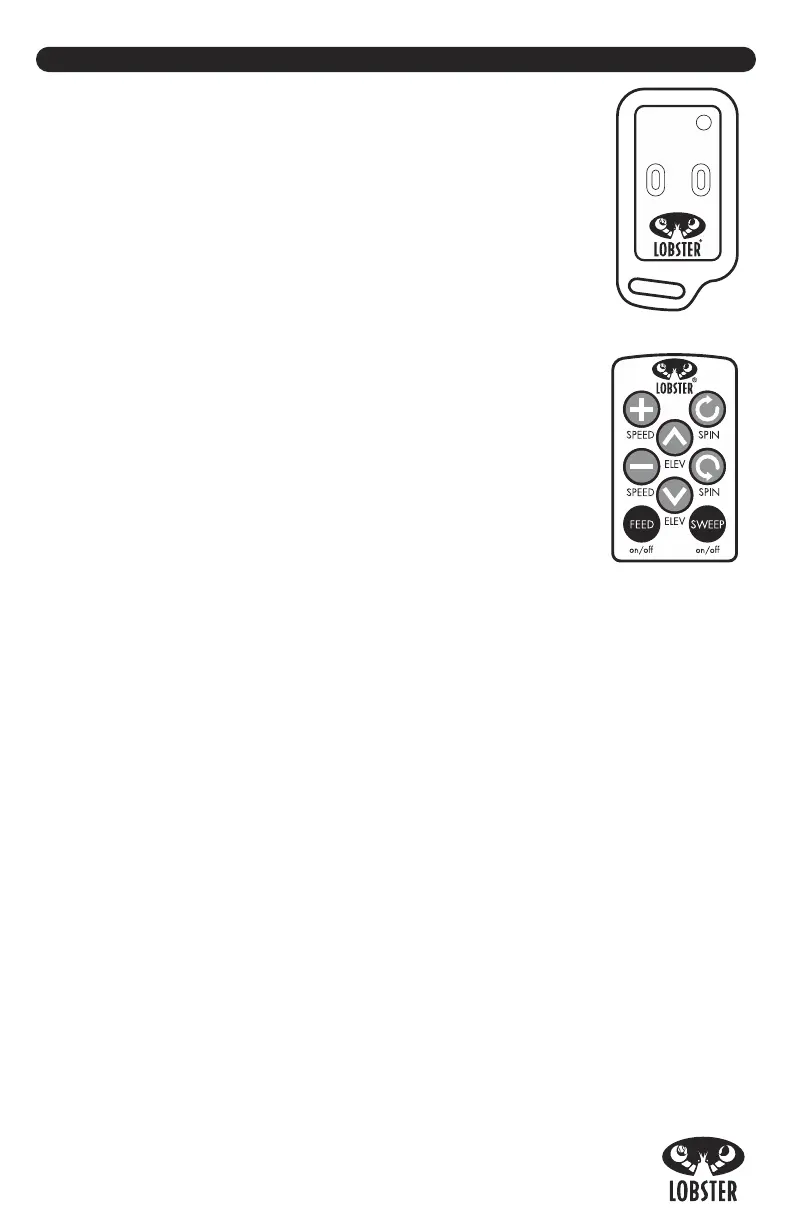
elite Remote Control (optional)
• Power on your machine by pressing the POWER switch on
the control panel.
• Press the REMOTE switch located on the control panel to ON
to activate the remote.
• Turn the ball FEED knob to select a 2-10 second feed rate.
• From the opposite side of the court, press the buttons on the
handheld remote to turn on/off the feed and/or sweep.
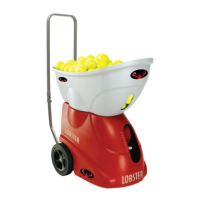
elite10 Remote Control (optional)
• Power on your machine by pressing the POWER switch on
the control panel.
• Press the REMOTE switch located on the control panel to
ON to activate the remote.
• Turn the ball FEED knob to select a 2-10 second feed rate.
• From the opposite side of the court, press the black FEED
on/off button on the handheld elite10 remote to begin play.
elite10 Remote Control for Apple (optional)
The elite10 remote for Apple works with iPhone, iPod, iPad and Apple Watch. The
remote must be factory installed. To use:
• Download the Lobster elite remote control app from the App Store
®
.
• Power machine on and press the REMOTE button on the control panel.
• On your device, go to the SETTINGS button and click on “Wi-Fi”. A network
called “Lobster Sports(x)” will be detected. Select this network.
• Open the Lobster elite remote control app on your device and allow up to 90
seconds for your device and machine to sync — they are connected when the
remote CONNECT/DISCONNECT button says DISCONNECT.
• When using Apple Watch, the iPhone must stay awake.
To change awake settings, navigate to Settings> Display & Brightness> Auto-
Lock> Never.
•
In the case of a disconnect,
click the CONNECT button to reconnect.
REMINDER: Please be advised that the switches and dials on the control panel
will always override the remote control.


 To Next Page