ACC20221223
Activation Card
SAV E
Need help? Email: help@Lockly.com | Support: +1(669) 500-8835
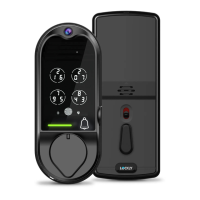
Make sure your Lockly Vision
TM
Elite has the latest firmware. Allow updates and
follow instructions if prompted. For more info, visit:
http: //www.support.Lockly.com/faq/firmware-update/
Power interruption during firmware update may damage the Vision Connect
hub. Do not interrupt or turn the power off while firmware update is in progress.
• Remember to register for warranty.
• Allow your mobile phone to receive push notifications.
• Send in-app feedback if you encounter any issues while using the App.
• If you are having difficulty scanning the QR code, we’re here to help. Call our
customer care team: (669) 500 8835, or visit Lockly.com/help for suggestions and
troubleshooting tips.
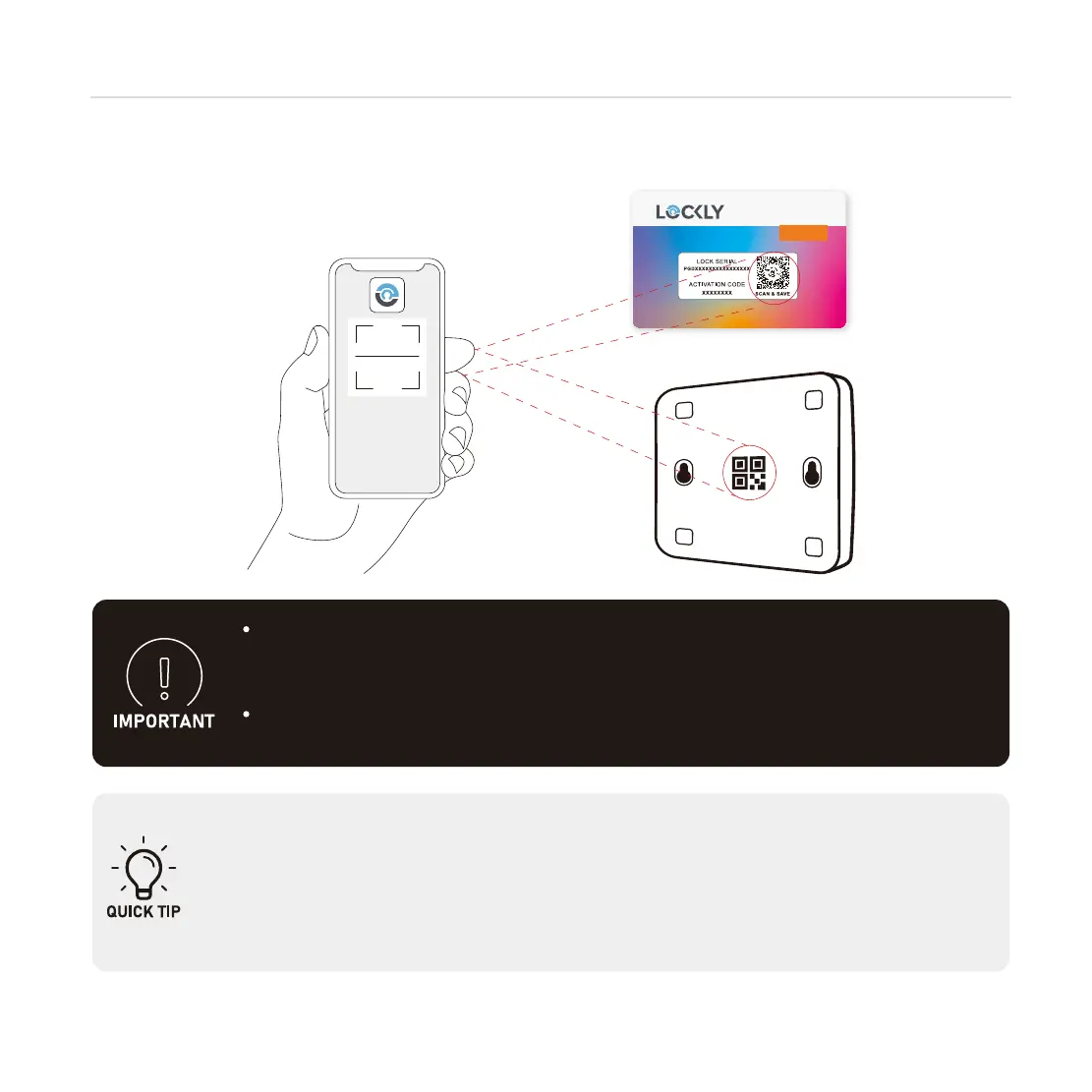
Launch the Lockly
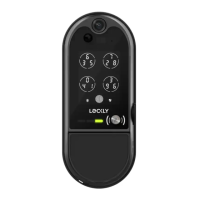
App and select "add a new device", then select Vision. You will be prompted
to scan the QR code from the Activation Card or Vision Connect Hub (located at the bottom).
PAIR VISION LOCK TO APP
17
Step 10
LOCKLY
App
OR


 To Next Page