EasyManua.ls Logo

Logitech F540 - User Manual

Logitech F540
17 pages
Print Icon
To Next Page IconTo Next Page
Loading...
Getting started with
Première utilisation
Logitech
®
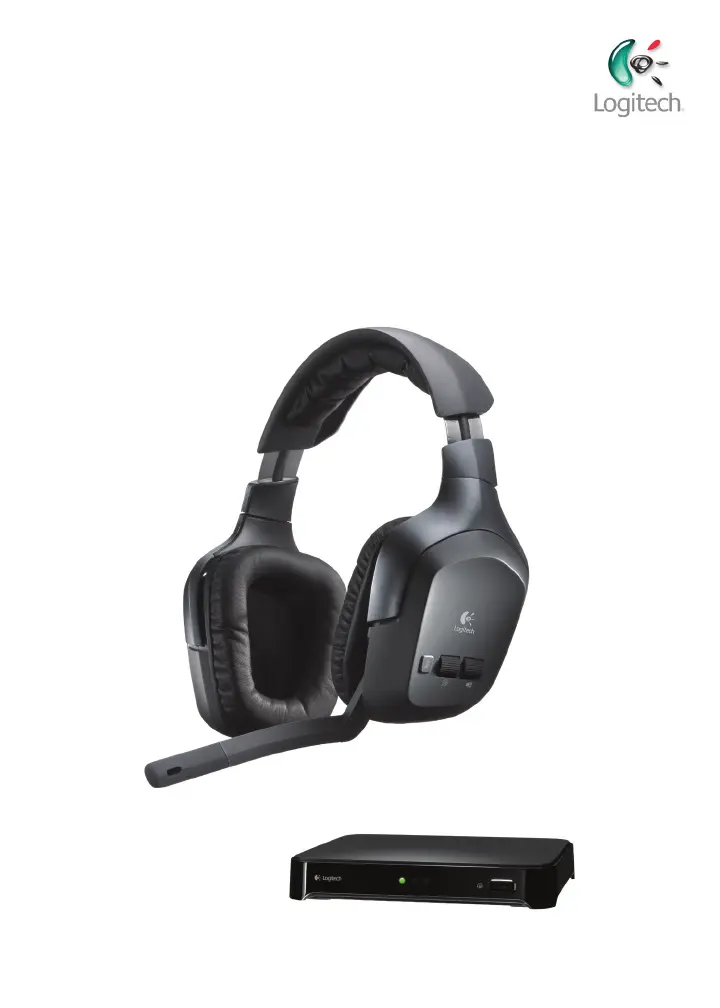
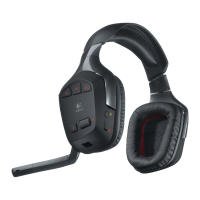
Wireless Headset F540

Other manuals for Logitech F540

Questions and Answers

  • A
    andrewsullivanJul 26, 2025
    How to fix Logitech F540 when I don’t hear anything through my headset?
    • M
      Marcia MilesJul 26, 2025
      If you can't hear anything through your Logitech Headset, ensure the wireless base station is plugged into a power outlet and that the headset is powered on. Check the audio cables are correctly plugged into the back of the wireless base station. Also, verify you have the correct audio system selected by pushing the INPUT button on the headset. Make sure your game system is on and a game is active. Try re-pairing the headset and the wireless base station by pressing and holding the power button on the headset for 15 seconds to put it into search mode. Finally, press the connect button on the bottom of the wireless base station.
  • P
    padillaronaldJul 31, 2025
    What to do if my Logitech Headsets microphone doesn’t work?
    • E
      Eric MartinezJul 31, 2025
      If your Logitech Headsets microphone isn’t working, first check your game manuals to ensure the game supports voice chat. Then, verify the cable connection between the wireless base station and the PS3, using the Mini-USB PS3 voice cable. Also, check the cable connection between the Headset F540 and the Xbox 360 game controller, using the 2.5 mm Xbox 360 voice cable.
  • R
    Ricky ChavezAug 5, 2025
    Why can't I hear anything through my Logitech F540 Headsets?
    • R
      Randy CarrAug 5, 2025
      If no LEDs are lit, ensure the wireless base station is plugged into a power outlet. Then, make sure the Logitech headset is powered on by pressing the power button for about one second. If it doesn’t turn on, recharge the battery. Also, check that your audio cables are correctly plugged into the back of the wireless base station. If one LED is lit, and you have multiple devices connected to your wireless base station, check to make sure you have the correct audio system selected by pushing the INPUT button on the headset. If all three LEDs are blinking, re-pair the headset and the wireless base station by pressing and holding the power button on the headset for 15 seconds to put it into search mode.
  • D
    Derek GloverAug 9, 2025
    What to do if the voice chat volume roller isn’t working on my Logitech F540 Headsets?
    • N
      Nicole BellAug 9, 2025
      If the voice chat volume roller isn’t working on your Logitech Headsets, you may need to change the voice chat settings in your PS3 or Xbox 360 system settings.
  • A
    Austin HamiltonAug 14, 2025
    Why am I hearing the wrong audio signal on my Logitech F540 Headsets?
    • E
      Elizabeth MyersAug 15, 2025
      If you are hearing the wrong audio signal on your Logitech Headsets, and you have multiple devices connected to the wireless base station, change the active audio system you are hearing by pushing the INPUT button on the headset.
  • T
    Todd JacksonAug 20, 2025
    What to do if I'm hearing the wrong audio signal on my Logitech Headsets?
    • L
      Lisa HendersonAug 20, 2025
      If you have multiple devices connected to the wireless base station, you can change the active audio system you are hearing by pushing the INPUT button on the Logitech headset.

Summary

Package contents

Powering up the wireless base station

Charging the headset

Instructions for charging the headset via USB cable and indicator lights.

F540 setup with PS3

Connecting PS3 game audio

Details connecting PS3 for game audio via HDMI/optical or analog.

Connecting PS3 audio via HDMI or Optical

Steps to connect PS3 audio via HDMI/optical to the base station and configure PS3 settings.

Connecting PS3 audio via Analog RCA

Steps to connect PS3 analog audio using RCA cables and a passthrough cable.

Alternative PS3 audio connection via TV;Receiver

Connects the base station to TV/AV receiver audio out for PS3 audio.

Connecting PS3 voice chat

Connects the base station to PS3 for voice chat using a mini-USB cable and configures settings.

F540 setup with Xbox 360

Connecting Xbox 360 game audio

Details connecting Xbox 360 for game audio via HDMI/optical or analog.

Connecting Xbox 360 audio via HDMI or Optical

Connects Xbox 360 HDMI/optical audio to the base station using component HD AV cable.

Connecting Xbox 360 audio via Analog RCA

Connects Xbox 360 analog audio via RCA connectors using a passthrough cable.

Alternative Xbox 360 audio connection via TV;Receiver

Alternative method to connect Xbox 360 audio to the base station via TV/AV receiver audio out.

Connecting Xbox 360 voice chat

Connects headset to Xbox 360 controller for voice chat and configures system settings.

Connecting other AV sources

Connecting Various Audio-Video Sources

Connects TVs, DVD players, MP3 players to the base station using RCA or 3.5mm cables.

Using the headset

Headset Features and Controls

Identifies and describes the headset's physical features and controls like microphone, volume, power, and ports.

Logitech F540 Specifications

General IconGeneral
Impedance- Ω
Ear coupling-
Headphone frequency- Hz
Frequency band2.4 GHz
3.5 mm connectorYes
Connectivity technologyWireless
Product typeHeadset
Product colorBlack
Recommended usageGaming
Microphone typeBoom

Related product manuals