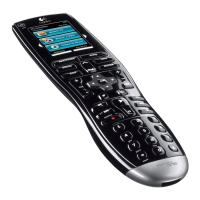
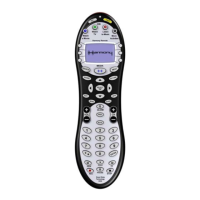
3.2 Logitech Harmony 880 Remote Layout
1) USB Connector: Downloads remote configuration
from the Harmony Web site.
2) OFF: Turns all devices off with one button press.
3) HELP: Asks simple questions so that the Harmony
remote can troubleshoot when a component is not in
the correct state.
4) ACTIVITIES: Press Activities to view a list of activities
you have added. Press the screen (LCD) button next to
the activity you want and the Harmony remote will set
up your entertainment system.
5) Color Display: Shows help, infrared (IR) commands
and any available listings.
6) On-screen Buttons: Use the buttons at the side of
the screen to select the corresponding command. Use
the right arrow button to display more commands.
7) DEVICE: Lists all devices in the entertainment system
on the screen (LCD), and allows you to select and fully
control any device.
8) Menu Buttons: While there is a default setting for
the buttons in most
activities, you can customize these buttons to send
different commands.
9) GUIDE: Provides television program listings on TV
screen if you have a device with that feature.
10) MEDIA: In the Watch TV activity, press this button
to view favorite channels on the screen.
11) LEFT/RIGHT Arrows: Navigates between Harmony
LCD screens when there are more than eight choices is
a given menu.
12) GLOW: Produces backlight glow.
13) Infrared Learning Port: Includes infrared receiver
so remote can learn commands from other remotes.
The Logitech Harmony 880 Remote Reviewer’s Guide
Summer 2005
Page 10






 To Next Page