EasyManua.ls Logo

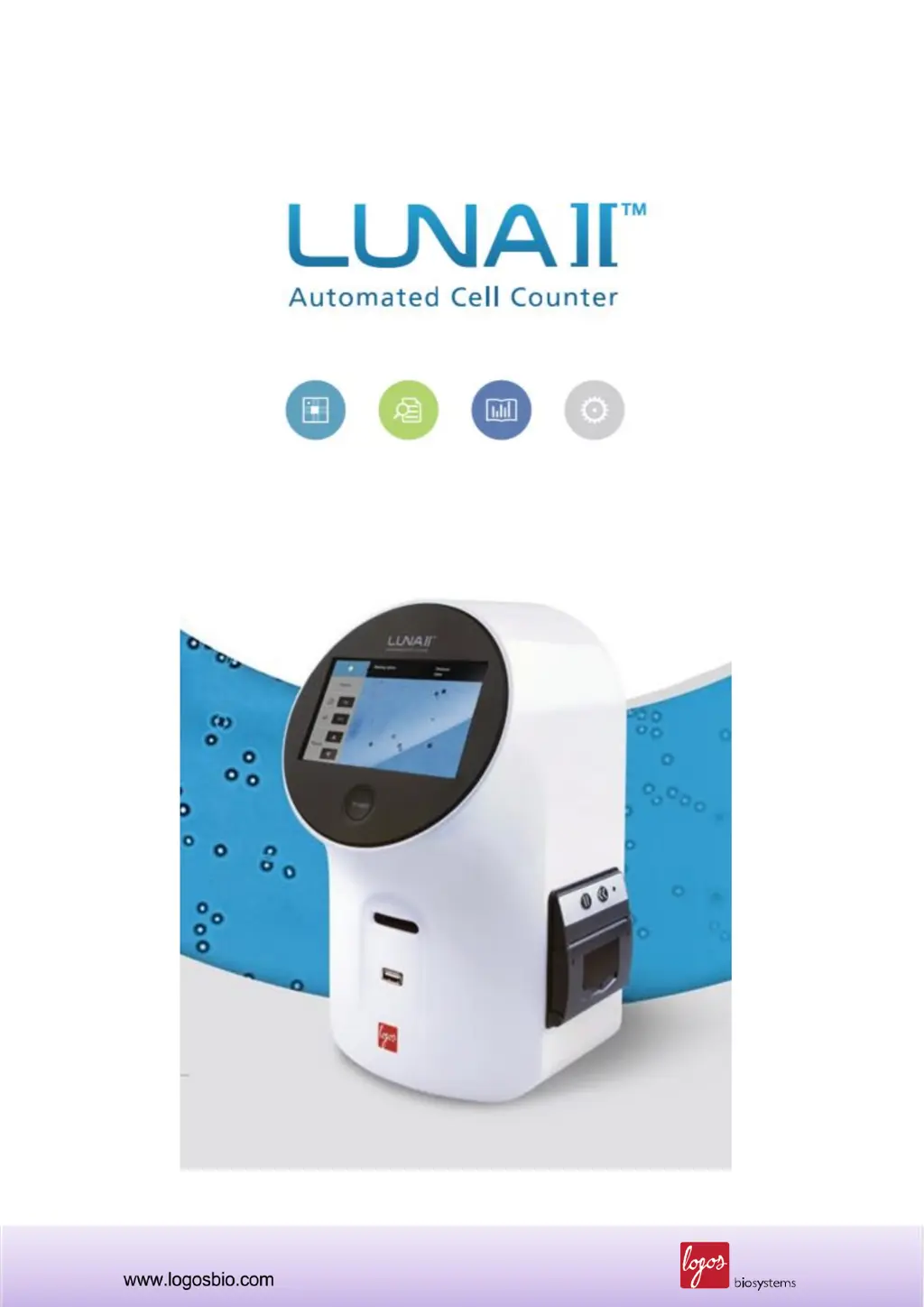
logos biosystems LUNA-II - User Manual

logos biosystems LUNA-II
66 pages
Print Icon
To Next Page IconTo Next Page
Loading...
1
Catalog No.: L40001 / L40002
Document No.: L44001
Revision Date: December 02, 2014
SW Version: 1.4.4

Other manuals for logos biosystems LUNA-II

Questions and Answers

  • E
    Elizabeth OwensAug 15, 2025
    How to troubleshoot data transfer and saving issues on logos biosystems Cash Counter?
    • S
      swagnerAug 15, 2025
      If you are experiencing issues with data transfer and saving on your logos biosystems Cash Counter, consider the following: * **Incorrect USB Drive:** Use the USB drive supplied with the instrument, or ensure your USB drive is compatible. The USB drive version must be 2.0, as some types are not detected by the instrument. * **Too Many Files on the USB Drive:** If the USB drive contains too many saved files, the counter's reading and writing speed may be reduced.
  • V
    Virginia KaneAug 22, 2025
    How to fix inaccurate cell count in logos biosystems LUNA-II Laboratory Equipment?
    • S
      Sarah WilsonAug 22, 2025
      To address inaccurate cell counts with Logos Biosystems Laboratory Equipment, ensure cells are not clumped, as single cells improve counting. Maintain a cell concentration of 5 x 10^4 – 1 x 10^7 cells/ml; dilute or concentrate if needed. Verify the counting slide is correctly inserted. Load 10–12 µl of cell suspension for optimal results. Check the slide for transparency and handle with gloves. If the issue persists, the optical components may be damaged or dirty, in which case you should contact your local supplier.
  • N
    nthompsonAug 27, 2025
    What to do if there are errors during updating and calibrating the logos biosystems LUNA-II?
    • G
      George WoodsAug 27, 2025
      If you encounter errors while updating or calibrating your Logos Biosystems Laboratory Equipment, especially if it freezes during calibration, allow several minutes for the process. If it exceeds 10 minutes, reset the system using the power button. If the issue persists, contact a service engineer. Also, ensure only one software version is on the USB drive, and the software file is correctly saved in the root directory. If problems continue, contact your local supplier.
  • W
    Wendy LewisNov 2, 2025
    Why is the cell count inaccurate on my logos biosystems Cash Counter?
    • A
      Alyssa RobinsonNov 2, 2025
      Inaccurate cell counts on the logos biosystems Cash Counter can stem from several factors: * **Unfocused Cell Image:** Ensure the cell image is properly focused using the focus knob. The 'Zoom-in' button can aid in adjustment. Live cells should exhibit bright centers, while dead cells should have dark or blue centers. * **Clumped Cells:** Ensure cells are not clumped together; single cells yield better counting results. * **Incorrect Cell Concentration:** The instrument's cell concentration range is 5x10⁴ - 1x10⁷ cells/mL. Adjust the sample to fall within this range by adding more cells or diluting as needed. * **Improper Slide Insertion:** Verify the counting slide is fully inserted into the instrument until a soft click is heard. * **Incorrect Sample Loading:** The optimal sam...
  • O
    ortizpriscillaNov 8, 2025
    What to do if there are errors during updating and calibrating the logos biosystems Cash Counter?
    • C
      Craig FrostNov 8, 2025
      If you encounter errors while updating or calibrating your logos biosystems Cash Counter, here are some potential causes and solutions: * **Freezing During Calibration:** Recalibration can take several minutes, potentially longer based on background adjustment. If calibration exceeds 10 minutes, reset the system by turning it off and on using the power button on the rear side of the instrument. If the calibration fails repeatedly, please contact a service engineer. * **Incorrect USB Drive:** Ensure you're using the USB drive provided with the instrument or one that is compatible (USB 2.0). Some USB drives may not be detected. * **Multiple Firmware Versions:** Delete any previous firmware versions from the USB drive before adding new firmware. * **Incorrectly Saved or Damaged Firmw...

Summary

Chapter 2 - Setting up

2.4 Calibrating the Touchscreen

Provides instructions for recalibrating the touchscreen for optimal responsiveness.

2.7 Calibrating LUNA-II

Details the essential background calibration procedure for accurate counting.

2.8 Updating the Software

Outlines the steps for performing software updates on the instrument.

Chapter 3 - Protocol Setting

Chapter 4 - Counting Cells

4.4 Counting Cells

Explains how to insert the loaded slide and initiate the automated cell counting process.

4.6 After Counting: Histogram & Gating

Explains how to interpret cell size histograms and apply gating parameters.

4.7 After Counting: Saving and Printing the Results

Details methods for saving data, images, and generating printed reports.

Chapter 5 - Focusing Option

Chapter 7 - Maintenance and Troubleshooting

7.4 Calibrating LUNA-II

Details the procedure for calibrating the instrument's background.

7.5 Updating the Software

Details the procedure for updating the instrument's software.

7.6 Troubleshooting

Offers solutions for common operational problems and error conditions.

logos biosystems LUNA-II Specifications

General IconGeneral
ModelLUNA-II
Device TypeAutomated Cell Counter
Sample Volume10 µL
Analysis Time7 seconds
Counting ChamberDisposable slide
Touch ScreenYes
ConnectivityUSB, Wi-Fi
Weight4.5 kg
AutomationYes
Detection MethodBrightfield
Cell Counting MethodImage-based analysis
Data OutputCSV, PDF
Display7-inch LCD
Sample TypesMammalian cells
Power Requirements100-240 V, 50/60 Hz
Operating Humidity< 80%

Related product manuals