LogTag TRIX-8 V2 Work Instruction Manual Revision 10.17 Page 37/44
Customisation (cont)
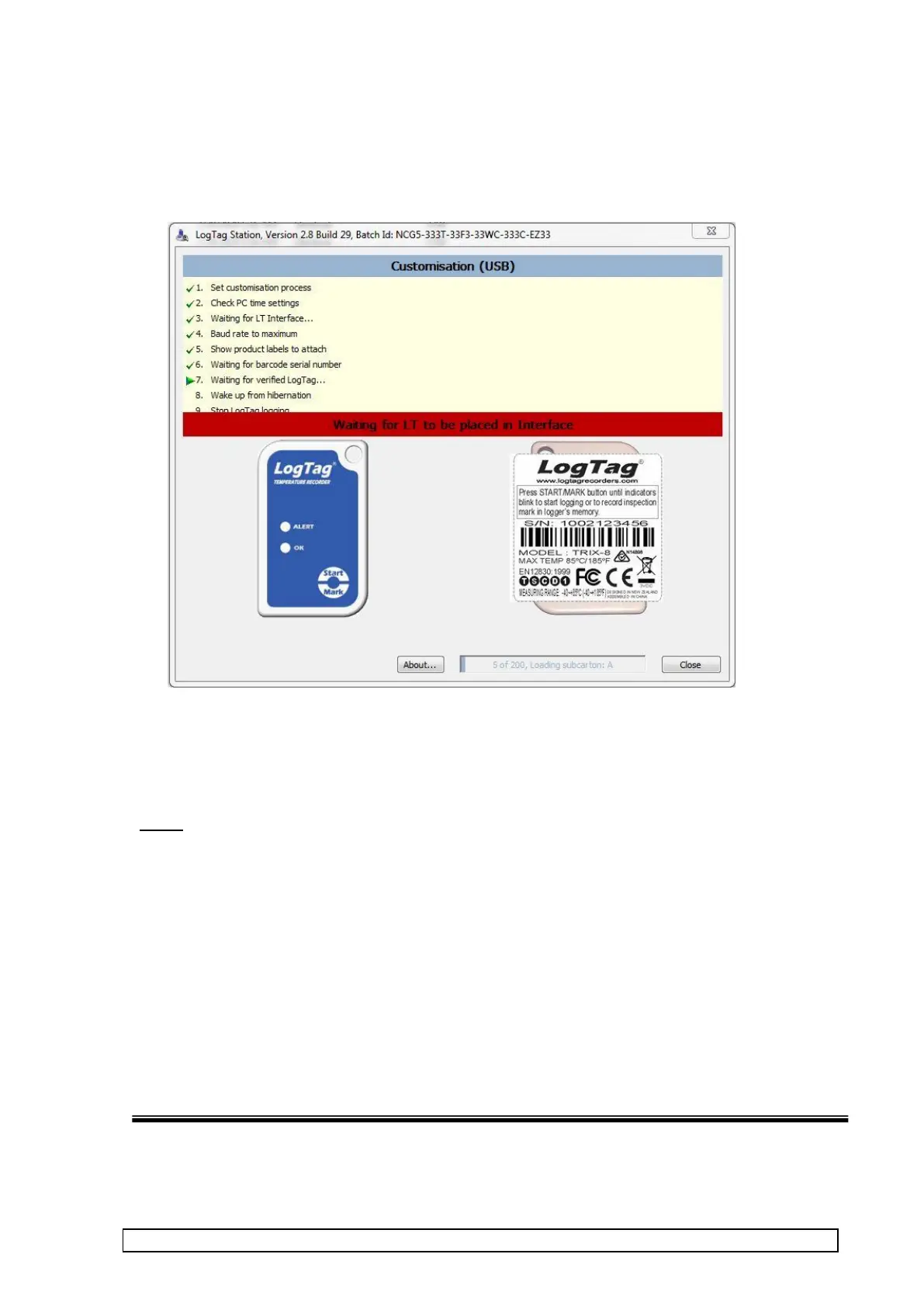
Display will then display the ‘waiting for LogTag’ screen detailing the labels to attached.
An example is shown below :-
5. Insert LogTag just scanned into interface
6. Repeat steps 2-5 for all the LogTags for the batch (or until the software prompts for a new batch ID).
This means the all the LogTags for the order have been completed.
NOTE
1. The customisation software can be closed midway and re-opened later and will keep track of the
number of products remaining for a given customer order.
2. DO NOT have the customisation software running on two computers at the same time with the same
batch ID.
3. DO NOT change to a different computer during a given batch is being processed.
4. Note that the bottom of the window shows the number processed and the current subcarton being
loaded (A,B,C or D).
5. If you see unit that lights flash after Customisation, (specially batch orders with profile ready to be
started), the unit MUST be re-submitted to Customisation.



 To Next Page