5
STREAM VIDEO
Broadcast public or invite-only live streams.
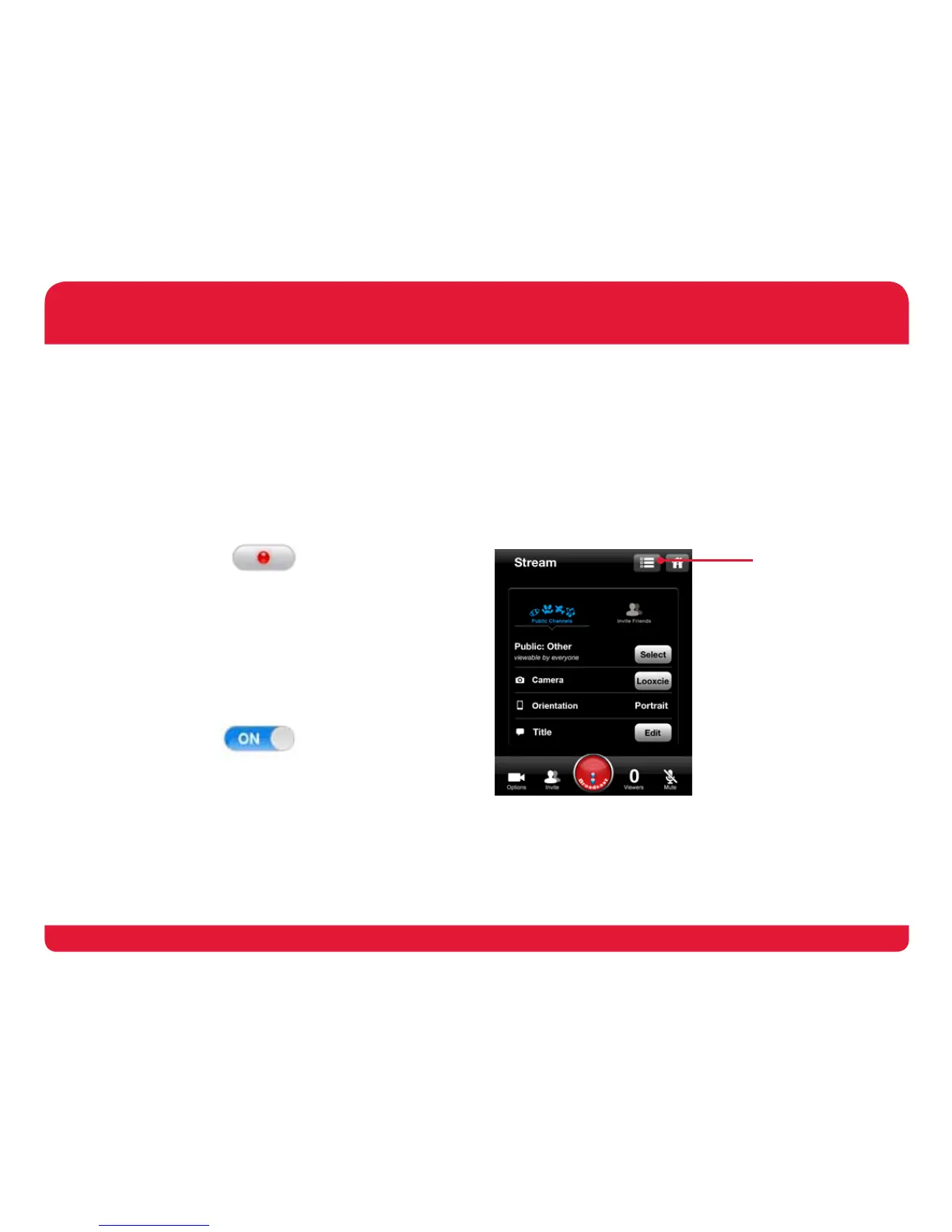
1. Tap “Stream” then tap “Public” or “Invite Friends”.
2. Tap “Select” to add viewers to your stream.
3. Add title & choose category for stream.
4. Tap Broadcaster Options button to choose timer.
5. Tap red broadcast button to start streaming.
Note: Tap “Camera” to stream with your smartphone’s
or tablet’s front or back camera.
BROADCAST CONTROLS
Options: Select to edit title & choose light mode.
Invite: Select to invite friends to view your stream.
Broadcast: Select to start & end live streaming.
Viewers: Select to see your stream’s viewer history.
Mute: Select to mute your stream’s audio.
FRIENDS
Add contacts as friends to invite them to view streams.
1. Tap + to add contacts to your Looxcie friends.
2. Add contacts from email, address book & Facebook.
3. Use back button to view friends, sent invitations &
received invitations.
CAMERA
Live stream, record and instant replay.
> Tap red camera button to choose from camera modes.
RECORD VIDEO
Record like a regular HD camcorder.
1. Tap “Record Video”.
2. Choose resolution & light mode.
3. Tap record button in app or on camera to start &
stop recording.
4. To view & share video, tap “My Videos”.
Note: Tap battery symbol to view camera battery %.
BUFFER VIDEO
Record loop video & create “instant replay” clips.
1. Tap “Buffer”.
2. Choose resolution & light mode.
3. Tap on/off switch to start & stop recording.
4. Tap “Instant Clip” in app or instant clip button on
camera to instantly save a clip of last 30 seconds.
5. To view & share video, tap “My Videos”.
Note: Tap battery symbol to view camera battery level.
LOOXCIE MOBILE APP
iOS shown here.
Android may
appear differently.
Broadcaster Options:
Select to choose
broadcast time & start
chat with viewers.


 To Next Page