EAGLE EYE™
Quick start guide
Card reader
Carefully slide a microSD
®
into the card reader slot on the
side of the device. To remove the microSD
®
card, gently pull
the card.
System controls
Press the power key once to view the System Controls dialog.
¼ Note: The content of the System Controls dialog depends
on connected equipment and the active panel.
An orange bar displays above active
options in the System Controls dialog.
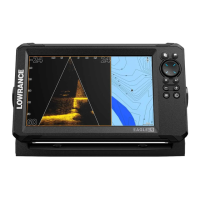
This document describes the basic controls of the Lowrance Eagle Eye™ multi-function display (MFD). For the latest version of
this document and the full operator manual, visit: www.lowrance.com/downloads/eagle.
¼ Note: Refer to the enclosed Installation Manual before you turn on the unit.
Physical control keys
B
C
E
D
F
G
A
H
A Pages
• Press to activate the home screen.
B Waypoint
• Press to open the new waypoint dialog.
• Press twice to save a waypoint.
• Press and hold to access the nd dialog.
C Arrows
On full screen pages:
• Press to position the cursor.
• Press to pan the image in any direction.
On multi-panel pages:
• Press to select a panel.
On menus:
• Press to navigate.
D Exit
On a maximized, multi-panel page:
• Press to return to the multi-panel page.
In menus and dialogs:
• Press to return to the previous menu
level and to exit a dialog.
E Enter
On multi-panel pages:
• Press to maximize the currently
selected panel.
In menus and dialogs:
• Press to conrm a selection.
F Zoom
• Press to zoom the image.
• Press both keys together to create a
crew overboard (MOB) waypoint at your
position.
G Menu
• Press to display the menu on full screen
pages.
H Power
• Press once to display the System
Controls dialog.
• Press and hold to power the unit on /off.
• Repeat short presses to cycle the
backlight brightness.
*988-13224-001*
Scan here
to save a copy

 Need help?
 General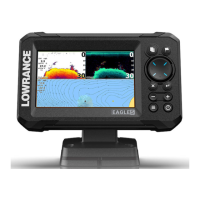


 To Next Page