This device, as well as all other wireless devices, may be subject to interference. Interference
may be caused by cell phones, Bluetooth headsets, Wi-FI routers, power lines and other
various electrical equipment. Etc.
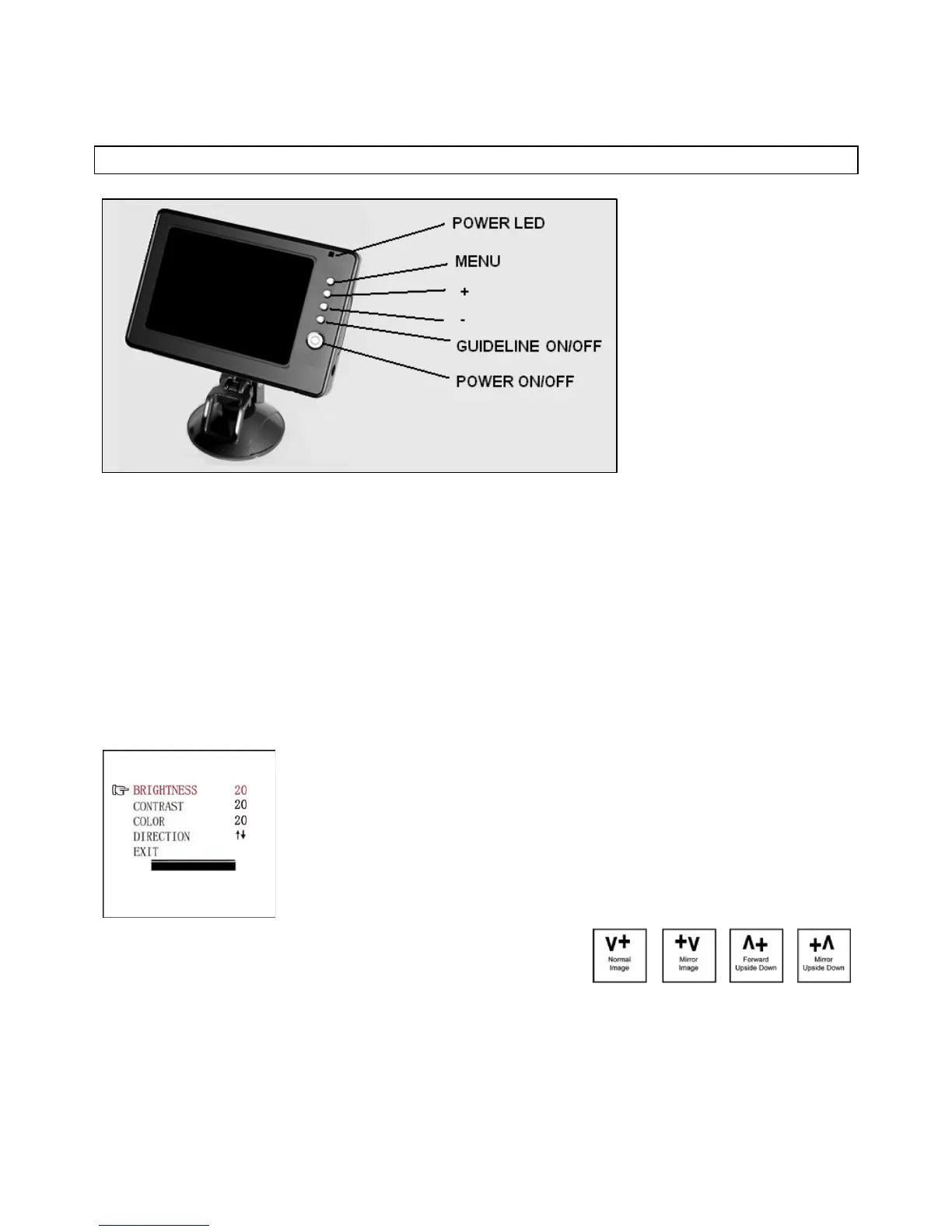
MONITOR CONTROLS
The monitor will automatically turn ON when the vehicle is in reverse gear. Also, there are 5
control buttons available for user to have their controls.
Power On/Off Button - BLUE LED Power Indicator
Press POWER ON/OFF button to supply power to monitor. When monitor image is ON, the blue
LED will be lit. If there is power to the monitor but the monitor image is off, the blue LED will blink
on and off. When the monitor power is OFF, no picture can appear on the screen and the blue
LED will be off.
When power supplied is on, the monitor will automatically turn ON and an image will appear
when the vehicle is in reverse gear. There are 5 buttons available for the user to control the
screen image.
When power supplier is off, the blue LED will be in series flickering for 1 second.
MENU, + and - Buttons
Press MENU button to enter the menu screen as shown below:
Repeat pressing MENU button to select BRIGHTNESS, CONTRAST
or COLOR controls.
Press + button or – button to adjust settings within the control selected.
Press the + button to increase the value and the – button to decrease
the value.
To change the orientation of the screen image, press MENU button until
DIRECTION is selected. Then press + or – repeatedly until desired
screen orientation “left to right”, “right to left” or “upside down”
is achieved.
The different views allow you to mount the camera and / or monitor either right side up or
upside down and still display the image correctly on the monitor. The image displayed should
match your rear view mirror.
To exit the menu screen, select EXIT on the screen using the MENU button and press either +
or – to exit the menu screen.
Guideline ON/OFF
Press GUIDELINE ON/OFF button to switch ON or OFF the on-screen-display guideline.
12


 To Next Page
 Loading...