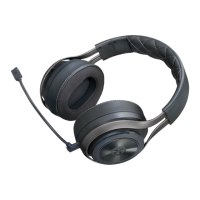
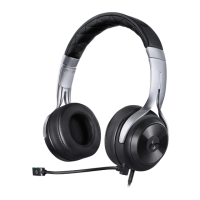
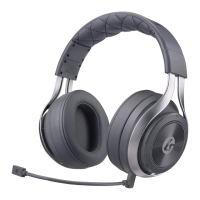
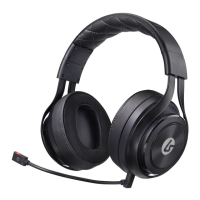
©2017 Lucid Sound, Inc. 2150 Palomar Airport Rd., Suite 201, Carlsbad, CA 92011 U.S.A. Lucid Sound and the
Lucid Sound logo are trademarks of Lucid Sound, Inc., its subsidiaries, and aliates. The shape and design of this
product are a trade dress of Lucid Sound, Inc., its subsidiaries and aliates. All rights reserved. All other product
names and images are trademarks or registered trademarks of their respective owners. Made in China. Product
features, appearance and specications may be subject to change without notice. Please retain this information for
future reference.
Lucid Sound, Inc. warrants this product to be free from defects in materials and workmanship for the warranty
period. This non-transferable, limited warranty is only to you, the rst end-user purchaser. If a defect covered by
this warranty occurs AND you provide proof of purchase, Lucid Sound, Inc., at its option, will repair or replace the
product at no charge (excluding shipping to Lucid Sound).
Lucid Sound, Inc., provides a minimum 2-year limited warranty (Canada: 1 year) or the minimum warranty period
required by local law. Your sole and exclusive remedy is repair or replacement of your Lucid Sound product. In no
event shall Lucid Sound’s liability exceed the original purchase price of the product. This warranty does not apply
to: (a) normal wear and tear or abusive use; (b) industrial, professional or commercial use; (c) if the product has been
tampered with or modied.
To receive warranty service, please contact us at:
lucidsound.com
(toll free) 888-661-4469
1-760-579-6969
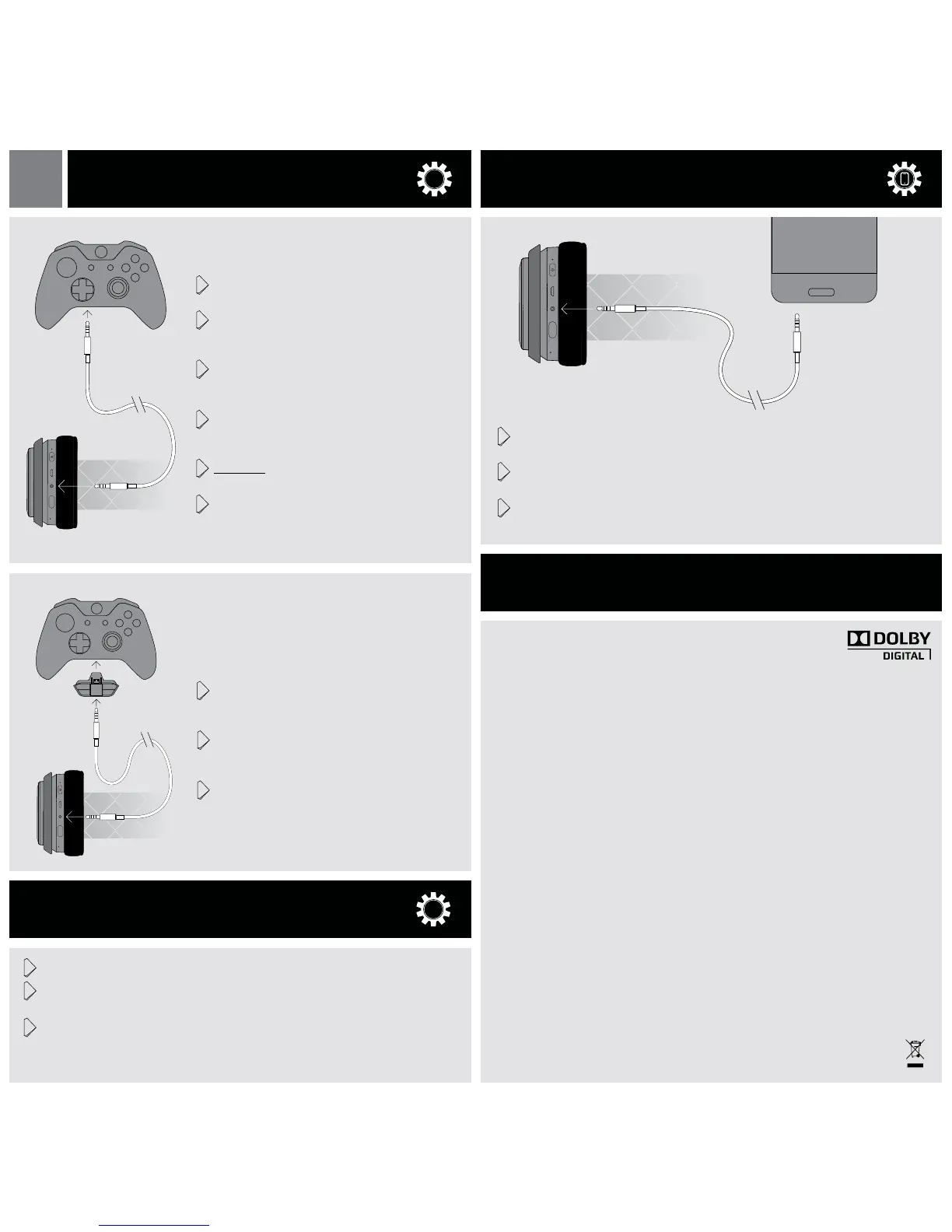
1 Always turn on the headset before turning on
the controller
2 Connect one end of the Xbox One chat cable to the
3.5mm port on the headset and the other end to
the 3.5mm port on the Controller
3 On the Xbox One, go into All settings > Kinect &
devices > Devices & accessories and choose the
Xbox One Wireless Controller in use
4 Select ‘Volume’ and set ‘Headset volume’ to maxi-
mum and ‘Mic monitoring’ to minimum.
Make sure that ‘Headset mic’ is turned to ‘On’
5 If it appears, set ‘Headset chat mixer’ all the way to
the right for 100% chat
6 On the Xbox One, go into All settings > Display &
sound. Under ‘Audio Output’ select ‘Optical audio’
and choose ‘Bitstream out.’ Then select ‘Bitstream
format’ and choose ‘Dolby Digital’
If the Xbox One Controller does not have a 3.5mm
port, an Xbox One Stereo Headset adapter is
required (not included).
1 Connect one end of the Xbox One chat cable to the
3.5mm port on the headset and the other end to
the 3.5mm port on the Stereo Headset Adapter
2 Adjust the game/chat balance on the Stereo Head-
set Adapter to 100% chat and increase the volume
on the adapter to maximum
3 On the Xbox One, go into All settings >
Display & sound. Under ‘Audio Output’
select ‘Optical audio’ and choose ‘Bitstream out.’
Then select ‘Bitstream format’ and choose ‘Dolby
Digital’
1 Connect the dongle to a USB port on the computer and power on the headset
2 In the computer’s sound settings, set the default sound output to “LucidSound PC Gaming
Audio” for game audio
3 In the chat program being used, choose “LucidSound PC Chat Audio” for both the Input and
Output
USB audio for stereo use. Optical connection with Dolby Live required for surround sound.
1 Connect one end of the mobile cable to the 3.5mm input on the headset and the other end
to the 3.5mm output on the mobile device
2 The headset will only work in passive (OFF) mode. (Note that the volume, EQ, and mute
features will not function)
3 Press the button on the left earcup to control music, voice commands, and phone
calls
Model No: LS40RX IC: 21203-16302
Model No: LS40TX IC: 21203-16301
This device complies with Industry Canada licence-exempt RSS-247 standard. Operation is subject to the following
two conditions: (1) this device may not cause interference, and (2) this device must accept any interference, including
interference that may cause undesired operation of the device.
IC Radiation Exposure Statement:
This equipment complies with IC RSS-102 radiation exposure limits set forth for an uncontrolled environment. This
equipment should be installed and operated with minimum distance 0.5 cm between the radiator and your body.
LucidSound, Inc.
Made in China
For DTS patents, see http://patents.dts.com.
Manufactured under license from DTS, Inc. DTS, the Symbol, DTS and the Symbol together, the DTS Headphone:X
logo are registered trademarks or trademarks of DTS, Inc. in the United States and/or other countries. © DTS, Inc. All
rights reserved.
Manufactured under license from Dolby Laboratories. Dolby and the double-D symbol are trademarks of Dolby Laboratories.
XBOX ONE SETUP
PC / MAC SETUP
MOBILE
SUPPORT
XB1
Controllers with 3.5mm port
Controllers without 3.5mm port
PC
?#!*
EN



 To Next Page
 Loading...