Under Flight Recording, you will nd options for
Recording Interval and Pilot/Airplane properties, under
Advanced you can nd Connection settings, Radio
settings, device ID for radio communication and ICAO
24-bit address in case you have transponder.
When appropriate settings have been made, click Save
to generate the cong le. Save the le to the root of
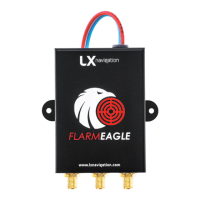
USB ash drive, insert it into LX FLARM Eagle and turn
it on. The conguration will start automatically. Wait 5
minutes and restart it. The LX FLARM Eagle is congured.
3. Flights/logbook download
The most convenient way to download ights is via USB
ash drive, as it is an automatic procedure. FLARM will
store all nished ights from internal memory to USB
ash drive (if it is inserted). Stored ights can be viewed
on PC (.igc format).
4. Updating LX FLARM Eagle
To update device, download the latest FW version at
www.lxnavigation.com/support/soware and copy it to
the root of USB ash drive. Insert the USB into the device
and power it on. Wait 5 minutes and restart it. The LX
FLARM Eagle is updated.
5. Completing the installation
Connect any compatible FLARM display to your LX FLARM
Eagle via RJ11 FLARM cable to get the full potential of
the system. LX FLARM Eagle will provide the necessary
power (12 V and 3,3 V) and data via single cable.
We recommend using LX FLARM Eagle with LX navigation
FLARM accessories - LX Trac monitor, LX FLARM Colour
display and LX FLARM LED display. Discover more at
www.lxnavigation.com.
Some settings in FLARM Firmware will not work correctly or will be limited if you do not use the latest FLARM
Firmware version. Ensure that LX FLARM Eagle is updated at least once per year.


 To Next Page