EasyManua.ls Logo

Lytx ER-SF1 - User Manual

Default Icon
51 pages
Print Icon
To Next Page IconTo Next Page
Loading...
Page 1 of 51
(North America Edition)
©2019 Lytx, Inc. - Confidential & Proprietary.
Lytx
®
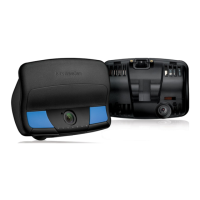
SF-Series Event Recorder
Installation Instructions
(North America Edition)
Last updated: 4/1/2019
THE DEVICE SHOULD BE INSTALLED AND MAINTAINED BY QUALIFIED TECHNICIANS. Only a properly qualified technician
should install and maintain the SF-Series device. Any electrical work should be performed only by an ASE (minimum T6
& L2), MECP or equivalent certified technician with an expertise in installing and troubleshooting advanced vehicle
onboard components including multiplexed circuits. Lytx, Inc. disclaims all responsibility for any damages arising from
improper installation and maintenance of the SF-Series device.
This guide is protected as confidential and proprietary information of Lytx, Inc. Copying and use of this guide for any
purpose other than installing SF-Series in vehicles of Lytx, Inc.’s customers is expressly prohibited. Information
contained in this guide was in effect as of the date set forth above and is subject to change without notice or liability.
Lytx, Inc. reserves the right to revise the information presented or to discontinue the production of parts described at any
time.

Table of Contents

Questions and Answers

  • R
    Richard ChandlerAug 15, 2025
    Why my Lytx Voice Recorder ER-SF1 fails to power up after installation?
    • S
      Steven ClineAug 15, 2025
      If your Lytx Voice Recorder ER-SF1 fails to power up post-installation, consider these potential causes: * The vehicle battery might be disconnected; reconnect it or check the battery cut-off switch. * Ensure the red wire on the vehicle interconnect cable is connected to a constant power source. * A fuse may be missing or open; verify the fuse panel location for constant power and ensure the correct fuse is installed and functional. * The connection between the standard power cable and the vehicle interconnect cable might not be fully secured; disconnect and reconnect, ensuring a secure "snap." * The red wire on the vehicle interconnect cable could be damaged; inspect the entire wire for damage and repair as necessary.
  • A
    Angela ZimmermanAug 19, 2025
    How to fix ignition not being detected in Lytx Voice Recorder Installation Tool?
    • B
      brooksgarrettAug 19, 2025
      If the Lytx Installation Tool isn't detecting ignition, try these steps: * If the engine is already on, turn it off and then back on. * Check the brown wire connection for damage. Use a voltmeter to check for 12V/24V with the ignition on. Also, check the vehicle fuse for that circuit.
  • M
    melissathompsonAug 21, 2025
    What to do if engine RPM is not detected in Lytx ER-SF1 Voice Recorder Installation Tool?
    • K
      Kenneth JohnsonAug 22, 2025
      If the Lytx Installation Tool isn't detecting engine RPM, here are a few things to check: * Make sure the vehicle is running. If it is, try turning the device off and on, either by disconnecting the power cable or by entering the device's Diagnostic Mode. * Ensure that the Yellow wire is on the CAN-HI (Y) side of the Coupler and the Green wire is on the CAN-LO (G) side, as the wires may be reversed over the CAN Coupler. * Check the CAN Coupler to make sure it is fully engaged. * The CAN Coupler may not have been placed on the CAN backbone, but on a stub. Try moving the Coupler to a different location.
  • E
    Emily BrownAug 25, 2025
    Why Lytx Voice Recorder ER-SF1 is not booting properly?
    • B
      Bradley RamirezAug 26, 2025
      If your Lytx Voice Recorder ER-SF1 isn't booting correctly and disconnects from the Lytx Installation Tool, it could be due to: * Insufficient current on the constant power connection. Check the connection and ensure the source wire can supply 5 amps. * A loose or insufficient chassis ground. Inspect the ground connection to ensure it's tight and located free of paint or rust.
  • S
    Shelley RileySep 1, 2025
    Why Lytx Voice Recorder ER-SF1 does not come out of Hibernate mode?
    • S
      susan96Sep 1, 2025
      If your ER-SF1 isn't exiting Hibernate mode when you activate the ignition, it might be due to an issue with the brown wire connection. Check the wire for any damage, and use a voltmeter to ensure it's receiving 12V/24V when the ignition is on. Also, inspect the vehicle's fuse for that circuit.
  • J
    Jonathan WhiteSep 4, 2025
    How to fix GPS time and coordinates not being detected in Lytx ER-SF1?
    • J
      Jeffrey JohnsonSep 4, 2025
      If the GPS time and coordinates aren't being detected, or if only zeroes are showing up in the Lytx Installation Tool, the device might be in an area with poor reception. Try moving to a different location to re-test the signal.
  • S
    scottjimenezSep 8, 2025
    What to do if Model and Device Serial Number do not appear in Lytx ER-SF1 Installation Tool?
    • J
      John DiazSep 8, 2025
      If the Model and Device Serial Number are not appearing in the Lytx Installation Tool, there may be an issue with Windows Firewall. Plug the device in again and verify that the Lytx Installation Tool is allowed through Windows Firewall.
  • N
    Nicole TurnerSep 12, 2025
    What does solid Yellow LED status light on Lytx Voice Recorder ER-SF1 mean?
    • K
      Karen StoutSep 12, 2025
      If your ER-SF1 shows a solid Yellow LED, it indicates an issue with the cellular modem. For CDMA units, it means the modem hasn't been provisioned correctly. With GSM modems, the SIM card might not be seated properly. Try reseating the SIM card to see if the light changes to Green. If it remains Yellow, contact Lytx Technical Support.
  • S
    sabrinaholtNov 27, 2025
    What to do if Lytx Connection is not being detected in Lytx ER-SF1 Voice Recorder Installation Tool?
    • M
      Miss Kelly RoseNov 27, 2025
      If the Lytx Connection isn't being detected in the Lytx Installation Tool, try these steps: * Create a manual event and then do a forced check-in. To manually create an event, push either of the blue manual record buttons on the ER-SF1. The LED status lights on the ER-SF1 will light up green one-by-one from the left to right until all are lit, indicating the event has been created. After the event is created, hold one of the manual record buttons for 10 seconds to attempt a forced check-in to Lytx. The LED status lights will light up and blink one-by-one from the left to right until all are lit, indicating the check-in was successful. * The device may be in an area without reception. Bypass this for now by checking the "Known Issue Bypass" box. Re-test this connection when the device ...

Summary

Safety Instructions

Installation Safety Warnings

Key safety precautions for device installation to prevent injury or damage.

Driver Safety Warnings

Safety advice for drivers regarding the use and limitations of the event recorder.

Regulatory Compliance and Notices

Information on adherence to laws, FCC, and Industry Canada regulations for device operation.

Suppliers Declaration of Conformance

Statement confirming the product's conformity with relevant standards and normative documents.

Device Installation Overview

Installation Scope and Preparation

Overview of installation procedures, critical warnings, and initial steps before beginning.

Kit Materials

List of items included in the SF-Series Event Recorder kit.

Required Tools and Optional Items

Essential tools, optional tools, and parts for installation.

Device Overview

Lytx Installation Tool Setup

Instructions for downloading and installing the Lytx Installation Tool for device testing.

SF-Series Installation Procedures

Mounting the Bracket and Event Recorder

Steps for physically attaching the mounting bracket and event recorder to the vehicle.

Connecting Electrical Wiring

Guidance on proper methods for connecting the device's electrical wiring.

Testing and Finalizing Installation

Procedures for testing device functionality and completing the installation.

Installation of Optional Parts

Overhead Mounting Bracket Installation

Instructions for installing the optional Overhead Mounting Bracket.

Extended Mounting Arm Installation

Steps for installing the optional Extended Mounting Arm.

Remote Push Button Installation

Guide for installing and configuring the optional Remote Push Button.

Maintenance & Troubleshooting

Routine Maintenance Checks

Recommended periodic inspections of cables, connections, and wiring.

Installation Troubleshooting

Guidance and solutions for common problems encountered during installation.

Post-Installation Troubleshooting

Steps to diagnose and resolve issues that arise after the event recorder has been installed.

Using Diagnostic Mode for Troubleshooting

Instructions on initiating diagnostic mode and interpreting LED status lights.

Lytx ER-SF1 Specifications

General IconGeneral
BrandLytx
ModelER-SF1
CategoryVoice Recorder
LanguageEnglish

Related product manuals