8
Pairing the keyboard with your Windows PC
1. After a Bluetooth device(for Windows PC) is selected, for example B2, the first time use, pairing is required. Press
the Pair button to set keyboard in pairing mode, the device LED flashes blue.
2. In Windows 10, for example, open the Settings from the Windows menu or by pressing Win and I keys.
Then click to open Devices icon.
3. Under Devices, select Bluetooth & other devices. Click on Add Bluetooth and other devices, select
Bluetooth to add this keyboard. Make sure the keyboard Bluetooth device LED is still flashing and
discoverable.
4. Once you see the Macally Bluetooth Keyboard appear, double click on it to connect. Windows will
notify you when the keyboard is ready to use.
Please note that if you are using a different Windows OS version, the pairing procedures may be different
slightly.
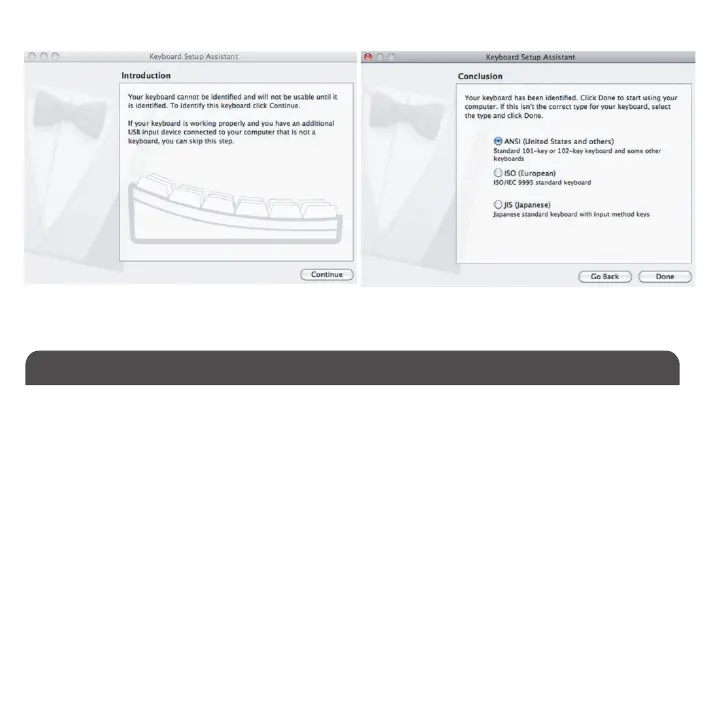
6. Select ANSI option, and click on Done button to finish and close Keyboard Setup Assistant window.
It is ready to use the keyboard in Mac.


 To Next Page