11
Using DMX-OUT Via USB
You can connect MADRIX
®
LUNA directly via USB to the computer that runs
the MADRIX
®
software. Data is sent to MADRIX
®
LUNA via USB cabling and
distributed to the XLR output ports (‘DMX 1 – DMX 4/8/16’).
Follow these quick steps to configure USB output in MADRIX
®
:
Step 1) Connect LED controllers/fixtures to the XLR ports of MADRIX
®
LUNA.
Step 2) Connect MADRIX
®
LUNA to power.
Step 3) Connect MADRIX
®
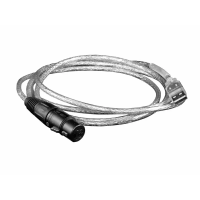
LUNA to a free USB 2.0 port of your computer
using the provided USB cable.
Step 4) Start MADRIX
®
and configure your virtual LED matrix using
‘Preferences...’ à ‘Matrix Generator...’ or à ‘Patch...’.
Step 5) Enable USB drivers in MADRIX
®
. Go to ‘Preferences...’ à ‘Options…’
and select the tab ‘Devices USB’. Activate ‘MADRIX LUNA interfaces’,
press ‘OK’, and restart MADRIX
®
.
Step 6) Configure DMX output. Go to ‘Preferences...’ à ‘Device Manager...’
à‘DMX Devices’ and activate ‘Enable’ for each required output port.
For more information, please read the MADRIX
®
user manual.
Device Configuration In MADRIX
®
Web Configuration
You can access the web configuration interface through MADRIX
®
, if Art-Net
is configured. Go to ‘Preferences...’ à ‘Device Manager...’ à ‘Art-Net’. Your
MADRIX
®
LUNA device is shown in the list with its IP address. Select your device
and press ‘Config By Web’. Your default web browser will open automatically.
LUNA Configuration
In MADRIX
®
, go to ‘Tools...’ à ‘LUNA Configuration...’ to call up the MADRIX
®
LUNA Configuration dialog. The same settings from the web configuration
interface will be available.
For more information, please read the MADRIX
®
user manual.



 To Next Page