MAGMA
8 Chapter 3 Verify Installation
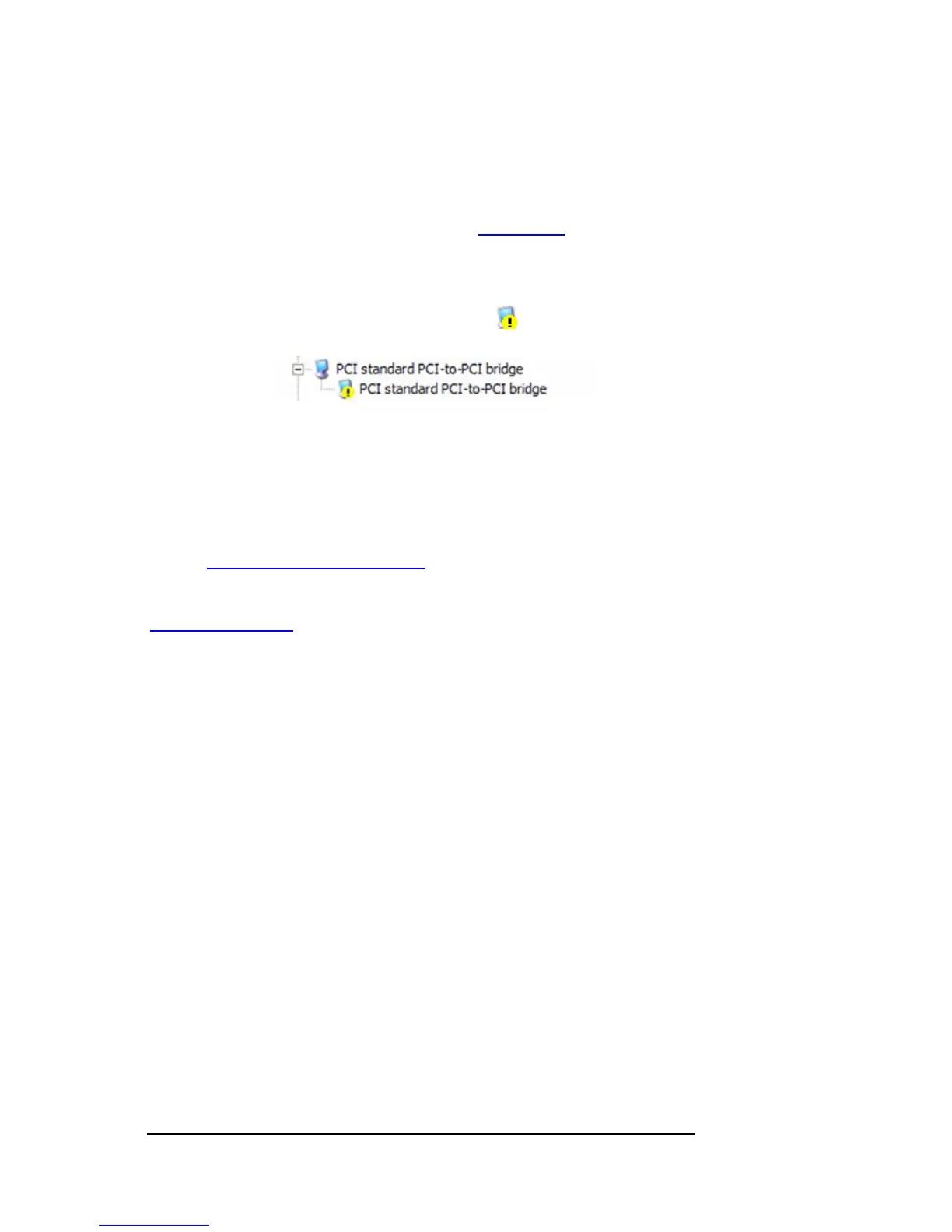
When installed correctly, you will see three “PCI to PCI Bridges” below
your system’s PCIe Controller. Any 3
rd
Party PCI cards installed in the
chassis will appear below one of the PCI-to-PCI bridges.
If everything is OK, then the Magma Expansion System installation is
complete. You can now proceed to
Chapter 4 for help with the
installation of 3
rd
Party PCI Cards.
If, however, the installation was unsuccessful, you may not see the PCI
to PCI Bridge, or it will have a small yellow
in front of it.
If any of these devices are not displayed as shown above, you should
shut down your system (host computer first, then the expansion
chassis) and reconnect the cables and reseat the PCI Host Card to
ensure that you have a solid connection. Then restart the Magma
expansion chassis, followed by the host computer. Next, try to verify the
installation again, as shown above. If you are still having problems,
review
Chapter 5, Troubleshooting before contacting Magma Technical
Support at (858) 530-2511. Additional troubleshooting help is available
in your Host Card Installation Guide and on the web at
www.Magma.com.


 To Next Page