©2023, Magos Systems Ltd. All rights reserved.
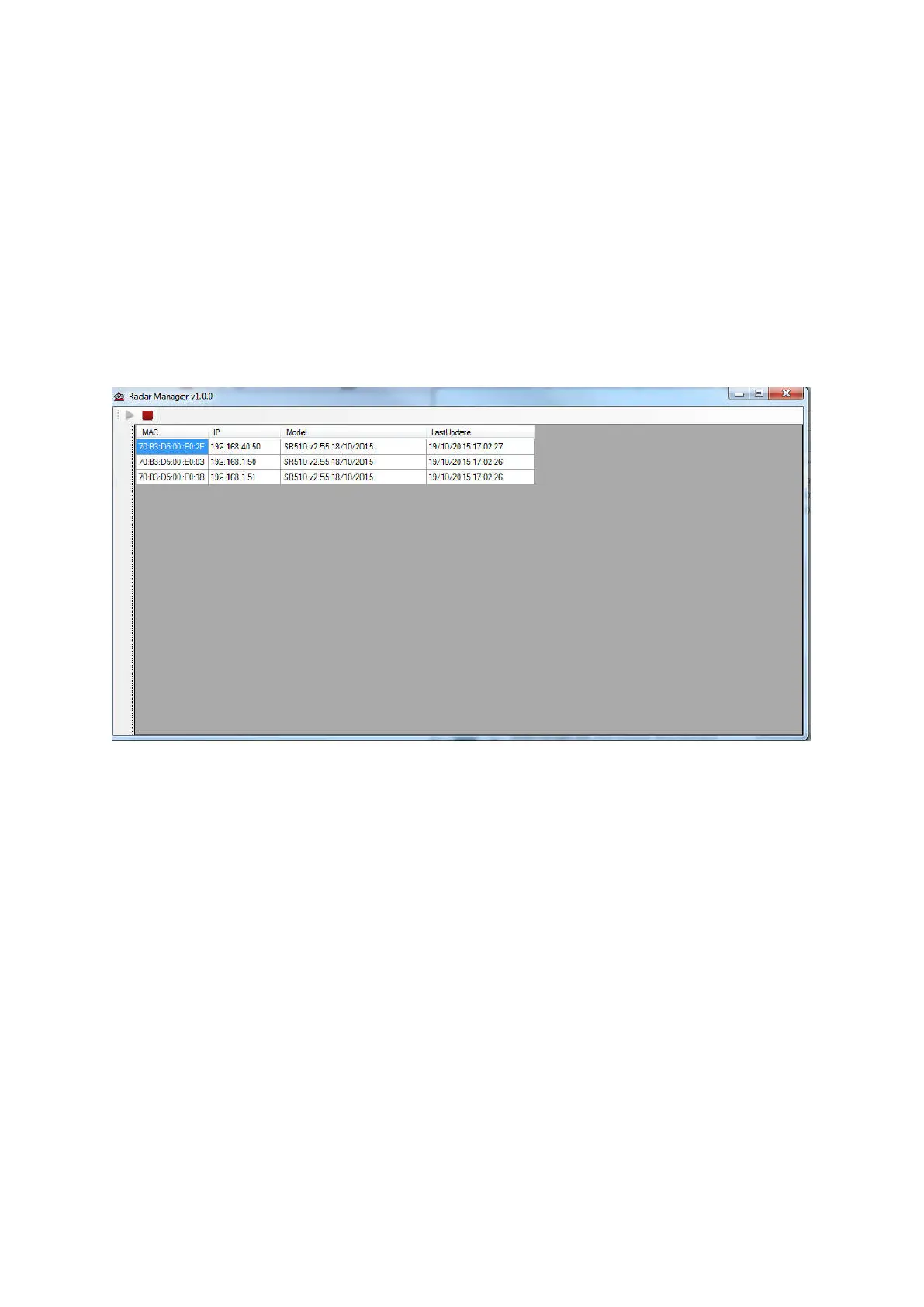
The play/stop buttons on the top left of the screen can start/stop the tool from scanning
network messages.
While running the tool scans for specific broadcast messages periodically sent by the SR-
Series sensors.
As seen in Figure 10 the main screen lists the sensors it detected in a table. Each device
occupies one row in the table with the following columns:
• MAC – device-specific and unique MAC address
• IP – current IP address assigned to the sensor
• Model – Device model and firmware version
• Last Update – the time and date of the last message broadcast by the device.
Figure 9: Radar Manager main screen
In order to assign a different IP to a sensor, right-click on the row containing the device
details, and choose "Assign IP".
An "Update IP" window will be opened as shown in Figure 14. The window shows the MAC
address of the selected sensor and the current IP assigned to it. The user is prompted to
type in the new IP address.
When done click set.
The new IP will be updated in the device table of the main screen within a few seconds,
when the next broadcast message arrives from the device. It is recommended to wait and
check that IP was indeed updated successfully.
This IP will be retained in flash memory on the sensor and will not be erased upon reset. It
can be re-configured using the radar manager tool whenever needed.


 To Next Page
 Loading...