44
SCANNING 101
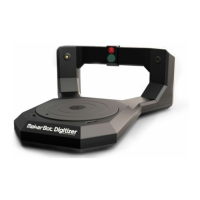
During a scan, the MakerBot Digitizer Desktop 3D Scanner shines laser beams on your object.
The camera captures images of the laser lines and MakerWare for Digitizer translates those
images into a point cloud. Objects that are either too reflective or not reflective enough will
result in images that are dicult for the soware to interpret. That is why it can be dicult to
produce a high-quality scan of an object that is shiny, transparent, fuzzy, or very dark.
To scan objects that fit this description, try one or more of the following:
• Dust reflective or transparent objects with a fine white powder such as corn starch
or baby powder to reduce reflections.
• Paint an object to reduce shininess, smooth a fuzzy texture, remove transparency,
or turn a very dark object white.
• Cover fuzzy, mirrored, or transparent sections of an object with masking tape.
Note: For additional tips and tricks, go to the Learn More section at
makerbot.com/digitizer
i
Scanning Tips


 To Next Page