5
5. UPDATE BACK END SOFTWARE
(FIRMWARE) PROCEDURE
Necessary Equipment
• Update Disc (for Back End Software).
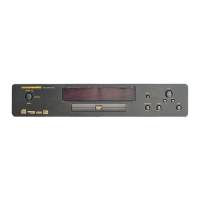
1. Press POWER button, and turn on the DVD Player.
2. Press Open/Close button, and open the tray.
3. The update disc is placed on the tray.
4. Press Open/Close button, and close the tray.
5. After Loading the Disc, the front display shows “VCD” for
a moment. Next, the front display shows “WRITNG”, And
Back End Software is updated automatically.
6. At this time, “Updating Flash Memory” shows on the
monitor.
7. The tray will be opened, when finished updating software.
8. At this time, after the front display shows “VCD” for a mo-
ment, it shows “COMPLETE”.
9. Take out the update disc from the tray.
10. Press the Open/Close button, and close the tray.
11. Press the POWER button, and turn off the DVD Player.
5. BackEndSoftware(Firmware)の
書き換え方法
必要機器
・ BackEndSoftware のアップデート用 CD-ROM
1. POWER ボタンを押し、DVDPlayerの電源を入れます。
2. Open/Close ボタンを押し、トレーを出します。
3. BackEndSoftwareのアップデートディスクをトレーに
乗せます。
4. Open/Close ボタンを押し、トレーを戻します。
5. Disc の Loading を行った後フロントディスプレイに
VCDと一瞬表示し、WRITINGと表示されSoftware
のアップデートは自動で行われます。
6. TV またはモニターの OSD にはUpdating Flash
Memoryと表示されます。
7. アップデートが終わるとトレーが自動で開きます。
8. フロントディスプレイに一瞬VCDと表示された後、
COMPLETEと表示されます。
9. アップデートディスクを取り出します。
10. Open/Close を押し、トレーを閉じます。
11. POWER ボタンを押し、電源を切ります。


 To Next Page