3. APP settings (functions are available after connected successfully)
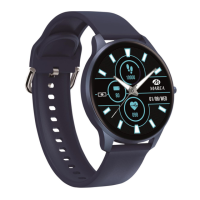
3.1 WATCH FACES
Select a dial and click on the top left corner to return and save it.
3.2 NOTIFICATIONS
You can select the notifications you want to receive on your smart watch.
3.3 ALARMS
There are 3 different alarms available. Click on them to enter the alarm time.
3.4 SHUTTER
Android phone users: Click the shutter function on the APP and the watch will show a camera
icon. Click it to take a photo on your phone. Photos will be automatically saved on the album in
your phone.
iPhone users: it is necessary to open the camera on the phone manually (due to the iOS system)
and then click to take pictures from the watch.
3.5 OTHERS
3.5.1 Find Device: The smart watch will vibrate so you can find it.
3.5.2 Time Formats: Click to set 12-hour or 24-hour time. It syncs with the clock
after clicking DONE
3.5.3 “Do not disturb”: Default mode is OFF. You can set the “do not disturb” mode
according to your personal needs. The smart watch will not receive notifications while it is ON.
3.5.4 “Reminders to Move”: Default mode is OFF. It can only be activated for period
from 10:00 to 22:00.
3.5.5 Quick View: Default mode is ON. It can be set to be ON all day or for a period
of time. When it is ON, the smart watch screen will automatically turn on when the wrist is
turned.
3.5.6 Weather: You can manually set the city or select automatic positioning. For
automatic positioning to be available, you must have the location permission enabled. The
weather information is updated every 2 hours. If it is turned OFF, it takes 2 hours before
disappearing on the watch.


 To Next Page