35
2.2 Connecting to the thermometer
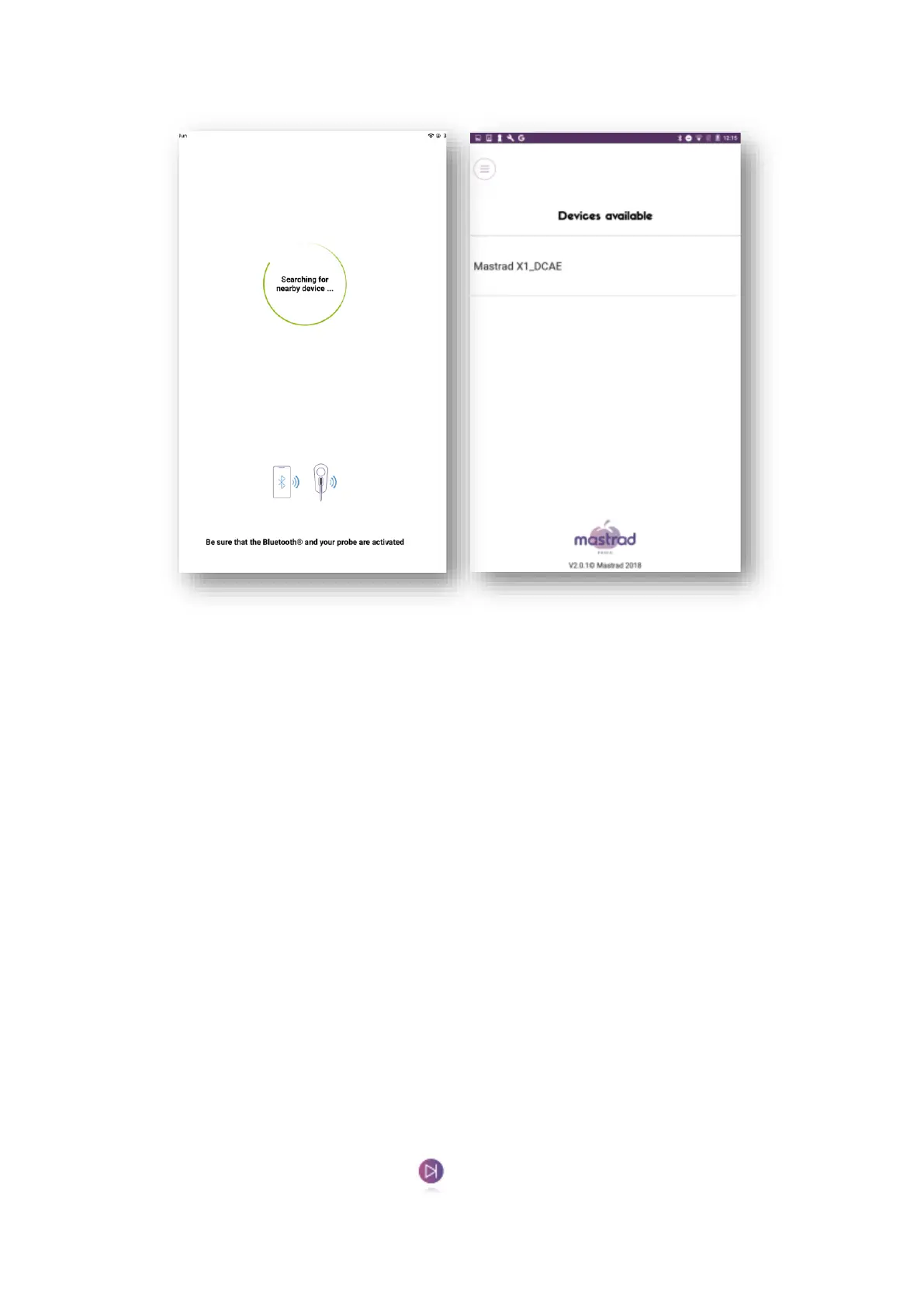
Once you are logged in, the app automatically searches for probes within range.
Make sure Bluetooth is activated on your phone and proceed to the activation of the probe (see 1.3).
When your probe is detected, click on it to program a cooking level.
If no probe is detected, you will be asked to refresh the page.
If the Bluetooth stops when the application is working :
→IOS: reconnect your probe and take back the control of your probe. The programming is saved.
→Android: A pop up window inform you if the Bluetooth signal is lost. You will need to reconnect your
Bluetooth and reprogram your probe.
2. 3 Setting a “standard” cooking program
Once you are connected to your probe, you need to select the cooking device, type of food you, the cut and the
cooking level desired. To select the type of food, scroll through the different options from left to right.
Depending on the type of food selected, you may then choose from the following cooking levels and click on
the You can also rename your probe in the summary screen with the new name that you wish to give it. You just
need to click on the probe name (here is “Mastrad WX1_DCAE”).
Once you have made your selections, click on


 To Next Page