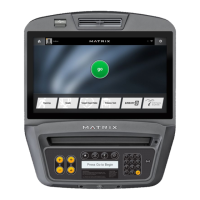
The Matrix ICR50 is a comprehensive indoor cycle system designed to provide an immersive and customizable fitness experience. It integrates two distinct display options: the IX Display and the LCD Console, each offering unique functionalities to cater to different user preferences and workout styles.
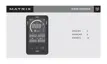
The IX Display is a high-definition, 22-inch LED monitor that serves as an immersive screen for mirroring content from external smart devices. It is explicitly stated that this is not a console but rather a monitor designed to mirror a device. Its primary function is to enhance the user's workout by allowing them to stream live and on-demand classes, virtual courses, or personal entertainment directly from their smartphone, tablet, or digital media player. This feature transforms the indoor cycling experience into a more engaging and interactive session.
Usage features of the IX Display:
- Connecting a Device: To use the IX Display, users need to connect an HDMI-to-HDMI cable (not included) to the display. Subsequently, a separate HDMI to USB-C or Lightning cable (also not included) is used to connect the user's smart device to the open end of the HDMI cable. This setup enables the mirroring of the device's screen onto the 22-inch LED display.
- Display Controls: The controls for the IX Display are conveniently located on the back of the unit. These controls include:
- Auto (A): Likely for automatic input source detection or display adjustment.
- Menu (B): To access the display's on-screen menu for various settings.
- Volume Up (C): To increase the audio volume of the mirrored content.
- Volume Down (D): To decrease the audio volume.
- Power (E): To turn the display on or off.
- Using Zwift: The IX Display supports mirroring the Zwift application from a user's device, allowing for interactive virtual cycling experiences. A setup video is provided for guidance on integrating Zwift with the display.
Maintenance features of the IX Display:
- Cleaning the Display: For cleaning, a micro-fiber cloth and an LCD screen cleaner are recommended. If a screen cleaner is unavailable, a damp (with water) micro-fiber cloth can be used as an alternative.
The LCD Console is a separate component that can be purchased and used with the ICR50 cycle. It requires an RF sensor, which comes with the console, to be installed in the frame of the bike. This console provides direct workout data and program management, offering a more traditional fitness console experience.
Usage features of the LCD Console:
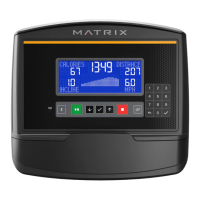
- Console Overview: The console features several buttons for navigation and interaction:
- Switch AVG & MAX workout data when paused: Allows users to toggle between average and maximum workout data metrics during a paused state.
- Start/Pause / Enter: Initiates or pauses a workout, and serves as an "Enter" button for menu selections.
- Select programs / Switch workout data windows: Enables selection of workout programs and switching between different workout data displays.
- Workout Track (A):
- A solid indicator signifies an in-progress RPM workout.
- A blinking indicator represents a goal to achieve, specifically in Program 2.
- Target/RPM (B):
- In Program 1, this displays the resistance target level.
- In Program 2, it shows the current RPM.
- In Program 3, it indicates the HR (heart rate) target.
- Workout Programs (C): Users can select various workout programs by pressing the appropriate button on the standby page.
- Distance (D): Displays the distance covered during the workout.
- Calories / Speed (E): Users can press this button to switch between viewing calories burned and current speed.
- Heart Rate (F): Shows the user's heart rate.
- Workout Time (G): Displays the duration of the workout.
- Goal Achievement (H): A light illuminates once a set goal has been achieved.
- Wireless Heart Rate Connection (I): Indicates connection to a wireless heart rate monitor.
- Workout Data (J): To view AVG & MAX workout data, users press the button while paused. This also allows switching between calories/speed and AVG/MAX displays.
- Battery (K): Indicates the battery level, showing 100% or less, 70% or less, 40% or less, and 10% or less.
- Console Setup:
- Install the console bracket onto the handlebar, placing a foam sheet between the handlebar and bracket.
- Install 4 AA batteries into the console.
- Attach the console to the bracket using two screws.
- Remove four screws and the handlebar adjustment knob from the frame, then remove the plastic cover.
- Plug the unused wire into the RF Sensor.
- Mount the RF Sensor to the Main Frame using Velcro.
- Reinstall the plastic cover and handlebar adjustment knob.
- Battery Replacement: The RF SENSOR uses a CR2032 battery, which should be installed with the positive side up. The battery should be replaced when its indicator is flashing on the console.
- Machine Settings: Users can customize console settings by pressing and holding specific buttons for 3 to 5 seconds until "SET" is displayed.
- Model Selection: Allows selection of the frame model.
- Brightness Setting: Adjusts the display brightness.
- Unit Setting: Switches between Miles and Kilometers for distance measurement.
Maintenance features of the LCD Console:
- Cleaning the Console: Similar to the IX Display, the console screen should be cleaned with a micro-fiber cloth and an LCD screen cleaner. A damp (with water) micro-fiber cloth can be used if a screen cleaner is not available.
Both the IX Display and the LCD Console are designed to enhance the Matrix ICR50 cycling experience, offering a blend of immersive entertainment and detailed workout tracking. The system emphasizes user customization and ease of maintenance, ensuring a long-lasting and enjoyable fitness journey. Users are also directed to useful online resources for product registration, warranties, FAQs, troubleshooting, setup/connectivity videos, and software updates, as well as customer technical support contacts for both in-warranty and out-of-warranty products.

 Need help?
 General

 To Next Page