36 Matrox TripleHead2Go – User Guide
Problem Matrox product isn’t automatically detected
1
Cause
Your Matrox product may not support the selected display mode or the graphics hardware in
your computer.
1
Solution
Make sure your Matrox product supports the selected display mode. For more information,
see “Product information”, page 42.
2
Solution
Make sure your Matrox product supports your graphics hardware.
Problem No power indicator light (black)
1
Cause
Your power supply cable or USB cable may
not be properly connected.
1
Solution
Make sure your power supply cable or USB cable are properly connected.
2
Cause
TripleHead2Go Digital Edition only
– Your USB cable may not be connected to a powered
USB port.
3
Solution
Make sure your USB cable is connected to a powered USB port. If the USB port you’re
currently using isn’t powered, try using a different USB port.
Problem Power indicator light is red
1
Cause
Your Matrox product may not support the selected display mode.
1
Solution
Make sure your Matrox product supports the selected display mode. For more information,
see “Product information”, page 42.
2
Cause
There may be unsupported graphics hardware in your computer.
1
Solution
Make sure your Matrox product supports your graphics hardware by running the
GXM
System Compatibility Tool.
For the latest compatibility information, see the Matrox Web site
(www.matrox.com/graphics/en/support/gxm_main
).
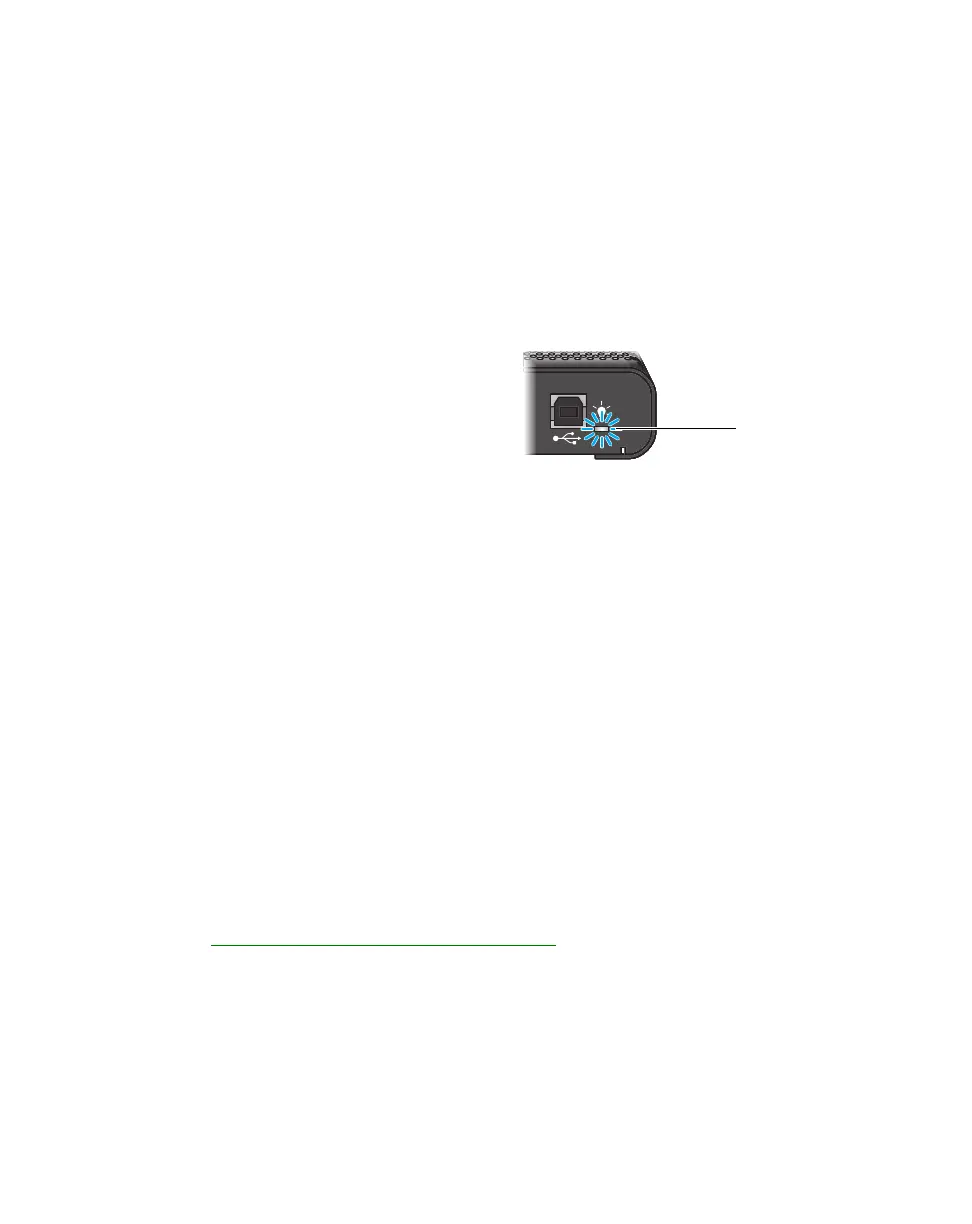
Power
indicator
light
(TripleHead2Go DP Edition shown)



 To Next Page