WINTECH MANAGER
The Wintech Manager software enables you to:
– Display on a PC all data of each trip coming from the Wintech computer
– Organize these data into reports (weekly,monthly,yearly)
– Manage up to 3 user accounts
– Export the data to share them
– Set up your Wintech computer
– Customize your Wintech computer’s screens
– Get links to external information (website, instruction manual…)
– Print and e-mail this information
– Store your bike settings
The Wintech Manager software is compatible with all Wintech models equipped with an
integrated USB connection (Wintech USB, Wintech USB Alti, Wintech USB HR and Wintech
USB Ultimate).
The display of the software may vary according to the version of Wintech computer
that you are using:
– Elevation information is only available when using a Wintech USB Alti and
Wintech USB Ultimate.
– Heart rate information is only available when using a Wintech USB HR and
Wintech USB Ultimate.
20. ENTERING WINTECH MANAGER
Installation
Insert the Wintech Manager CD into the CD drive or your PC and simply follow the instructions.
If the set up program does not automatically run, navigate the CD contents and double click on
the le “setup.exe”.
When the installation is complete, shortcuts are added on the program list of the “Start” menu
and on your computer desktop.
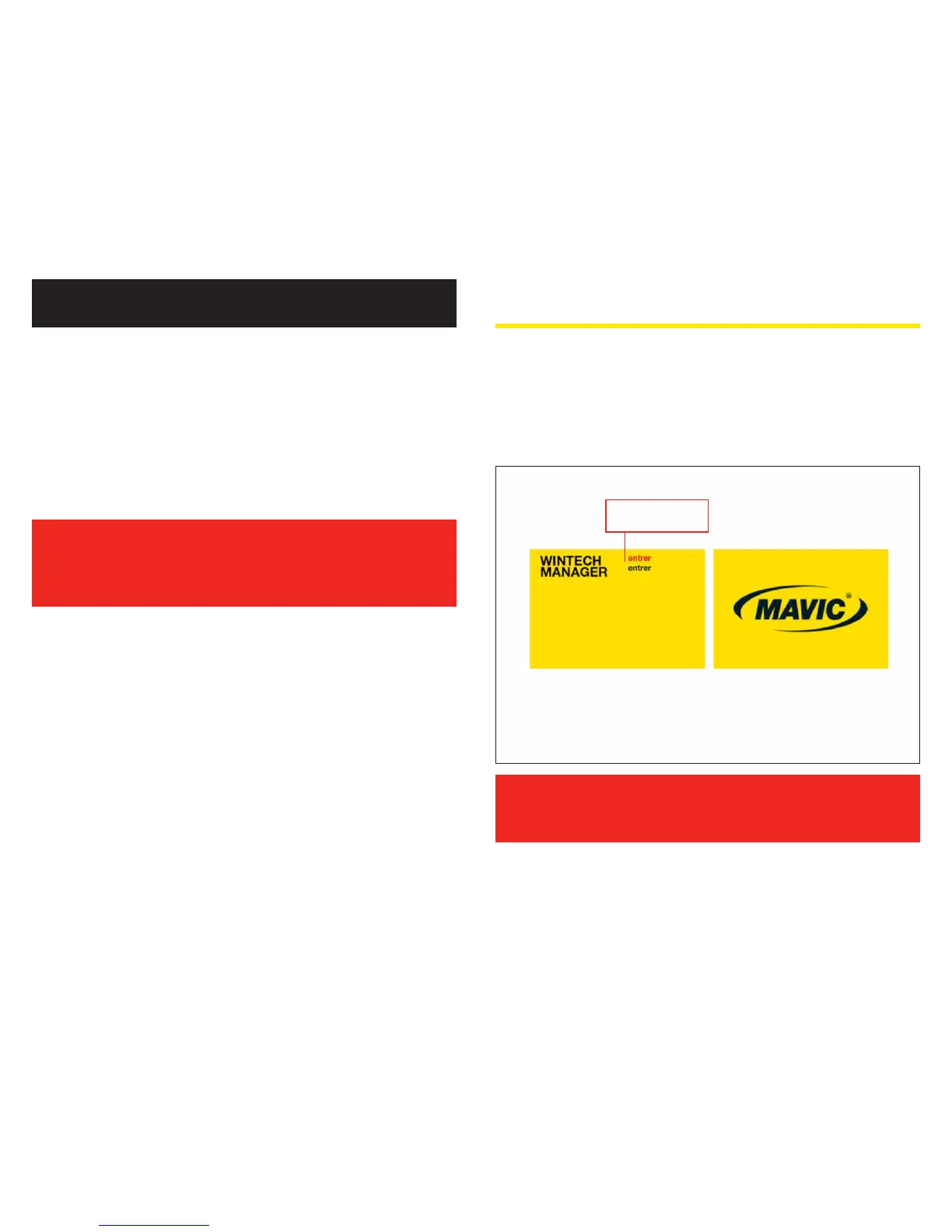
To launch the software, double click on the “Wintech Manager” icon of your program list or
desktop:
The rst time you launch the software, you will be prompted to create a user
account. See section 24.1 of this user guide.
When a user account has already been created, the software opens on the last
active user account. To change user account, see section 24.1 of this user guide.
Choose your language
to enter the software


 To Next Page