22. TRIPS
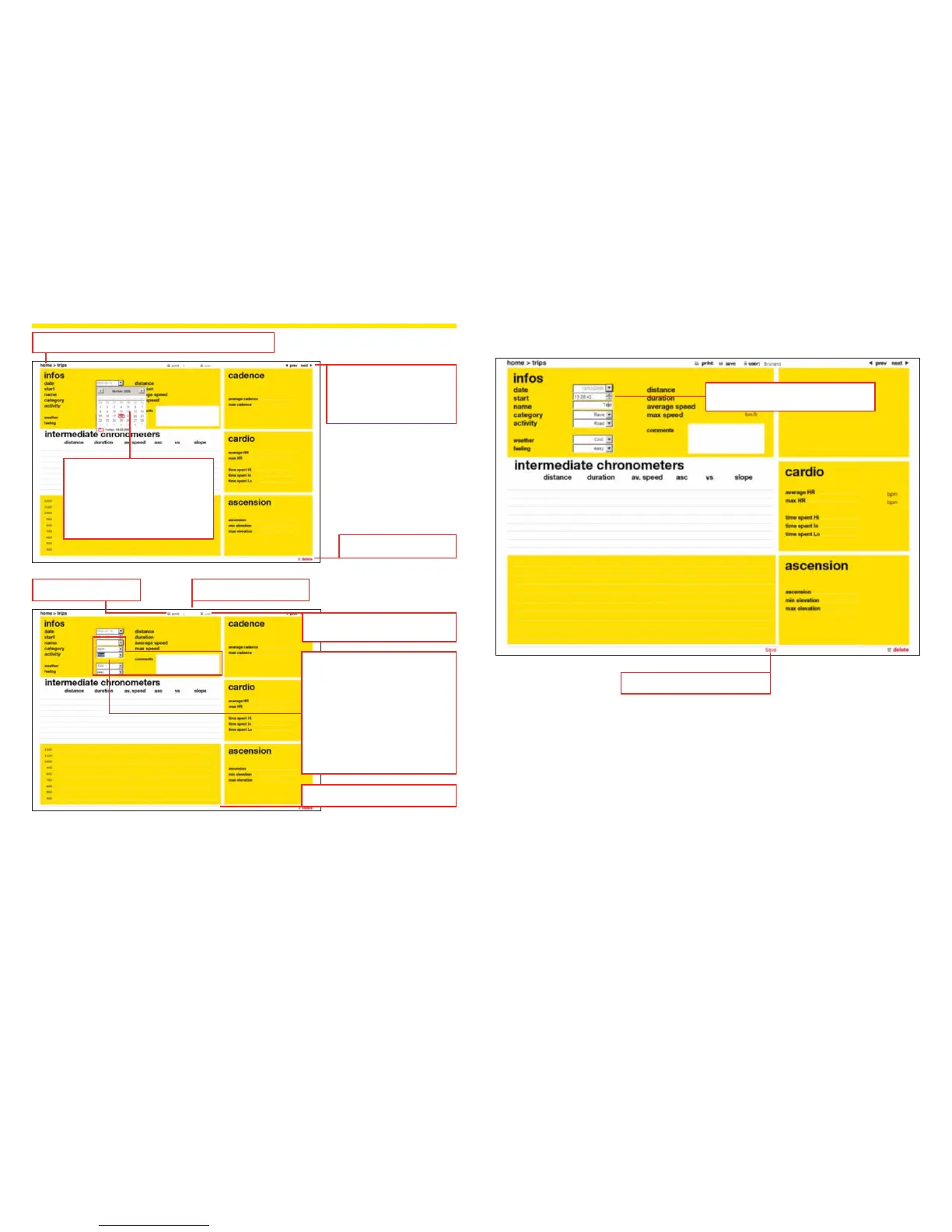
This screen provides all the details about a specic trip:
– Distance, duration, average and maximum speed,
– Average and maximum cadence (if optional cadence sensor used during the trip),
– Average and maximum heart rate, time spent in workzone (for Wintech USB HR and Wintech
USB Ultimate only, and if heart rate belt used),
– Total vertical gain, minimum and maximum elevation, altigraph (distance and elevation graph)
(for Wintech USB Alti and Wintech USB Ultimate only),
– Details of lap time.
Adding a new trip manually
You can manually create a new trip by entering data manually (in case you rode without your
Wintech computer for instance).
Select a day. Select a start time.
Manually enter all other information
Click “save” to save this new trip
Go to previous or next trip.
If multiple trips are recorded
on the same day, use these
buttons to go to the next or
previous trip of the day
Choose the date of the report you
wish to consult:
– Navigate through the months with
left and right arrows
– Bold days are the one with trip
recorded
– Encircled day is current day
Navigation menu: click Home to go back to main menu
Delete the current trip
Print the current screen
Change user or edit user account
(see section 24.1. of this user guide)
Saves the trip as a .jpg le
Detail your trip (optional)
– Name your trip
– Category: choose Racing or
Training
– Activity: choose Road, Mountain
Bike or Home Trainer
– Weather: choose Cold, Rainy,
Cloudy, Sunny or Hot
– Feeling: choose easy, good or hard
– Comments: ad personal comments
such as places of interest, peloton
or alone…
Click “save” to save your changes
save
save
save


 To Next Page