EasyManua.ls Logo

MAXHUB UC S10 - User Manual

MAXHUB UC S10
5 pages
Print Icon
To Next Page IconTo Next Page
Loading...
QUICK START GUIDE
UC S10 Collaboration-Soundbar:
(plus BM 21 Speakerphone)
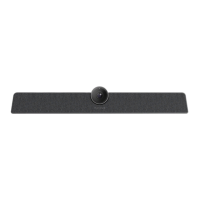
The UC S10 from MAXHUB is a unique and very flexible Audio & Video Collaboration Bar for a variety of
applications. The unique features are the integrated Android system, which allows to use the UC S10 as
a standalone “Terminal” (Host), the wireless access point which allows for 4 external devices to connect
via wireless screen sharing. The 6 integrated microphones (6-Mic-Array) will allow for a pick-up pattern
of up to 8m easily, and the internal 8W loudspeaker is capable, of filling up a medium sized Huddle- or
Meeting room (approx. 25-30 m2) with clear voice from the far end side. The extremely powerful noise
reduction and the accurate AEC (Acoustic Echo Cancellation) algorithms are the basis of the great sound
experience with the UC S10 in almost every Video Conference application you want to use. A unique
MAXHUB dereverberation algorithm is also on board.
The integrated 4K / 12MP Camera incorporates the Auto-Tracking and Auto-Focus functions which
allow for automatic tracking of people in the room, while the easy way to create up to 3 presets also
allows for specific positions of the camera.
To save a preset, just put the camera into the right position, then press and hold the buttons 1, 2, or 3
on the IR remote control for 5 sec. To recall a preset, just push the buttons 1, 2 or 3 once, and the
camera will move to the programmed position.
The Auto-Tracking function can be turned ON or OFF thru the IR remote, by pushing and holding
the “tracking button for 3 sec.
Intr oduction
UC S10
Question and Answer IconNeed help?

Do you have a question about the MAXHUB UC S10 and is the answer not in the manual?

Overview

The MAXHUB UC S10 Collaboration-Soundbar, often paired with the BM 21 Speakerphone, is a versatile audio and video collaboration bar designed for various applications. It stands out due to its integrated Android system, allowing it to function as a standalone "Terminal" (Host), eliminating the need for a separate 3rd party HUB or NUC. This means users can install and run video conferencing applications like TEAMS, ZOOM, and Skype directly on the device, connecting only a display via HDMI.

Technical Specifications and Features:

  • Integrated Android System: Enables standalone operation as a host for video conferencing applications.
  • Wireless Access Point: Facilitates wireless screen sharing for up to 4 external devices, allowing laptops, tablets, and smartphones to connect and share their screens.
  • Microphone Array: Features 6 integrated microphones (6-Mic-Array) with a pick-up pattern capable of reaching up to 8 meters, ensuring clear audio capture in medium-sized rooms.
  • Loudspeaker: An internal 8W loudspeaker delivers clear voice audio from the far end, suitable for huddle rooms or meeting rooms approximately 25-30 m².
  • Audio Processing: Incorporates powerful noise reduction and accurate Acoustic Echo Cancellation (AEC) algorithms for superior sound quality. A unique MAXHUB dereverberation algorithm is also included.
  • Camera: Equipped with a 4K / 12MP camera that supports Auto-Tracking and Auto-Focus functions, automatically tracking people in the room.
  • Camera Presets: Users can easily create up to 3 camera presets by positioning the camera and holding buttons 1, 2, or 3 on the IR remote control for 5 seconds. Recalling a preset is done by a single push of the corresponding button.
  • Auto-Tracking Control: The auto-tracking function can be toggled ON or OFF by pushing and holding the "tracking button" on the IR remote for 3 seconds.
  • Connectivity:
    • HDMI Out: For connecting to a display.
    • USB Ports: Includes USB 3.0 (HOST) and USB 2.0 (Device) ports. A USB-C connector is available for connecting to a laptop for BYOD (Bring Your Own Device) setups, acting as an external Audio & Video Device.
    • LAN (RJ45): For wired internet connection.
    • AUX IN/OUT: For additional audio connections.
    • Power Input: 12V-3A.
  • Wireless Screen Sharing: Compatible with Maxhub Screen Sharing App, WT 04 MAXHUB Dongle (for Windows and Android), and Airplay (for MAC).

Usage Features:

  • BYOD Setup (Bring Your Own Device):
    • Connect the UC S10 to the internet via LAN or Wi-Fi.
    • Plug a single USB-C cable from the UC S10 to your laptop.
    • On your device, select the UC S10's Wi-Fi network (SSID: MAXHUB UC S10 or custom name, default password: 12345678).
    • Open your preferred screen sharing app (Maxhub Screen Sharing App, WT 04 MAXHUB Dongle, or Airplay) and select "share screen" with the UC S10.
    • In your VC app (TEAMS, ZOOM, etc.), go to settings and choose "UCS10 (MSA 10)" for Camera, Mic, and Speaker.
    • The system automatically recognizes and sets the appropriate camera, mic, and speaker fields for subsequent connections.
  • UC S10 HOST Setup:
    • Download and install VC apps (TEAMS, ZOOM, etc.) from https://cutt.ly/ucs10 onto a flash drive.
    • Insert the flash drive into a USB connection on the UC S10.
    • Use the IR remote control (or a 3rd party wireless mouse and keyboard with a USB dongle) to navigate, install apps via the FINDER button, and enter data.
    • A small 3rd party USB Hub can be used for multiple USB ports.
    • Wireless screen sharing is still available for connecting personal devices.
    • The MAXHUB WT 04 Dongle is recommended for connecting Android or Windows devices.
  • UC S10 + BM 21 Setup:
    • The BM 21 Speakerphone can be used standalone or connected to the UC S10 via its included BT-Dongle.
    • Important: This setup only works in ANDROID mode with no USB cable connected to the UC S10.
    • First, connect the BM 21 BT Dongle to the UC S10's USB port before powering on the UC S10.
    • Turn on the UC S10, then the BM 21.
    • Once ready, push and hold the BT button on the BM 21 for one second to connect via Bluetooth.
    • For larger room applications requiring a second BM 21, a special Audio cable from MAXHUB must be used (ordered separately).
    • When BM 21 units are connected, the UC S10's microphones and loudspeaker will be disabled, but the camera will remain active.
    • The BM 21 features 6 microphones with a 360° pickup pattern, a centralized loudspeaker, and an operating distance of up to 5 meters. It has an integrated battery for up to 8 hours of conference time and can be charged via USB cable or a 3rd party wireless charging device.

Maintenance Features:

  • Initial Setup Guide: A short setup menu guides first-time users. Requires a display with 1080p resolution and an HDMI cable connection.
  • Battery Installation: Requires AAA batteries for the IR Remote Control.
  • Network Configuration: Guides users through connecting via LAN or Wi-Fi, requiring network information and passwords.
  • Firmware Updates: The system upgrade feature allows for keeping the device updated.

The UC S10 is designed for ease of use, offering a comprehensive solution for modern collaboration environments, from quick huddle room meetings to more extensive video conferences, with flexible connectivity and advanced audio-visual capabilities.

MAXHUB UC S10 Specifications

General IconGeneral
BrandMAXHUB
ModelUC S10
CategoryConference System
LanguageEnglish

Related product manuals