Need help?
Do you have a question about the MAXHUB V6 and is the answer not in the manual?
Guidelines for product placement to avoid damage and ensure safety.
Precautions for safe power connection and usage.
Instructions for screen handling and cleaning.
Recommendations for optimal viewing distance.
Environmental operating conditions for the product.
Proper airflow and spacing requirements for the device.
Warning about high volume and potential hearing loss.
How to use standby mode and properly shut down the product.
Caution against spraying liquids on device vents.
Explanation of power switch symbols.
Information on maintenance, warranty exclusions, and terms.
List of items included in the product package.
Steps to prepare the panel for installation.
Guidance on confirming the panel's installation height and position.
Detailed steps for fixing the wall bracket and hanging the panel.
Table and diagram showing physical dimensions for wall mounting.
Steps to install the wireless module SI06.
Procedure for installing the OPS/Android module.
Steps for safely removing the OPS/Android module.
Instructions for powering the MAXHUB interactive flat panel on and off.
Overview of the product's external features and their functions.
Identification and description of ports on the back of the device.
Explanation of how to use various interface connections like HDMI and USB.
Instructions for cleaning the screen and touch frame.
Details on the product's warranty coverage and service.
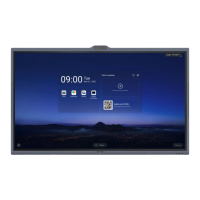
The MAXHUB V6 Classical Series (C5530, C6530, C7530, C8630) is an interactive flat panel designed for collaboration, offering a range of features for various professional environments. This Quick Start Guide provides essential information for its setup, operation, and maintenance.
The MAXHUB V6 is an interactive flat panel that serves as a central hub for collaboration. It integrates touch display capabilities, audio input/output, and connectivity options to facilitate interactive presentations, brainstorming sessions, and remote meetings. The device supports the installation of an OPS/Android Module, expanding its functionality to include a full operating system for enhanced computing power and application compatibility. It features a power button that allows users to briefly press to start the display or switch between On and Standby Mode, and a longer press (approximately 3 seconds) to shut down the product. The device also includes a rocker switch with "I" indicating power-on and "O" indicating power-off. For audio, it has integrated speakers and a microphone, along with audio input/output ports for external devices like amplifiers or earphones. The display is designed for optimal viewing, with a recommended viewing distance of 3-4 times the diagonal length of the screen.
The MAXHUB V6 is designed for ease of use and versatility. Installation involves removing the panel from its box, placing it on a soft surface, and then confirming the installation position. The guide provides detailed instructions for mounting the panel, including the use of expansion plugs, screws, and gaskets to secure the wall bracket. A safety screw is highlighted as particularly important for mobile stand installations to ensure stability. The device supports the installation of a wireless module (SI06) and an OPS/Android module, which can be easily inserted into dedicated slots after removing a cover. These modules enhance connectivity and computing capabilities. The power-on sequence involves plugging the power cable into the product and then into the power supply, followed by flipping the rocker switch and pressing the power button until the indicator turns blue.
Connectivity options are extensive, including multiple HDMI IN ports for multi-media input, USB Type-C and USB 3.0 ports for connecting various USB devices such as mobile hard disks, U disks, keyboards, and mice. The USB Type-C port, however, does not support HDMI OUT functionality. An RS232 interface is available for connecting central control devices. Audio output can be routed through an AUDIO OUT port to external amplifiers or earphones, while an AUDIO IN port allows for audio input. The device also features a Stylus Magnet Area for convenient storage of the passive styluses that come with the product. An Infrared Receiver and a 48MP Camera are integrated for additional functionalities.
Proper maintenance is crucial for the longevity and optimal performance of the MAXHUB V6. The guide emphasizes protecting the product from dust and moisture to prevent unexpected failures. Regular cleaning of the product with a soft, dustless, dry cloth is recommended, always ensuring the product is unplugged before cleaning. For the screen, a specific cleaning method is advised: dissolving fabric softener or detergent in 75% alcohol, soaking a soft cloth in the solution, squeezing it dry, and then cleaning the screen. It is critical not to allow the cleaning solution to drip onto other components. The touch frame should be cleaned with dry, soft, and dust-free wipes. During stormy seasons or extended periods of non-use, unplugging the power cable is recommended.
The product comes with a warranty that covers defects in material and workmanship during the warranty period. MAXHUB, at its sole discretion, will repair or replace defective products with similar ones, which may include re-manufactured or refurbished parts. The warranty does not cover damage caused by disregarding user manual instructions, improper setup, unauthorized modifications, unsuitable environments, abnormal external force, natural disasters, freight damage, or improper cleaning. Consumables like batteries are also excluded. The warranty is void if the product label is removed or defaced. For warranty service, customers need proof of purchase and should contact the MAXHUB service team, accessible via a QR code or a provided web address.
 General
| Resolution | 4K UHD (3840 x 2160) |
|---|---|
| RAM | 4 GB |
| Storage | 32 GB |
| Touch Technology | Infrared touch |
| Operating System | Android |
| Microphone | Built-in array microphone |
| Connectivity | Wi-Fi, Bluetooth |
| Ports | HDMI, USB, Type-C |
| Processor | Quad-core |
| Display Size | 65", 75", 86" |
| Speakers | 2 x 10W |


 To Next Page