59
Device Mode
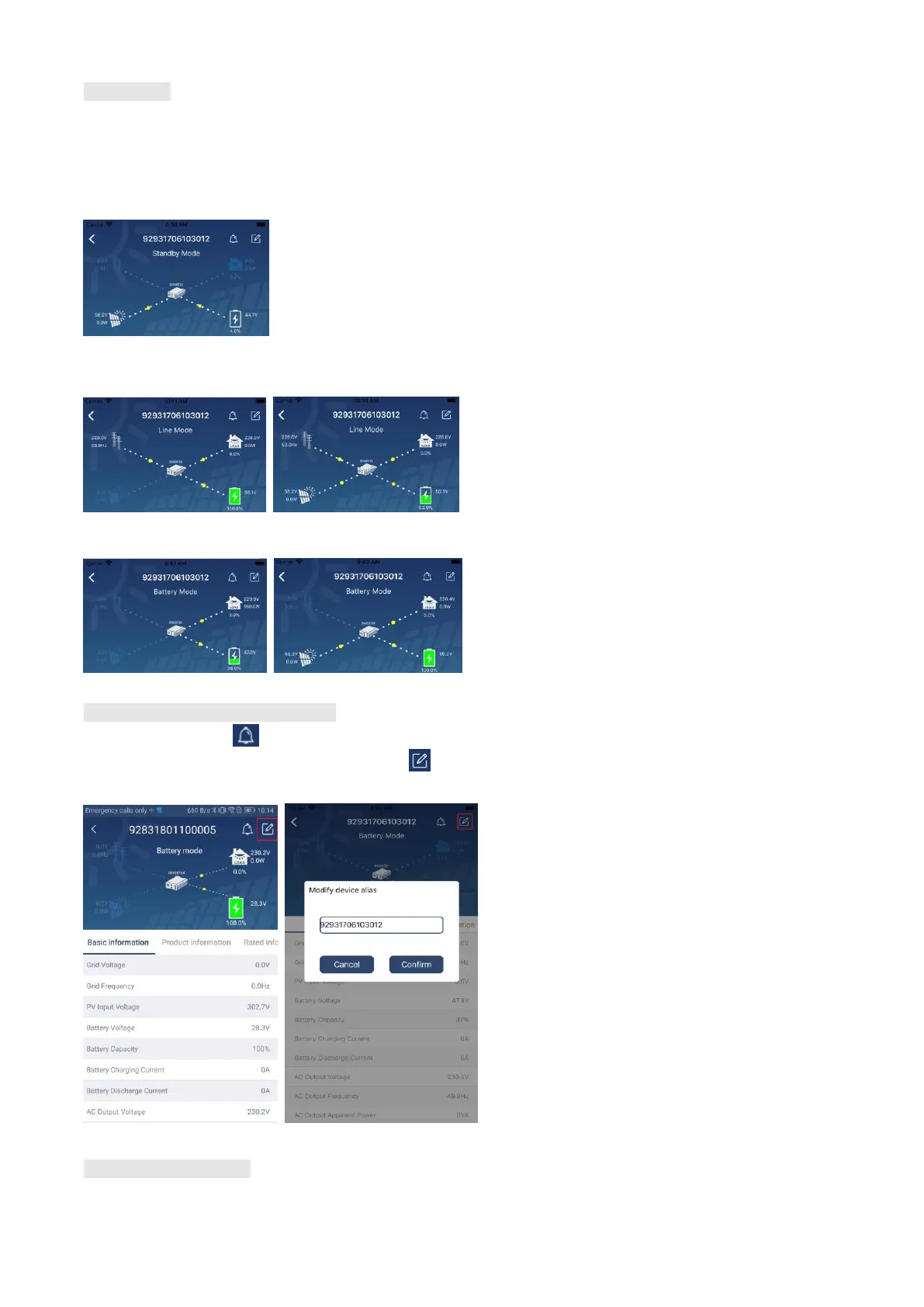
On the top of screen, there is a dynamic power flow chart to show live operation. It contains five icons to
present PV power, inverter, load, utility and battery. Based on your inverter model status, there will be
【Standby Mode】,【Line Mode】,【Battery Mode】.
【Standby Mode】Inverter will not power the load until “ON” switch is pressed. Qualified utility or PV source
can charge battery in standby mode.
【Line Mode】Inverter will power the load from the utility with or without PV charging. Qualified utility or PV
source can charge battery.
【Battery Mode】Inverter will power the load from the batter with or without PV charging. Only PV source can
charge battery.
Device Alarm and Name Modification
In this page, tap the icon on the top right corner to enter the device alarm page. Then, you can review
alarm history and detailed information. Tap the icon on the top right corner, a blank input box will pop out.
Then, you can edit the name for your device and tap “Confirm” to complete name modification.
Device Information Data
Users can check up 【Basic Information】,【Product Information】,【Rated information】,【History】, and
【Wi-Fi Module Information】by swiping left.



 To Next Page