
 Need help?
Do you have a question about the Maxtor OneTouch III and is the answer not in the manual?
Explains guide symbols, conventions, and provides helpful information about topics.
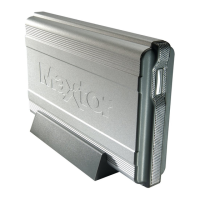
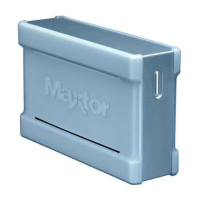
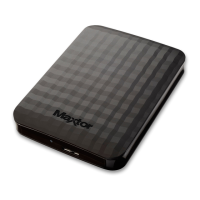
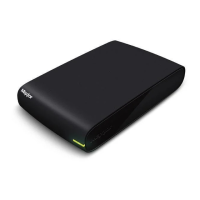
Details the physical parts of the Maxtor OneTouch III, including a diagram of the solution features.
Lists the necessary hardware and software specifications for operating the Maxtor OneTouch III.
Specifies the required USB port type and cable for proper connection of the drive.
Provides critical instructions to prevent damage to the drive and avoid data loss, ensuring safe usage.
Guides users to Maxtor's website for support, FAQs, software downloads, and troubleshooting resources.
Step-by-step instructions for installing the Maxtor OneTouch III software, including privilege checks.
Guides on connecting the Maxtor OneTouch III drive to the computer via USB and power adapter.
Details the initial configuration of the Maxtor OneTouch III drive, including setting up backup preferences.
Introduces the Maxtor OneTouch Manager interface and its core functionalities for managing the drive.
Configures the drive's power-saving mode, allowing adjustment of spin-down times for periods of inactivity.
Enables users to change the default function of the One Touch button to launch specific applications or tasks.
Allows users to select performance modes for the drive, balancing speed and quieter operation.
Covers protecting the drive with passwords, changing them, disabling security, unlocking, and erasing data.
Explains how to configure, manage, and perform file backups using the Maxtor Backup Utility, including scheduling.
Details how to restore files and folders from backups, including previous versions or most recent files.
Describes how to synchronize files between the computer and the Maxtor OneTouch III, supporting multiple PCs.
Explains how to create system restore points and roll back the computer to a previous state for recovery.





 To Next Page
 General