Navigation System
23
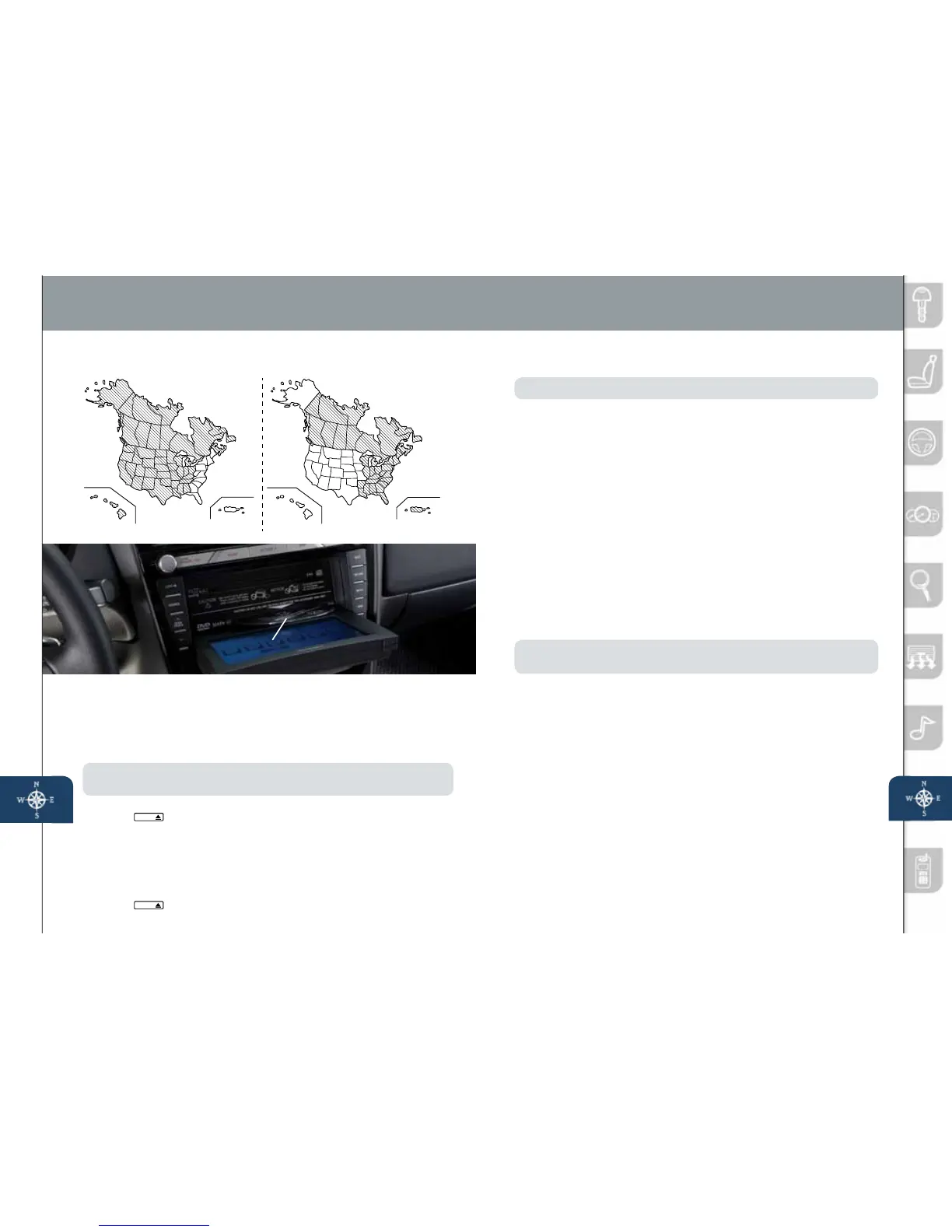
Insert map disc into lower DVD slot
24
(insertingdisc/selectingdestination)
Yournavigationsystemoperatesusingthemapdiscssupplied.
•DiscAcoversmostoftheMidwestandWesternstates,
includingHawaiiandAlaska.
•DiscBcoverssomeoftheMidwestandalloftheEasternstates,
includingPuertoRico.
•BothdiscscoverallofCanada.
NOTE:
Ifthestateyouraddressisinisnotdisplayedwhenenteringadestination,
youmayhavethewrongdiscinthenavigationsystem.
1 PlacetheignitionintheACCorONposition.
2 Push
LOAD /
.
3 When“Load/Eject”screenappears,select“MAP”.Waitfornavigation
screentotiltopen
4 RemovecurrentMapDisc(ifinstalled)andinsertthedesiredMapDisc
withtheprintedsidefacingup,intothelowerDVDMAPslot.
5 ReadtheCautioncarefullyandselectthe“AGREE”on-screenbutton.
6 ToremovetheMapDisc,placetheignitioninACCorONposition.
7 Push
LOAD /
andthen“MAP”.
INSERTING THE MAP DISC
Disc A
OCIR OTREUPIIAWAH
Disc B
OCIR OTREUPIIAWAH
DISC A DISC B
SELECTING A DESTINATION USING A STREET ADDRESS
NOTE: Forsafetyreasons,youcannotenteranaddresswhiledriving.
Youcanchoosesettingadestinationusingastreetaddress,apointof
interest,thenearestrestaurants,ATMs,gasstations,hospitalsandmore.
1 Push“MENU”buttononNavigationFace.
2 Select“DestinationEntry”.
3 Select“Address”.
4 Selectthe“State”or“Province”.
•ScrolldownpasttheStatestondCanadianProvinces.
5 Select“OK”.
6 Select“City”.
7 Select“InputCityName”.
8 Usethekeyboardtoenterthecityname.
9 Select“Street”.
10 Usethekeyboardtoenterthestreetname.
11 Select“HouseNo”.
12 Usethekeyboardtoenterthehousenumber,thenselect“OK”.
13 Whenthemapappearsselect“Destination”.
14 Select“Guide”orjuststartdriving.
NOTE:
Whenenteringnumbersforastreetname,(e.g.1stAve.),push“Sym.”
buttontoswitchtothenumerickeyboard.
SELECTING A POINT OF INTEREST (POI)
NEAR YOUR CURRENT LOCATION
1 Push“MENU”buttononNavigationFace.
2 Select“DestinationEntry”.
3 Select“PointofInterest”.
4 Select“Nearest”.
5 Select“CurrentPosition”.
6 IntheQUICKPOIscreen,selectthecategoryofthepointofinterest
youwanttond.Youcansetmultiplecategoriesforsearchinguptove.
7 Afterselectingcategories,select“List”.
8 Searchresultshowsupasalistin“LOCALPOIs”screen.Selectthe
pointofinterestyouwanttosetasthedestinationfromthelist.
9 Select“Destination”.
10 Select“Guide”orjuststartdriving.
PleaserefertoyourOwner’sManualforcompletedetailsandimportant
safetyinformation.
www.MazdaUSA.com
280340_11a_RX-8_SSG_081010.indd 24-25 8/10/10 3:12 PM



 To Next Page