The shared secret must be a minimum of 8 characters and maximum of 25 characters in length. The key
cannot start with an exclamation mark nor can have any spaces. The parameters that you can use to
dene the key are:
• 26 alphabets: upper and lower case (a,b,c,...z and A, B, C,...Z)
• 10 digits: 0 1 2 3 4 5 6 7 8 9
• 32 symbols: ~ ` ! @ # $ % ^ & * ( ) _ + ‑ = [ ] { } \ | ; : " ' , . <? /
The Sensor name and shared secret key that you enter in the Manager must be identical to
the shared secret that you will later enter during physical installation/initialization of the
Sensor (using CLI) in Step 10 - Congure Sensor information. If not, the Sensor will not be able
to register itself with the Manager.
• Updating Mode
Select Online or Offline.
Selecting Offline enables Oine Sensor update. Online is the default mode.
5 Click Save
Congure Sensor information
Congure the Sensor with the network information, a name, and the shared secret key that the Sensor uses to
establish secure communication with the Manager. Use the name and key values you set in Step 9 - Add the
Sensor to the Manager.
The rst time you congure a Sensor, you must have physical access to the Sensor.
At any time during conguration, you can type a question mark (?) to get help on the Sensor CLI commands. For
a list of all commands, type commands.
Task
1
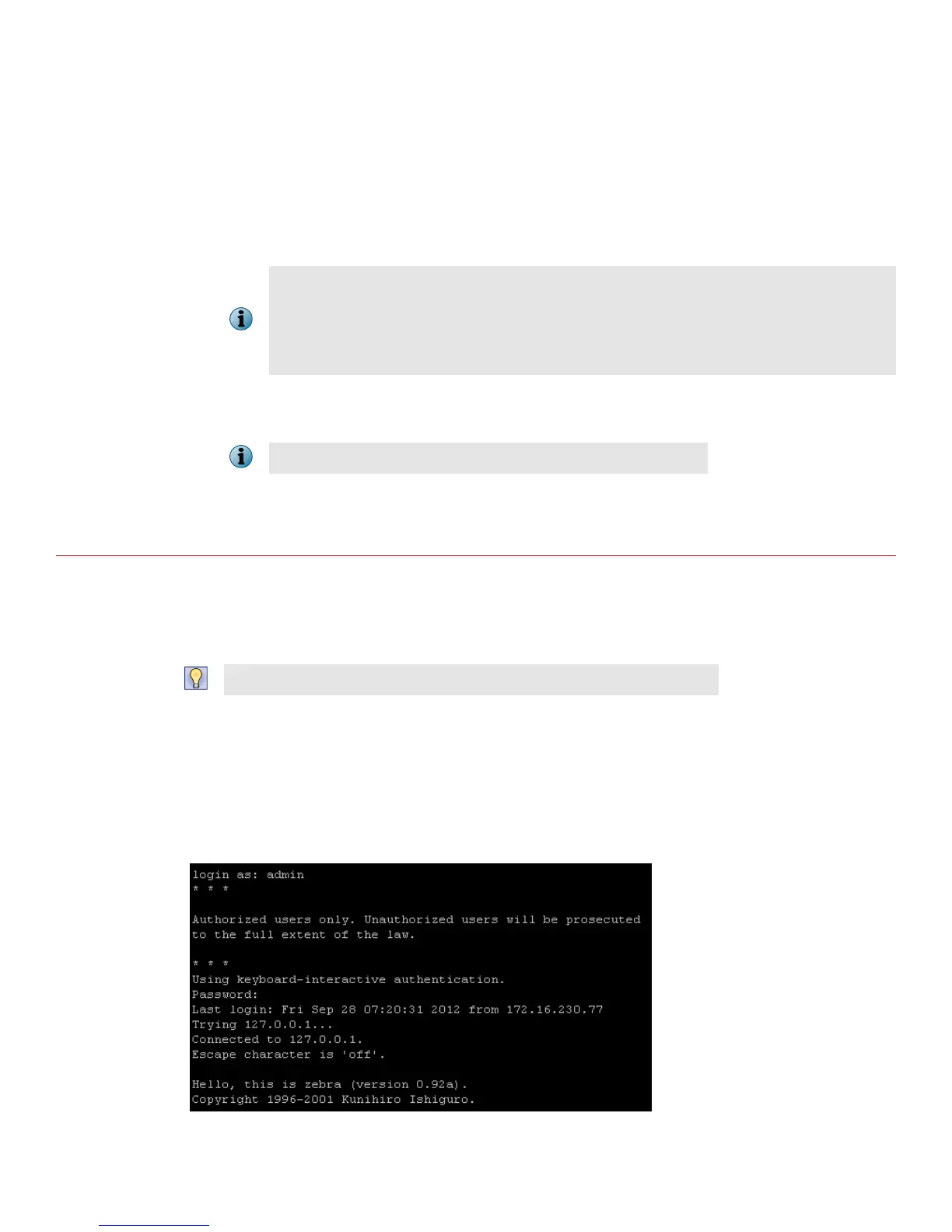
Log on to the Sensor using the terminal connected to the Console port.
2
At the prompt, log on using the default Sensor username (admin) and password (admin123).
14


 To Next Page