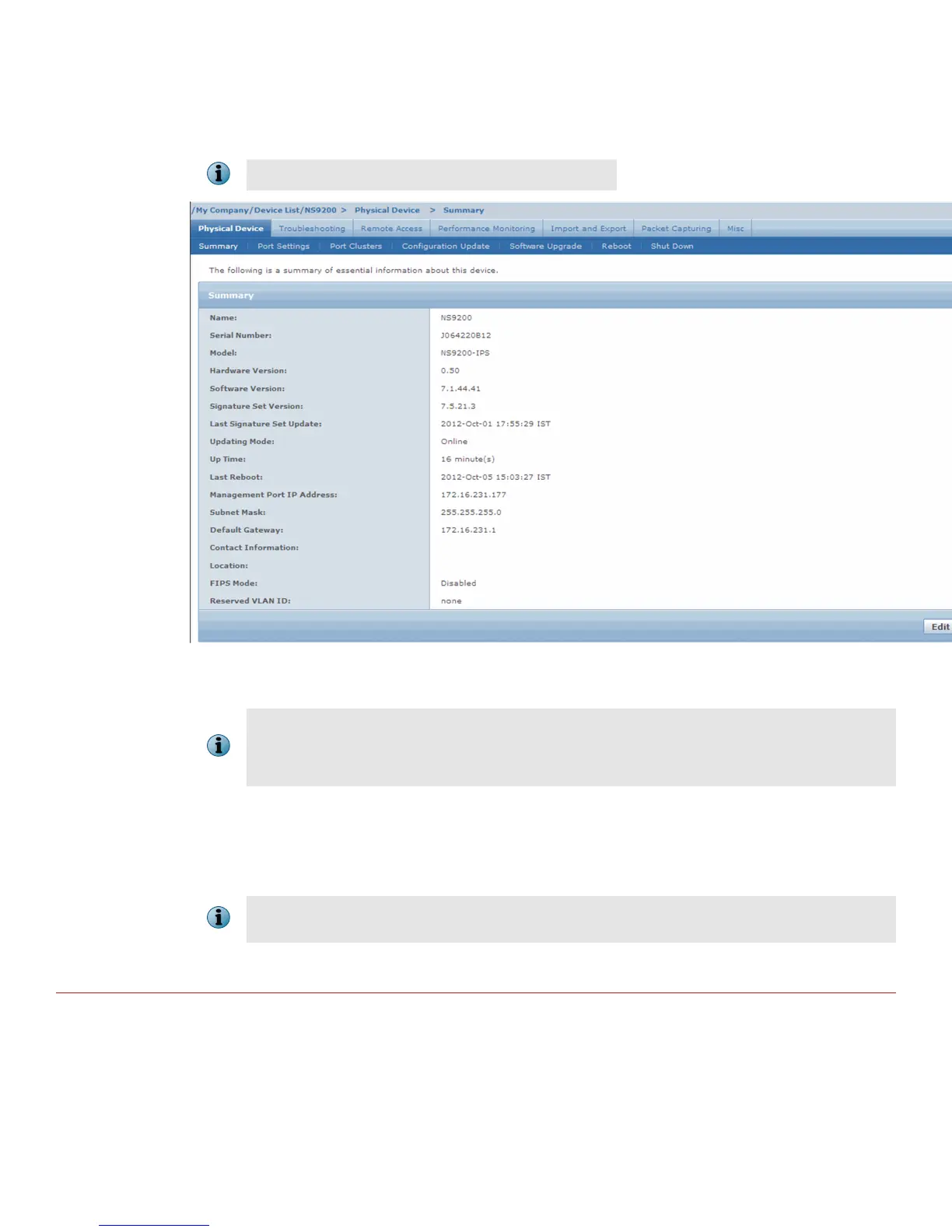
4 Select your added Sensor: Device List | <Device_Name>. The ports for this Sensor appear under the
<Device_Name> node.
<Device_Name> indicates the name of the Sensor you added.
5 A policy named Default Inline IPS is active upon Sensor addition. To view this policy, select IPS Settings | Policies
| IPS Policy Editor. Select Default Inline IPS from the list and click View / Edit.
The Default Inline IPS policy contains attacks already congured with a "blocking" Sensor response action; if
any attack in the policy is triggered, the Sensor automatically blocks the attack. To tune this or any other
McAfee-provided policies, you can clone the policy and then customize it as described in the McAfee Network
Security Platform IPS Administration Guide.
6 Click Device List | <Device_Name> | Port Settings.
7
To view port settings, select the port on the Sensor that you cabled. Ensure that your port settings match the
cabling, for example, if port 1 is cabled for the in-line mode then the Operating Mode in the port setting should
be in-line mode.
For more information on port settings, see Conguration Sensor monitoring and response ports, McAfee
Network Security Platform Device Administration Guide.
You're up and running!
Your Sensor is actively monitoring connected segments and communicating with the Manager for
administration and management operations.
17


 To Next Page