● Dual timbre
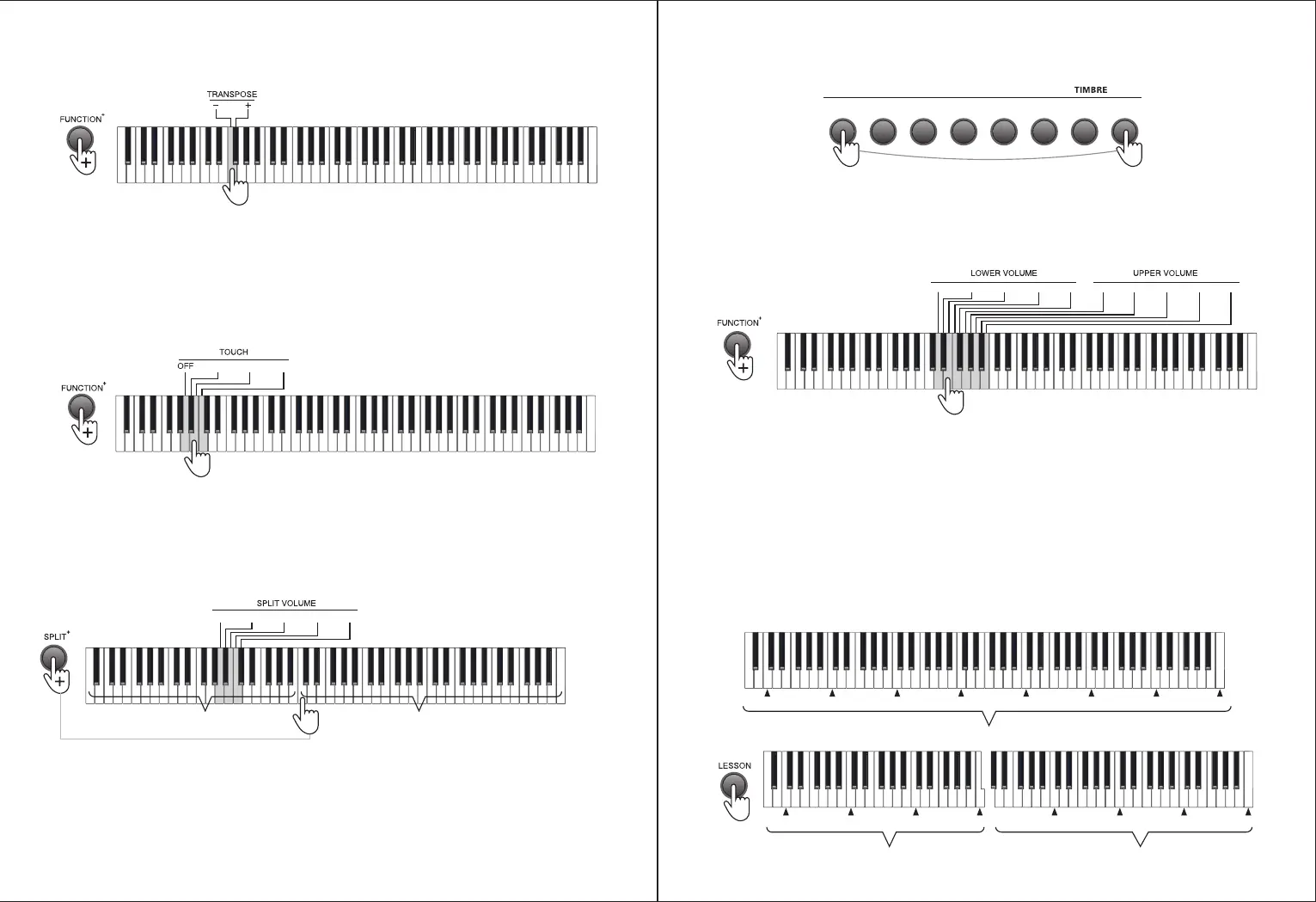
Press any two timbre buttons simultaneously to enable the dual timbre function, in this case, the two selected timbre will
be overlaid.
When overlay of other timbres are required, press the [GM TIMBRE] button + the [DEMO SONG/GM TIMBRE] key to
select other timbres, and then press the [GM TIMBRE] and other [TIMBRE] buttons simultaneously.
Both volumes for the upper layer and the lower layer have 5 grades: the volume of the first selected timbre is adjusted
via the upper volume by pressing the [FUNCTION+] button + the [UPPER VOLUME 1 - 5] keys on the keyboard; the volume
of the later selected timbre is adjusted via the upper volume by pressing the [FUNCTION+] button + the [LOWER VOLUME
1 - 5] keys;
VI. Lesson Mode
● Lesson Mode
In the lesson mode, the 88 keys are split into two zones with identical tone and timbre, which facilitates the
demonstration by teacher-level students, and two persons can play the piano simultaneously.
Press the [LESSON] button for the first time to activate the lesson mode, press the [LESSON] button again to disable this
function.
Under the lesson mode, the scales of Keys A0 - C5 in the left zone will change to the scales of Keys A2 - C6, while the
scales of Keys C4# - C8 in the right zone will change to the scales of Keys C2# - C6.
Grand
piano
Church
organ
Guitar
Bass
String
Percussion
Electrical
piano
GM
TIMBER+
1 2 3 4 51 2 3 4 5
C1 C2 C3 C4 C5 C6 C7 C8
(Before lesson mode enabled)
Left zone
Right zone
C3 C4 C5 C6 C3 C4 C5 C6
(After lesson mode enabled)
● TRANSPOSE
The transpose control function of the Piano is adjustable from “-6” to “+6”, and the default setting is 0. Press the
[FUNCTION+] button + the [TRANSPOSE -/+] keys for transposing within ±6.
The transpose function saves the trouble of raising and lowering the key when playing on the keyboard. You can play
songs in every key in the same way as that for playing songs in key C. It may decrease the key by half-step (minor second),
thus the keys positions for key C is changed to those for key B; press the “+” button to increase all keys by half-step (minor
second), in this case, the tone of the key position of key C is changed to key C# or key Db. If the button is pressed for twice,
key C will decrease to Bb; and if the button is pressed for fifth times, key C will decrease to key F. Press the “+” and “-”
buttons simultaneously to reset key C.
● Touch control
Press the [FUNCTION+] button + [TOUCH] OFF, 1-3 keys to turn off or shift touch force among 3 grades.
● Split
The keyboard can be split into two zones, in this way, you can play two different timbres with your left and right hands
respectively. You should set the timbre for the right hand side after the timbre that you were using before splitting is applied
to the left-hand side. For example, you can set the timbre of the left-hand side to bass and the right-hand side to piano.
♦ Press the [SPLIT+] button to split the keyboard, and press the [SPLIT+] button again to disable the keyboard split.
Press the [SPLIT+] button for the first time and press the key simultaneously to set the split point. The currently pressed
key will be the first key of the right-hand side.
♦ When the keyboard split function is enabled, the scale of the left-hand zone will increase by an octave, and the scale
of the right-hand zone will decrease by an octave. Take the default split point as an example, scales of Keys A0 - G2# will
change to those of Keys A1 - G3#, while scales of Keys A2 - C8 will change to those of Keys A1 - C7.
♦ Press the [FUNCTION+] button and [SPLIT] 1 - 5 keys to set the volume for the left-hand zone.
♦ After the keyboard split function is enabled, you can reselect a timbre for the right-hand zone.
1 2 3
1 2 3 4 5
(Split point setting)
After keyboard split, all keys on the left of the
currently pressed key constitute the left-hand zone,
with scale increasing by an octave.
The currently pressed key and all keys on its right
constitute the right-hand zone, with scale decreasing by
an octave


 To Next Page
 Loading...