The circle will then ash to let you know that you have found
the object, a chime will sound and the screen will display
the object page.
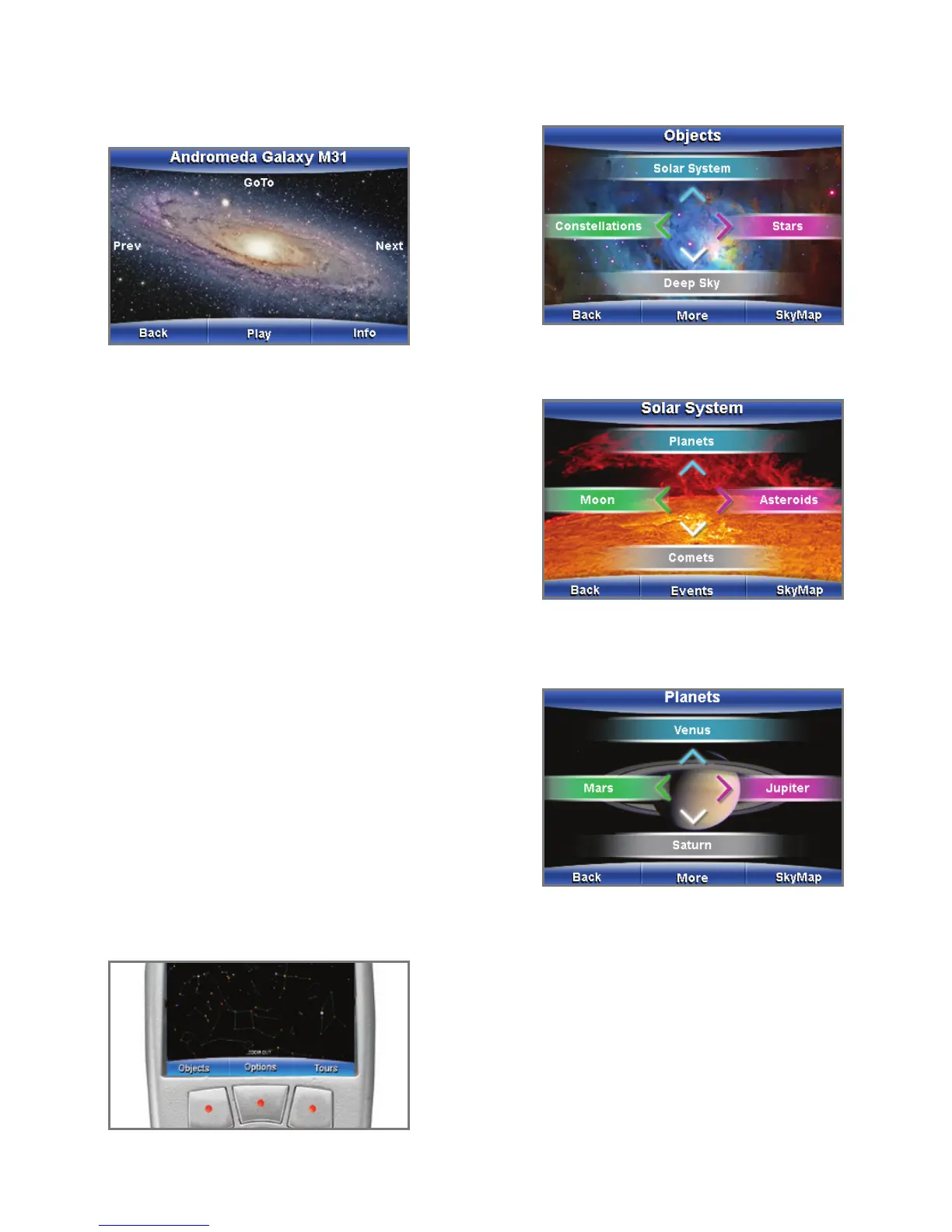
Push the soft key labeled “Play” for audio descriptions
and images of the object or “Info” for on-screen text data
about the object. To exit a tour: Press the button labeled
“End Tour.” If the “End Tour” option is not displayed, keep
pressing the “Back” button until “End Tour” is displayed.
Catalogs of Celestial Objects
The sky is full of interesting and mysterious objects, not
just stars and planets. mySKY has a database that contains
over 30,000 celestial objects. Although most of these
objects cannot be seen with the naked eye, mySKY can
still show you where they are and give you images and
information about them. If you select an object from any of
mySKY’s catalogs, mySKY will display a screen like the one
above. If you select “GoTo,” mySKY will display an arrow
on the screen to guide you to the object you have chosen.
mySKY’s catalogs include: stars; double and variable stars;
planets; constellations; galaxies; and nebulas, just to name
a few. These objects are arranged in various catalogs:
Solar System—planets, the Moon, comets, and asteroids
Deep Sky—star clusters, nebulas, galaxies and more
Constellations—all 88 constellations with star maps
Stars—several catalogs of stars
Example of locating an object: Choosing
Saturn from one of mySKY’s catalogs
If necessary, push the “Back” button until you see the
SkyMap screen. The three soft Buttons are labeled
“Objects,” “Options” and “Tours.”
Press the key just below the “Objects” label. The “Objects”
screen displays.
Notice the “Solar System” option is at the top of the screen.
Press the up arrow to select “Solar System.” The “Solar
System” screen displays.
Notice the “Planets” option is at the top of the screen.
Press the up arrow to select “Planets.” The “Planets”
screen displays.
There are two Planets screens available. The rst screen
displays the four most commonly viewed planets: Venus,
Mars, Jupiter, and Saturn. If you select “More,” a second
Planets page will be displayed. Any time you see “More”
displayed on a screen, it means you can go to another
screen with more choices or information. Notice the
“Saturn” option is at the bottom of the screen. Press
the down arrow to select “Saturn.”
6



 To Next Page