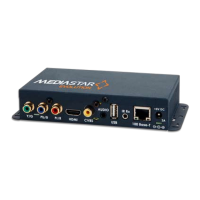
Quick Start Guide - MediaStar Evolution 785 HD Video Encoder
Picture Adjustment
Adjustments can be made here to the brightness, contrast, hue
and saturation of the input video signal.
Date/Time
Set the time here that is used for event logging. If good
accuracy is required, then synchronisation with an external NTP
time server should be used.
RS232 Port
The RS232 port can be configured for use as either a SIPI
command interface or as an IP to RS232 pass through interface.
SIPI allows third party control systems to control the encoder
using a simple text based command protocol. Note the same
command protocol can be used with IP commands on IP port
2026 or on the USB comms link.
IP Pass through mode allows remote third part control systems
bi-directional communications with other equipment local to the
encoder, via the encoder’s RS232 port.
USB Comms Port
The USB comms port is used as a SIPI command interface only.
Connect to the port and type help to see all the commands
supported.
IR Blaster 1 & 2
These pages provide a Sky IR remote control simulator. Select
the desired Sky handset and press the appropriate button on the
remote control. The on-board IR blaster circuit generates that IR
keypress from the corresponding IR blaster cable plugged into
the encoder. This allows remote (network based) control of a
local Sky Settop box.
Note: Other remote control codes can also be simulated via
an IP command. Also, MediaStar 780 units will read IR from
3rd party remote controls in real time and transfer that signal
across the IP network to the encoder for local re-generation and
control of third party A/V devices.
IR Blaster Repeat
This is an IR blaster setup aid. It allows the last transmitted IR
code to be repeated every half second for 15 minutes so the
optimum position of the IR blaster can be found on the front of
the IR receiver (Settop box) with a single person setup.
Network Setup
This is where the IP network address settings of the unit can
be setup.
Update Locations
The Encoder will periodically check for software upgrades or
new setup configuration files from a specific location on an HTTP
server. This menu is where the file locations are specified.
Enablement Code
New functionality can be enabled on the Encoder using a 15
digit enablement code. These codes are unit specific and you
must provide the unit’s serial number when applying for an
upgrade code. Contact your supplier for more details.
This menu also contains controls to reset the Encoder’s settings
back to defaults or reboot the encoder remotely.
Set Password
The configuration webpages can be protected from unauthorised
tampering by setting a password here. If your password
becomes lost, contact your supplier with the Encoder’s serial
number and they can then provide you with an enablement
code to clear the password.
SAP
The Encoder can be enabled to periodically produce Session
Announcement Protocol messages on the network. These
messages allow suitably enabled client software or hardware
devices to become aware of the video/audio stream, and then
automatically make them available to their users.
SNMP
The Encoder can produce SNMP Trap events when a significant
‘event’ occurs, for example an over temperature warning.
These events are also copied to the on-board event log.
The trap destinations and community classification are
specified here.
Email Logs
Any new entries in the Event logs can be periodically emailed
to a specified recipient. This is to facilitate remote, non-volatile
storage of the logs where required, and simple remote problem
notification. The Encoder can work with a with a standard SMTP
email server.
Event Log
The Event log shows all significant ‘events’ that the Encoder
has seen, this includes stream starting, changes to the encoder
configuration etc. The Event log can be downloaded using the
on-page URL link.
Locator LEDs
Turning the Locator LED function on, makes the encoder’s status
led flash between orange and green. This allows a particular
physical unit to be located easily, and is especially useful when
a number of Encoders are situated together.



 To Next Page
 Loading...