U
U
K
K
/
/
N
N
.
.
I
I
R
R
E
E
L
L
A
A
N
N
D
D
H
H
E
E
L
L
P
P
L
L
I
I
N
N
E
E
0
0
8
8
7
7
0
0
7
7
2
2
7
7
0
0
3
3
7
7
0
0
R
R
E
E
P
P
.
.
I
I
R
R
E
E
L
L
A
A
N
N
D
D
H
H
E
E
L
L
P
P
L
L
I
I
N
N
E
E
1
1
-
-
8
8
0
0
0
0
-
-
9
9
9
9
2
2
5
5
0
0
8
8
21
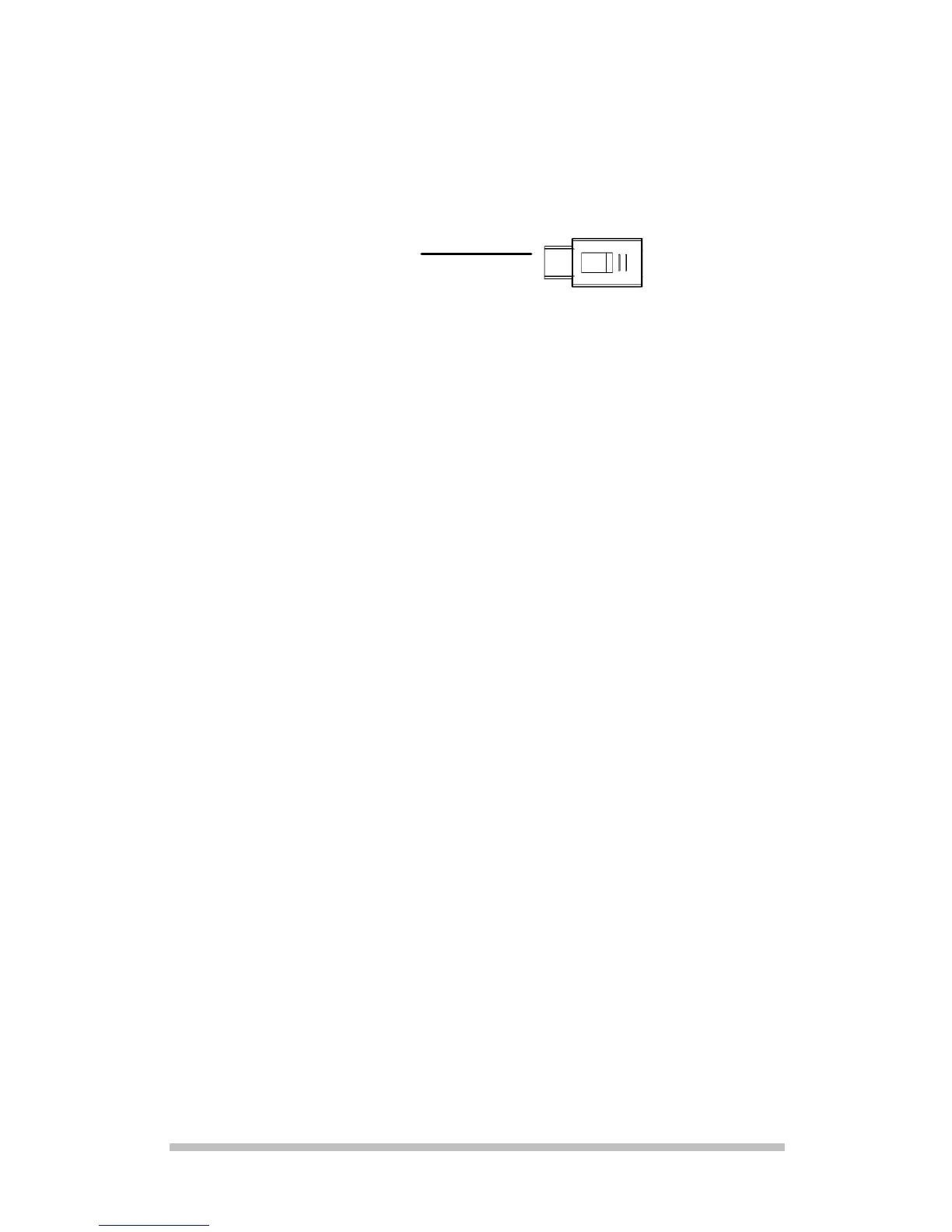
4. Connecting the
receiver
1. Pay attention to the information in the
Safety and Maintenance Chapter
(Pages 3 ff.).
2. Switch on the computer and all the
peripheral devices connected (monitor,
printer, etc.) and wait until the operating
system has started completely.
3. Locate the USB connection of your
computer.
4. Plug the receiver into a free USB
connection socket on your computer.
5. Windows
®
will now establish that new
hardware has been connected. This will
start the hardware recognition process.
You have now installed your receiver
successfully.
USB receiver



 To Next Page