DC 00573 TSA 2 Quick Set Up and Installation Overview Rev.1 Date of issue: 10.06. 2019 Page 4 of 9
Starting Up
1. Before starting - Always turn the system ON first, and then open the software
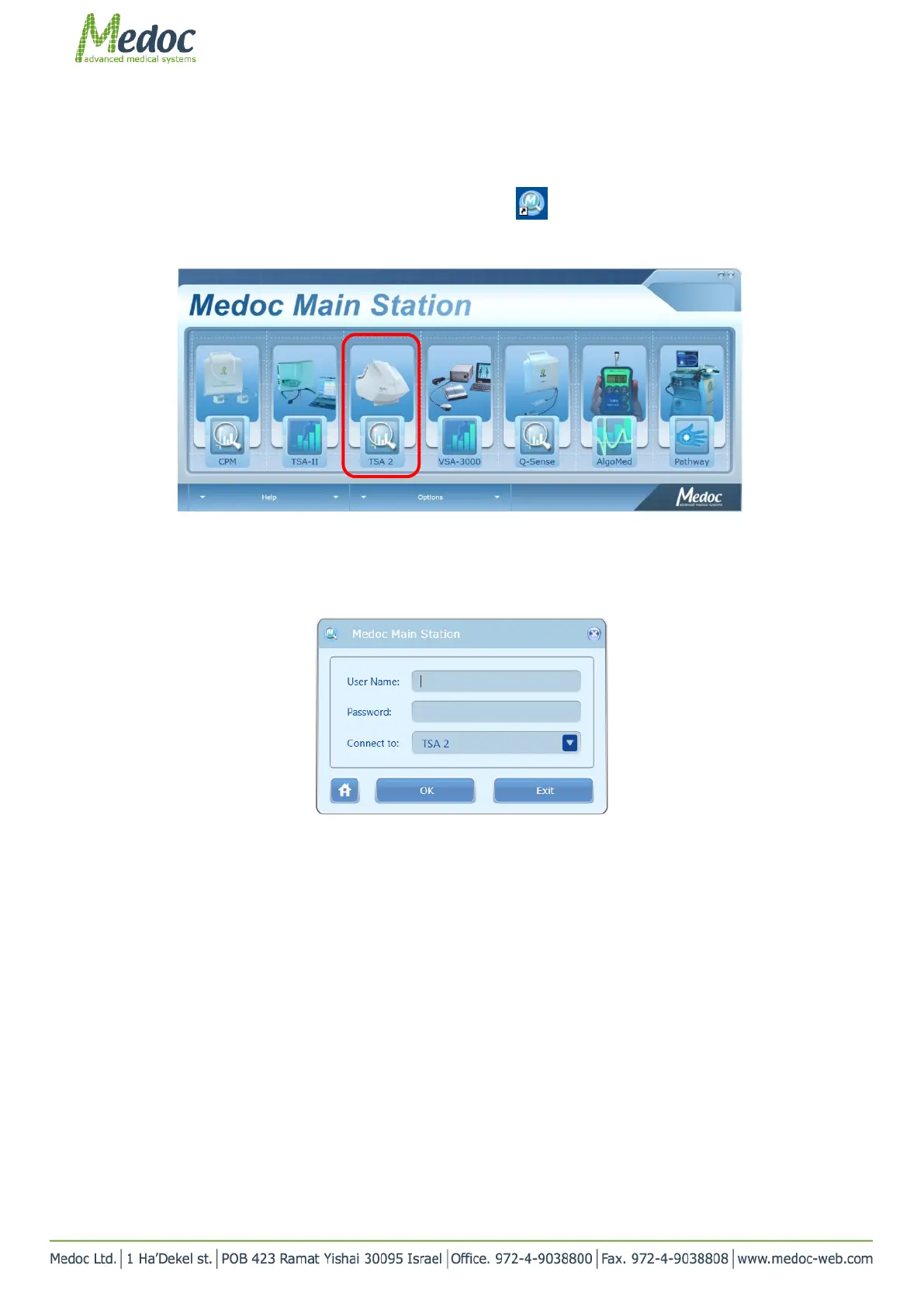
2. Start Medoc Main Station software by double-clicking the icon .
3. The home screen is displayed showing the devices available under your license . Choose TSA 2 (marked in red)
Figure 6: MMS main screen
4. When the login screen is displayed, enter your user name and password and select “TSA 2” in the “connect to”
field. Initial login Username and Password are both “admin”
Figure 7: Login Screen
5. Software screen overview
The software screen is divided into 3 main areas:
1. Menu bar – consists of the following options: software/hardware/Test settings (under ‘Settings’ tab),
export /export data (under ‘File’ tab) ,operating manual (under ‘Help’ tab, etc. )
2. Main toolbar - consists of shortcuts to the different views:
a. Test – Select test parameters
b. Patients – Manage patient database
c. Programs – Manage program list
d. Results – View, export or print test results
3. Status bar - displays important information about the status of the connected device. Status (On-Line/
Demo), system state (rest, test, safe), safety status, etc.



 To Next Page