For example, try this:
1. Open a Word document of four pages.
2. Select File > Print.
3. Select your C6010 printer and select Layout from the Preview print options pop-up
menu.
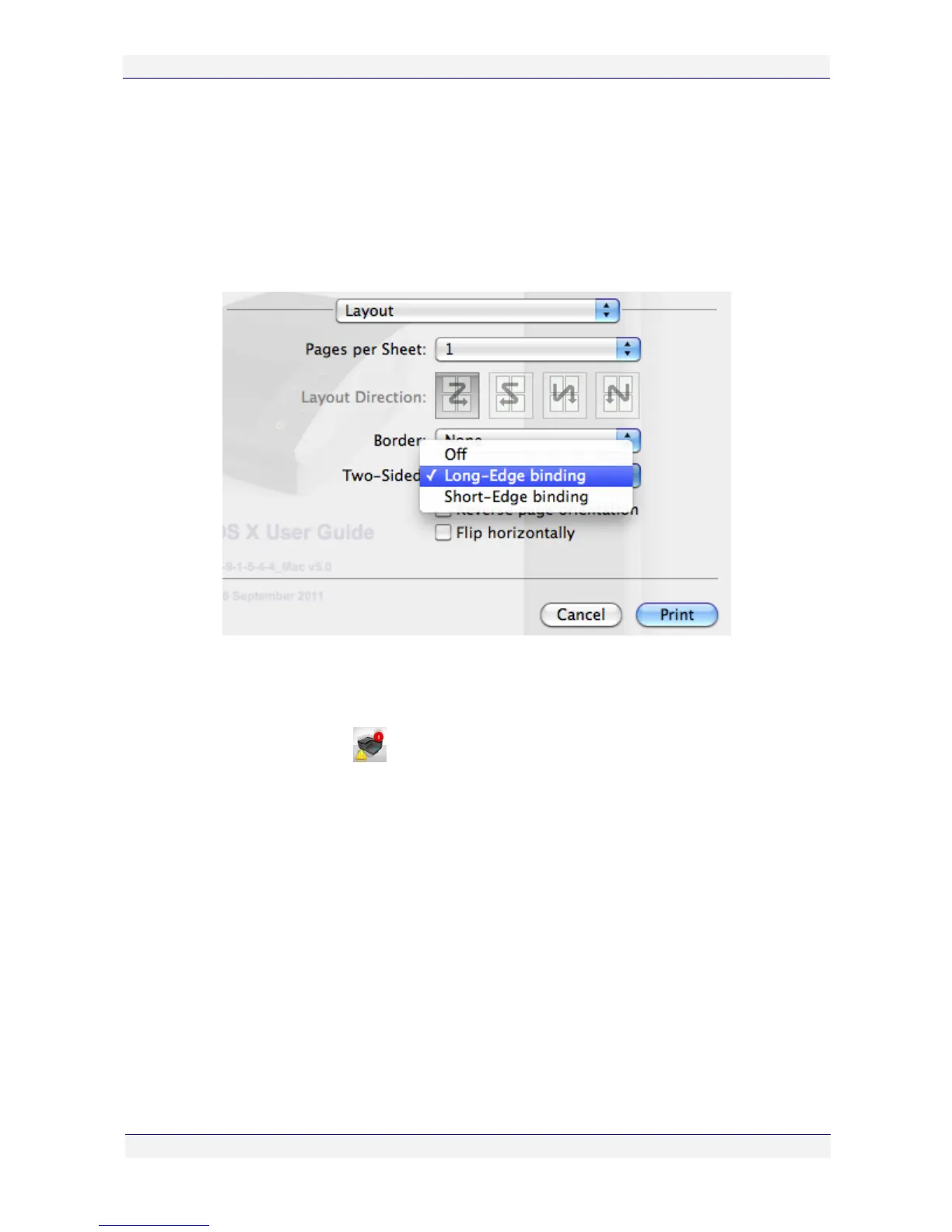
4. Click the Two-Sided arrow and select the binding location from the pop-up menu, as
shown in the picture below.
5. The Two-Sided tick box in the Common pane will automatically be selected.
6. Click Print. You will see that:
Two sheets will be printed.
The printer icon will appear in the Dock.
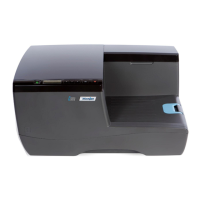
Instructions will be displayed on the LCD screen of your printer.


 To Next Page