EasyManua.ls Logo

Memorex MCBQ618 - User Manual

Memorex MCBQ618
6 pages
Print Icon
To Next Page IconTo Next Page
Loading...
Memory Card & USB
The speaker supports MP3 audio les, and SD cards up to 32GB.
Note: USB port cannot charge additional mobile devices.
1. With the speaker on, insert a Micro SD card or USB drive into the
corresponding port. The speaker will detect the connection and
automatically switch source modes.
2. When playing from a memory card, the display will show "TF".
When playing from a USB drive, the display will show "USB".
3. Use the controls on the speaker to play audio on the storage device.
MCBQ618 v2202-01
Micro SD card slot
NFC Connection Area
Main Power On/Off
Play/Pause/Pair
Bluetooth
Press and hold to begin
pairing to a Bluetooth device
(BLUETOOTH MODE).
Press to play or pause audio
(BLUETOOTH, TF, USB MODE).
Power/Source
Press and hold to power audio
features ON or OFF.
Press to change audio mode.
Clock/AL
Press to set clock and alarm time.
Source Mode Indicators
USB / TF / Aux / FM
Aux In (3.5mm audio input)
Volume & Settings Adjustment
Press and hold to adjust volume level.
Press to make settings adjustements.
Speakerphone
Micro USB charging port
& indicator light
Alarm On/Off Indicator
Low Battery Indicator
PM Indicator
USB port
Features
Wireless Inductive Charging
NFC
Bluetooth wireless - range: 60 ft.
Built-in stereo speakers
Speakerphone
Built-in FM radio and Auto Scan
radio presets
Digital clock
Red LED display
Aux In (3.5mm audio input)
Micro SD memory card reader
USB port
Micro USB power input for
battery recharge
Built-in rechargeable battery
Battery life approx. 3 hours at
100% volume
Bluetooth Clock Radio with
Wireless Charging
Includes
AC/DC power adapter
3.5mm audio cable
Warranty
Power & Charging
Plug the AC power cord into a standard power outlet to charge the unit.
Note: The unit will charge fastest with the Main Power switch OFF.
Aux In
Requires a 3.5mm audio cable.
1. With the unit powered ON, connect a 3.5mm audio cable to the Aux In
port. The speaker will detect the connection and automatically switch
source modes, the display will show "AUX".
2. Use the controls on the connected device to play audio through the unit.
Setting the Clock and Alarm
1. With the unit's Main Power ON, press the Clock button. The display will
begin ashing.
2. Use the Volume buttons to adjust the time. Press Clock to switch from
hours to minutes. Note the PM indicator.
3. To set the Alarm, press Clock again after setting the time. Use the
Volume buttons to set the alarm to ON or OFF, then press Clock again.
4. Use the Volume buttons to adjust the alarm time. Press Clock to switch
from hours to minutes. Note the PM indicator.
Alarm Details
To cancel the alarm after it has sounded, press the Clock/AL button.
To delete the alarm, press the Clock button again after setting the time.
Use the Volume buttons to set the alarm to OFF, then press Clock again
to nish (refer to numbered steps above).
Bluetooth Wireless
Pairing to a Bluetooth Device and Playing Audio
1. Press and hold the button, the symbol on the display will begin
ashing quickly and another voice prompt will sound from the speaker.
When pairing, remain within 3 feet of the unit.
2. Using the controls on your Bluetooth device, select MCBQ618 from your
Bluetooth settings to pair. When successfully paired, the symbol on the
display will turn solid. Refer to the user’s manual for your specic device
for more detailed instructions on pairing and connecting Bluetooth devices.
3. Audio played through the connected Bluetooth device should now be
heard through the speakers. Use the controls on the connected Bluetooth
device to select and begin playing audio. Play, pause or skip audio using
the controls on the device or the unit.
Speakerphone
To accept or end a phone call coming through the connected Bluetooth
phone, press the button on the speaker.
To decline a call, press the button twice.
Previously Connected Devices
This unit can remember multiple Bluetooth devices and will always try to
reconnect to the last device used.
To reconnect to a different device, turn off Bluetooth on unwanted devices,
then access the Bluetooth settings menu on the device you wish to use
and connect to MCBQ618.
If the unit should become unpaired or will not connect normally, delete the
unit for your device's Bluetooth settings menu ("Forget This Device"), turn
the unit off and on again, and perform the Bluetooth connection again.
Charge Indicator is red
while charging, and will
ash when fully charged.
Wireless Charging
Note : Use only included AC/DC power
adapter. Unauthorized power adapters may
cause damage or the wireless charger may
malfunction.
Wireless charging is only compatible with
supported devices and the included AC/DC
power adapter.
On supported devices, if the “wireless
charging” feature is not active, you may need
to enable it from your device’s Settings, Power,
or Battery menu. Consult the user manual for
your specic device.
NFC Connections
Note: Refer to your specic device’s manual for general information, and
instructions on how to check for NFC availability and turn the feature on.
1. Press the Source button to set the unit to Bluetooth mode.
2. After activating your mobile device's NFC, lightly touch your device to the
NFC logo on the unit and hold it there for several seconds. The unit will
connect to your mobile device automatically.
3. When successfully paired and connected, the Bluetooth Indicator on the
display will turn solid .
4. After initial pairing, the unit will stay paired unless unpaired manually by
the user or erased due to a reset of the device.
FM Radio
Tuning the FM Radio
Note: The included 3.5 mm audio cable can be used as an antenna to increase
FM radio reception.
1. Press the Source button to switch to FM Mode. A voice prompt will sound
from the speaker and the display will show the radio frequency.
2. To automatically scan radio frequencies and set presets, press and hold
the button. When nished, use the buttons to change presets.
Note: Auto-Scan is the only method for adjusting radio frequencies and
setting radio presets.
3. Press and hold the buttons to adjust the volume level.

Question and Answer IconNeed help?

Do you have a question about the Memorex MCBQ618 and is the answer not in the manual?

Summary

Power and Operation

Power & Charging

Instructions for plugging in the unit and charging its battery.

Setting the Clock and Alarm

Step-by-step guide to set the current time and an alarm.

Bluetooth Connectivity

Pairing and Audio Playback

How to pair a Bluetooth device and play audio wirelessly.

Speakerphone Functionality

Using the unit to answer, end, or decline calls via Bluetooth.

Managing Previously Connected Devices

Tips for reconnecting or switching to different Bluetooth devices.

Audio Sources and Connections

NFC Connections

Instructions for connecting devices using NFC technology.

Memory Card & USB Playback

How to play audio files from Micro SD cards or USB drives.

Auxiliary Input (3.5 mm)

Connecting external audio devices via the 3.5mm Aux In port.

FM Radio Tuning

How to tune into FM radio stations and set presets.

Safety and Compliance

Important Safety Instructions

Critical guidelines for safe operation and maintenance of the product.

FCC Statement

Regulatory compliance information regarding FCC rules.

Product Support and Notes

Customer Support Information

Contact details for customer service and parts.

Notes On Wireless Charging

Important usage tips and precautions for wireless charging.

Summary

Power and Operation

Power & Charging

Instructions for plugging in the unit and charging its battery.

Setting the Clock and Alarm

Step-by-step guide to set the current time and an alarm.

Bluetooth Connectivity

Pairing and Audio Playback

How to pair a Bluetooth device and play audio wirelessly.

Speakerphone Functionality

Using the unit to answer, end, or decline calls via Bluetooth.

Managing Previously Connected Devices

Tips for reconnecting or switching to different Bluetooth devices.

Audio Sources and Connections

NFC Connections

Instructions for connecting devices using NFC technology.

Memory Card & USB Playback

How to play audio files from Micro SD cards or USB drives.

Auxiliary Input (3.5 mm)

Connecting external audio devices via the 3.5mm Aux In port.

FM Radio Tuning

How to tune into FM radio stations and set presets.

Safety and Compliance

Important Safety Instructions

Critical guidelines for safe operation and maintenance of the product.

FCC Statement

Regulatory compliance information regarding FCC rules.

Product Support and Notes

Customer Support Information

Contact details for customer service and parts.

Notes On Wireless Charging

Important usage tips and precautions for wireless charging.

Overview

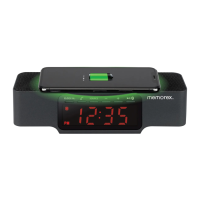
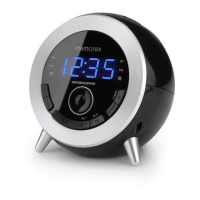
This document describes the Memorex MCBQ618 Bluetooth Clock Radio with Wireless Charging.

Function Description

The Memorex MCBQ618 is a versatile Bluetooth clock radio that integrates several audio playback options with a digital clock, alarm functions, and wireless charging capabilities. It features built-in stereo speakers and a speakerphone for hands-free calls. The device supports various audio sources including Bluetooth wireless, FM radio, Aux In, Micro SD cards, and USB drives. It also includes NFC for easy Bluetooth pairing and a built-in rechargeable battery for portable use.

Important Technical Specifications

  • Bluetooth Wireless: Range of 60 ft.
  • Display: Digital clock with red LED display.
  • Audio Inputs: Aux In (3.5mm audio input), Micro SD memory card reader, USB port.
  • Charging: Wireless inductive charging, Micro USB power input for battery recharge.
  • Battery: Built-in rechargeable battery with approximately 3 hours of life at 100% volume.
  • Power: AC/DC power adapter (included).
  • Memory Card Support: Supports MP3 audio files and SD cards up to 32GB.
  • USB Port: For audio playback only; cannot charge additional mobile devices.
  • Included Accessories: AC/DC power adapter, 3.5mm audio cable, warranty.

Usage Features

Power and Source Control

  • Power ON/OFF: Press and hold the "Power/Source" button to turn audio features ON or OFF.
  • Change Audio Mode: Press the "Power/Source" button to cycle through audio modes (USB, TF, Aux, FM). Source mode indicators (USB/TF/Aux/FM) are displayed.

Clock and Alarm

  • Set Clock: Press the "Clock/AL" button. The display will flash. Use the "Volume" buttons to adjust hours and minutes. Press "Clock" to switch between hours and minutes. The PM indicator is displayed.
  • Set Alarm: After setting the time, press "Clock" again. Use the "Volume" buttons to set the alarm to ON or OFF, then press "Clock" again. Use the "Volume" buttons to adjust the alarm time. Press "Clock" to switch between hours and minutes. The PM indicator is displayed.
  • Cancel Alarm (after sounding): Press the "Clock/AL" button.
  • Delete Alarm: Press the "Clock" button again after setting the time. Use the "Volume" buttons to set the alarm to OFF, then press "Clock" again.

Volume and Settings Adjustment

  • Adjust Volume: Press and hold the "Volume" buttons to adjust the volume level.
  • Adjust Settings: Press the "Volume" buttons to make settings adjustments.

Bluetooth Wireless

  • Pairing: Press and hold the "Play/Pause/Pair Bluetooth" button. The Bluetooth symbol will flash quickly, and a voice prompt will sound. Remain within 3 feet of the unit. Select "MCBQ618" from your device's Bluetooth settings. The Bluetooth symbol will turn solid upon successful pairing.
  • Playing Audio: Press the "Play/Pause/Pair Bluetooth" button to play or pause audio in Bluetooth, TF, or USB mode.
  • Speakerphone:
    • Accept/End Call: Press the "Play/Pause/Pair Bluetooth" button.
    • Decline Call: Press the "Play/Pause/Pair Bluetooth" button twice.
  • Previously Connected Devices: The unit remembers multiple Bluetooth devices and attempts to reconnect to the last used device. To connect to a different device, turn off Bluetooth on unwanted devices, then access the Bluetooth settings menu on the desired device and connect to "MCBQ618." If the unit becomes unpaired, delete it from your device's Bluetooth settings ("Forget This Device"), turn the unit off and on, and re-pair.

NFC Connections

  • Pairing: Press the "Source" button to set the unit to Bluetooth mode. Activate NFC on your mobile device, then lightly touch your device to the NFC logo on the unit and hold it for several seconds. The unit will connect automatically. The Bluetooth indicator will turn solid upon successful pairing. The unit will remain paired unless manually unpaired or reset.

Memory Card & USB Playback

  • Insert Media: With the speaker ON, insert a Micro SD card or USB drive into the corresponding port. The speaker will automatically detect the connection and switch source modes.
  • Display: "TF" for memory card, "USB" for USB drive.
  • Control Playback: Use the controls on the speaker to play audio.

Aux In

  • Connect Cable: With the unit powered ON, connect a 3.5mm audio cable to the Aux In port. The speaker will detect the connection and automatically switch source modes. The display will show "AUX."
  • Control Playback: Use the controls on the connected device to play audio through the unit.

FM Radio

  • Switch to FM Mode: Press the "Source" button. A voice prompt will sound, and the display will show the radio frequency.
  • Auto-Scan and Presets: Press and hold the "Play/Pause/Pair Bluetooth" button to automatically scan radio frequencies and set presets. Use the "Volume" buttons to change presets. Auto-Scan is the only method for adjusting radio frequencies and setting radio presets.
  • Adjust Volume: Press and hold the "Volume" buttons to adjust the volume level.
  • Antenna: The included 3.5mm audio cable can be used as an antenna to increase FM radio reception.

Wireless Charging

  • Compatibility: Only compatible with supported devices and the included AC/DC power adapter. Unauthorized power adapters may cause damage.
  • Activation: If the wireless charging feature is not active on a supported device, it may need to be enabled from the device's Settings, Power, or Battery menu.
  • Placement: Depending on the charging coil location, the device may not charge in all positions; find the best position.
  • Headset Use: If using a connected headset, place the device in landscape position to avoid moving the charging coil out of position.
  • Cases: Wireless charging may not work with cases that are too thick or have a magnet; remove the case before placing on the charging pad.
  • Attached Wireless Charging Cases: Never place just the case on the charging pad, as this may overheat and risk fire/injury.
  • Wired/Portable Chargers: Connecting a wired or portable battery charger to your device while it is on the charging pad will disable wireless charging.
  • Power Switch: The wireless charger does not have a power switch. Unplug it to save energy.
  • Interference: May cause interference in areas with weak Wi-Fi signal.
  • Initial Use: Remove the protective film from the charger base before use.

Maintenance Features

  • Cleaning: Unplug the product from the wall outlet before cleaning. Use only a dry cloth; do not use liquid or aerosol cleaners.
  • Troubleshooting:
    • Unpaired/Disconnected Bluetooth: Delete the unit from your device's Bluetooth settings ("Forget This Device"), turn the unit off and on again, and perform the Bluetooth connection again.
    • Wireless Charger Malfunction: Use only the included AC/DC power adapter. Unauthorized adapters may cause damage.
  • Safety Checks: After any service or repairs, ask the service technician to perform safety checks to ensure proper operating condition.
  • Replacement Parts: Ensure service technicians use replacement parts specified by the manufacturer or parts with the same characteristics as the original. Unauthorized substitutions may result in fire, electric shock, or other hazards.
  • Power Cord Protection: Route power supply cords to prevent them from being walked on or pinched, paying attention to plugs, convenience receptacles, and exit points from the product.
  • Protective Attachment Plug: If replacement of the plug is required, ensure the service technician uses a replacement plug specified by the manufacturer with the same overload protection as the original.

Memorex MCBQ618 Specifications

General IconGeneral
BrandMemorex
ModelMCBQ618
CategoryClock Radio
LanguageEnglish

Related product manuals