20
Chapter 4 More Features of the Extender
Wireless devices that support WPS, including Android phones, tablets, and most
USB network cards, can be connected to your extender through this method (not
supported by iOS devices).
1. Visit http://mwlogin.net, and log in with the password you set for the extender.
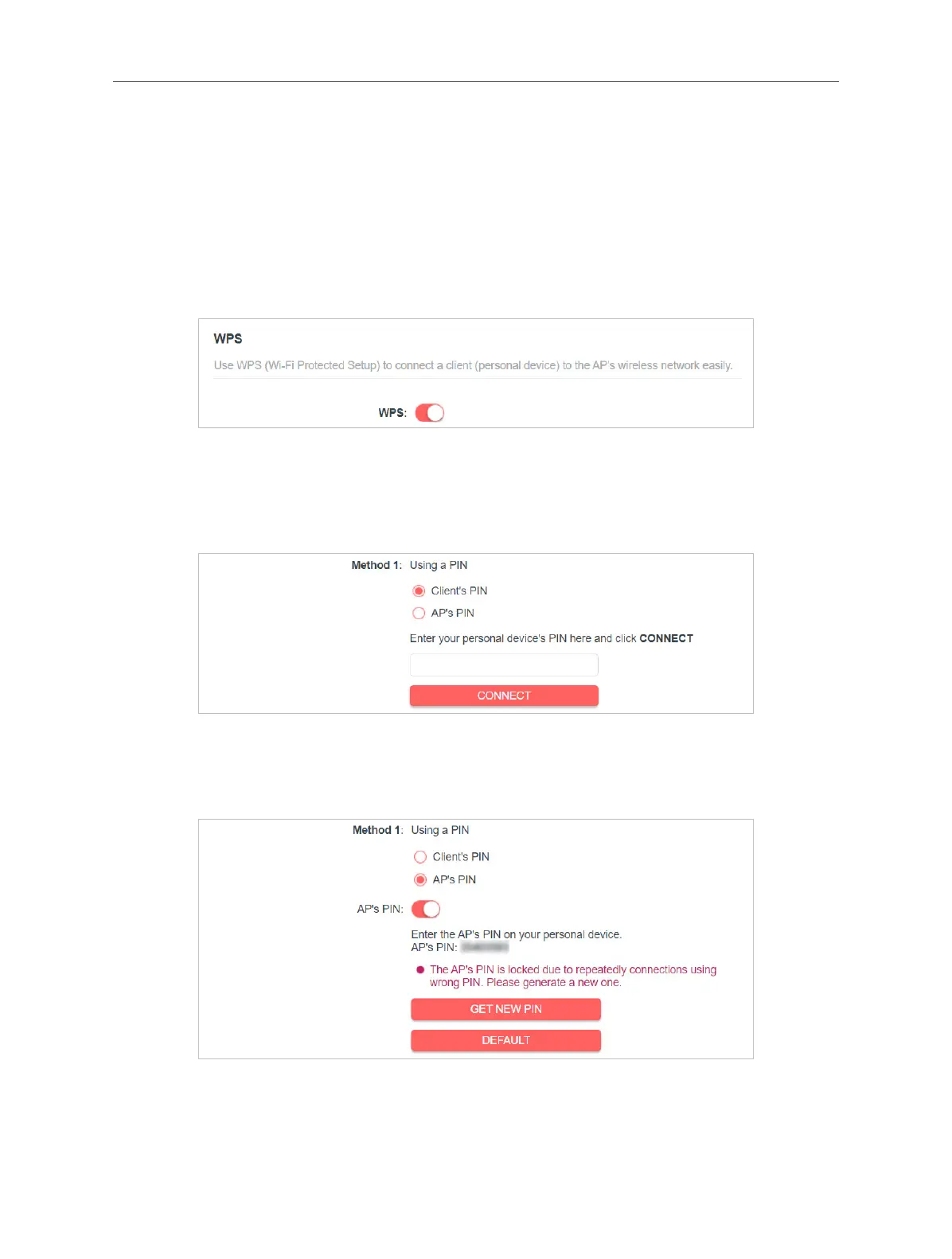
2. Go to Wireless > WPS.
3. Enable WPS.
4. Connect via WPS:
• Client’s PIN: Enable Client’s PIN and enter your device’s PIN in the blank, and
then click CONNECT.
• AP’s PIN: Enable AP’s PIN and enter the PIN on your device. You can click
GENERATE to get a new PIN or click DEFAULT to restore the PIN to its factory
one.
• Push Button (Recommended): Click Start and push the WPS button on the
client device within 2 minutes.


 To Next Page