Need help?
Do you have a question about the Mercusys ME20 and is the answer not in the manual?
Explains the function of the range extender in strengthening Wi-Fi signals.
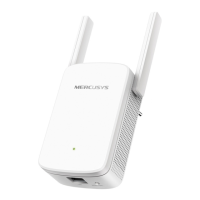
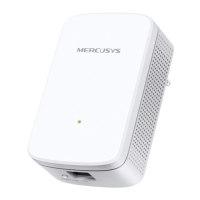
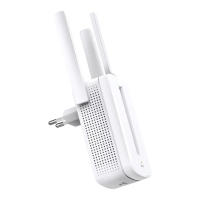
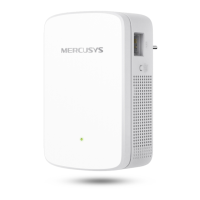
Details the physical design and components of the range extender.
Interprets the status and meaning of the extender's LED lights.
Describes the function of the RESET/WPS button and Ethernet port.
Step-by-step guide to connect the extender to the internet using a web browser.
Step-by-step guide to connect the extender to the internet using WPS.
Verifies the extender's connection status to the host network and internet.
Steps to extend existing Wi-Fi networks and modify wireless settings.
Modifies the extender's IP address, subnet mask, and gateway.
Configures the DHCP server parameters for client device assignment.
Optimizes performance by dedicating a band for high-speed connections.
Manages network access by permitting or blocking specific devices.
Adjusts the range and strength of the extender's Wi-Fi signal.
Configures the extender to convert a wired network into a wireless one.
Connects devices to the extender manually or via WPS.
Interprets LED indicators when the extender operates in Access Point mode.
Configures the device's internal clock and daylight saving time.
Manages LED activity, including turning them off or scheduling.
Schedules automatic power on/off times for the extender.
Instructions for downloading and installing the latest firmware.
Save, restore, or reset extender configuration settings.
Restarts the extender to clear cache or schedule automatic reboots.
Modifies the administrator password for accessing the web interface.
Views and saves system activity logs for troubleshooting purposes.
 General
| Product Type | Wi-Fi Range Extender |
|---|---|
| Wireless Speed (2.4 GHz) | 300 Mbps |
| Ethernet Ports | 1 x 10/100 Mbps |
| Antennas | 2 |
| Wireless Standards | IEEE 802.11n, IEEE 802.11g, IEEE 802.11b |
| Frequency Bands | 2.4 GHz |
| Button | WPS/Reset |
| LED Indicators | Power, Signal Strength |
| Power Supply | 100-240V AC, 50/60 Hz |
| Power Consumption | 4.5 W |
| Operating Temperature | 0°C to 40°C (32°F to 104°F) |
| Storage Temperature | -40°C to 70°C (-40°F to 158°F) |
| Operating Humidity | 10%~90% non-condensing |
| Storage Humidity | 5% to 90% non-condensing |

 To Next Page