13
Chapter 3 Customize Your Network
3.4 Specify DHCP Server Settings
By default, the DHCP (Dynamic Host Conguration Protocol) Server is auto and the
extender acts as a DHCP server and dynamically assigns TCP/IP parameters to
client
devices from the IP Address Pool when the router’s DHCP server is disabled. You
can change the settings of the DHCP Server if
necessary.
1. Visit http://mwlogin.net, and log in with the password you set for the extender.
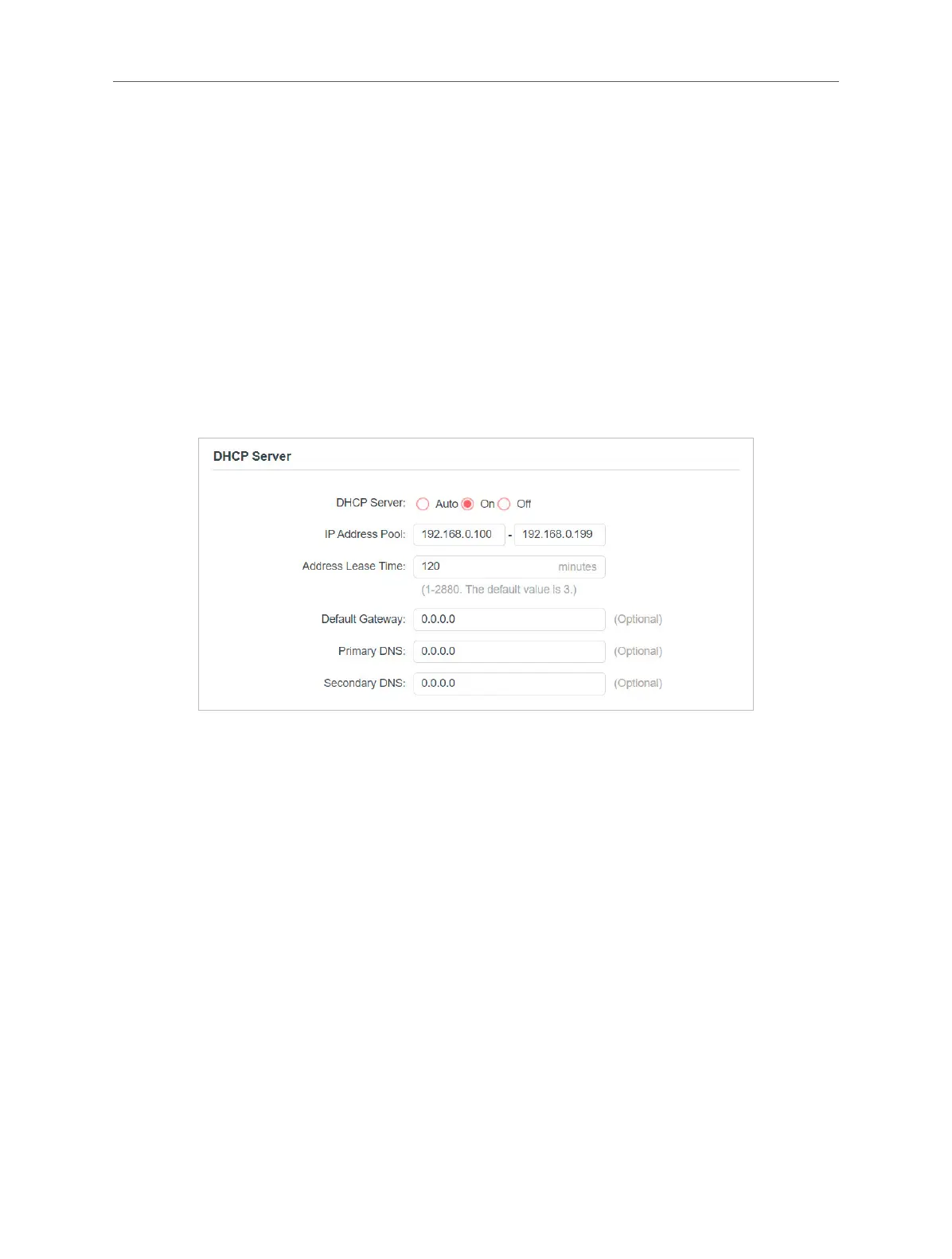
2. Go to Settings > Network > DHCP Server.
1. Select On to enable the DHCP Server of the extender.
2. Enter the starting and ending IP addresses in the IP Address Pool.
3. Enter other parameters if the ISP offers. The Default Gateway is automatically
lled in and is the same as the LAN IP address of the router.
4. Click SAVE.
3.5 Set High Speed Mode
The High Speed feature switches o one of the wireless bands to leave one high-
performance, super-fast network, ideal for HD streaming and gaming applications.
If most of your devices are connected to one wireless band, this feature can
increase the overall performance of your wireless network.
Note:
Before enabling this feature, please go to Settings > Wireless > Extended Network and check that the 2.4GHz
and 5GHz bands are both enabled. Additionally, if you are going to disable the 2.4GHz network, it’s recommended


 To Next Page