English
3
http://mwlogin.net. Create a password for
future login attempts.
b) Select your router's host network and
enter the network password when
prompted.
c) Check the Signal LED on your extender.
Green or orange LED indicates a
successful connection.
4 Relocate
To achieve better signal quality, plug in the
extender halfway between your router and
the Wi-Fi dead zone.
Router
Extender
Clients
Host Network
Extended Network
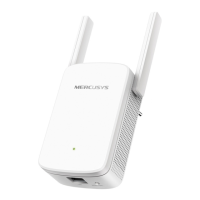
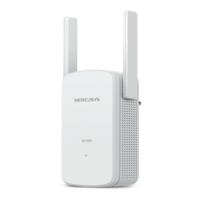
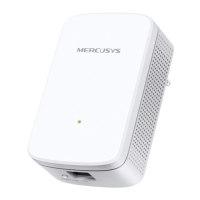
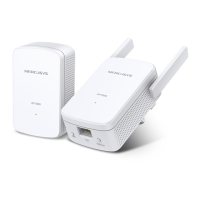
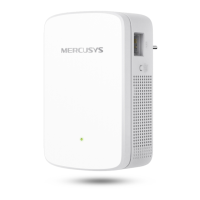
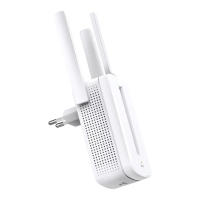
* Image may differ from actual product.
Enjoy!
Connect your device to the extender using the
extended SSID. The default Wi-Fi password is the
same as your host network.
1 Power on
Plug the extender into a power outlet near
your router, and the Signal LED turns solid
red.
2 Connect to the extender
Connect your wireless device to the
extender’s network MERCUSYS_RE_XXXX.
Note: The default SSID (network name) is printed on
the product label at the back of the extender.
3 Configure
Method 1: Via MERCUSYS App
Get the up-to-date MERCUSYS app, and
follow the app instructions to complete the
setup.
Method 2: Via a Web Browser
a) Launch a web browser and enter


 To Next Page