4
Fitting the Headset on Your Head:
» Put on the headset with the head strap loosened. Move any hair out of the way and ensure the head
strap sits just above your ears and behind your head.
» Tighten the side straps for a snug t by adjusting the sliders.
» Adjust the top strap to relieve pressure from your face, supporting the weight of the headset.
» For a clearer image, adjust the lens spacing by shifting the lenses left or right until the image is in focus.
Adjust for comfort:
» For those with long hair, pull your ponytail through the split back strap to increase comfort.
» Tilt the headset slightly up or down to adjust the angle, improving comfort and image clarity.
Status Indicators
» Blinking white light: Controllers are powered on and ready.
» Solid white light: The headset is on and functioning properly.
» Solid orange light: The headset is in sleep mode or low battery.
» Action Button Status: The action button lets you toggle between Pass-through view and immersive
virtual surroundings, providing quick access to your real-world environment.
STEP-BY-STEP GUIDE
Headset Adjustment
Skills
VR
Support | Meta Quest 3S
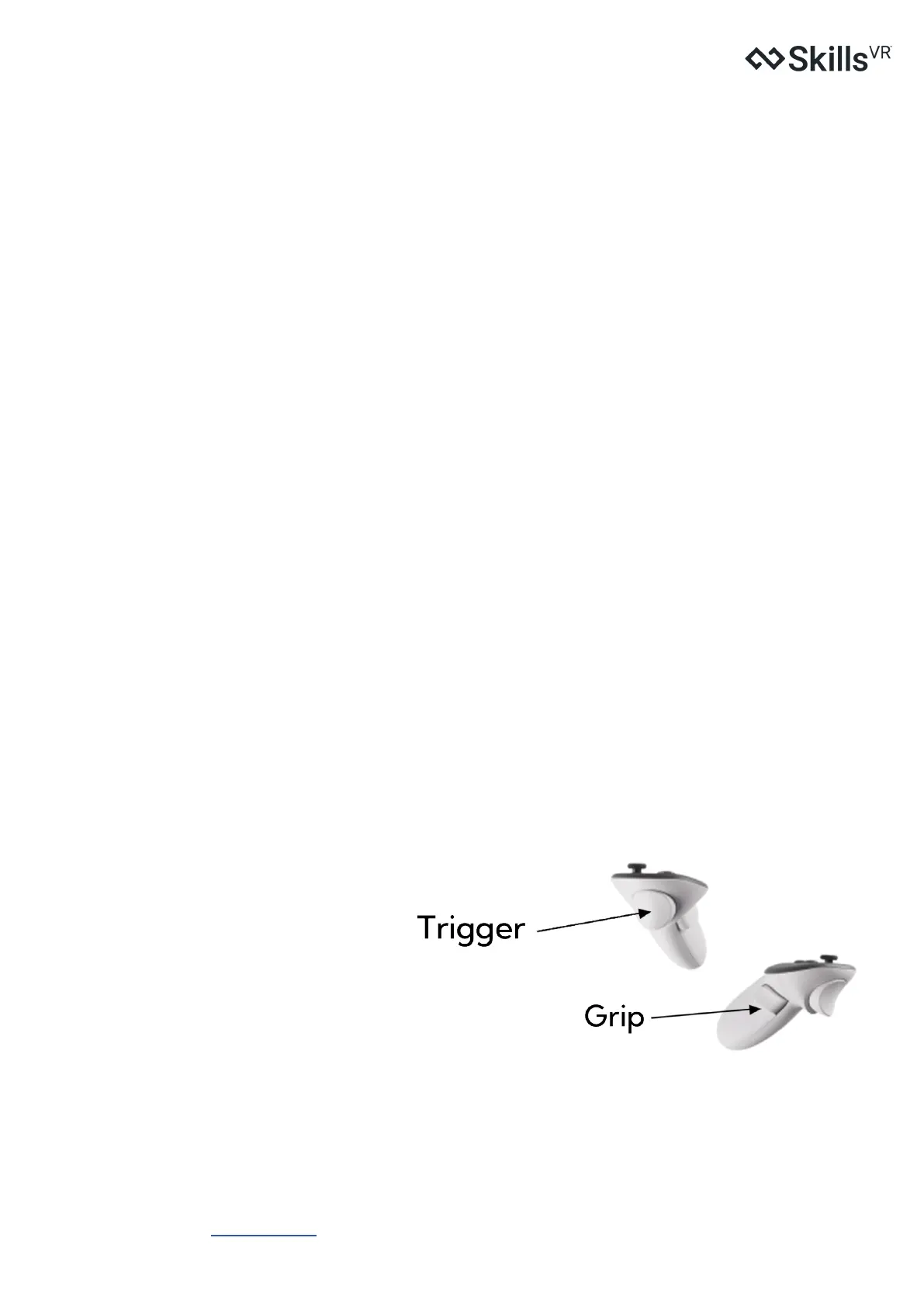
Controllers
» The Meta Quest 3S controllers are
ready to go once powered on. The
Menu button on the left controller
and the Meta button on the right
controller are key to navigating menus
and interacting with your virtual
space.


 To Next Page