5
To re-center your screen, press and hold the Meta button on the right controller to reset the view in
your virtual environment, ensuring a centered and comfortable experience.
Sleep and Wake Modes
» Sleep mode: The headset automatically goes into sleep mode when not in use.
» Wake mode: To wake up the headset, simply press the power button on the left side. You may see
an animated power button icon if the headset is still waking up.
Hardware Reset
If you need to reset your headset for troubleshooting, you can perform a hardware reset. This can be
done by holding down the power button for 10 seconds until the device powers o, then restarting it.
Other Adjustments
» Breathable Facial Interface: If you want additional comfort and to reduce humidity, install the
breathable facial interface. This can be easily done by detaching the current facial interface and
snapping the breathable one into place.
» Lens Care: Keep your lenses clean using a dry optical lens microber cloth. Avoid using liquids or
chemicals.
Important Reminders
» Headset care: Avoid leaving your headset in direct sunlight or hot environments.
» Controller battery management: Ensure your controllers are always charged and ready to go.
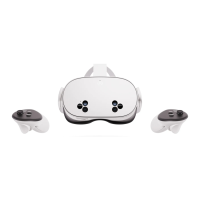
» Use a travel case for protection when transporting your Meta Quest 3S headset.
STEP-BY-STEP GUIDE
Re-centering the Screen
Skills
VR
Support | Meta Quest 3S


 To Next Page