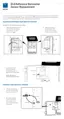
16. Push the cable from the antenna on the right
side of the enclosure into the connector on
the left side of the cellular board.
Push until a click is heard. Use connector
labeled ANT1 if there are two connectors.
17. Carefully lift the main board up and rotate
over so batteries are visible.
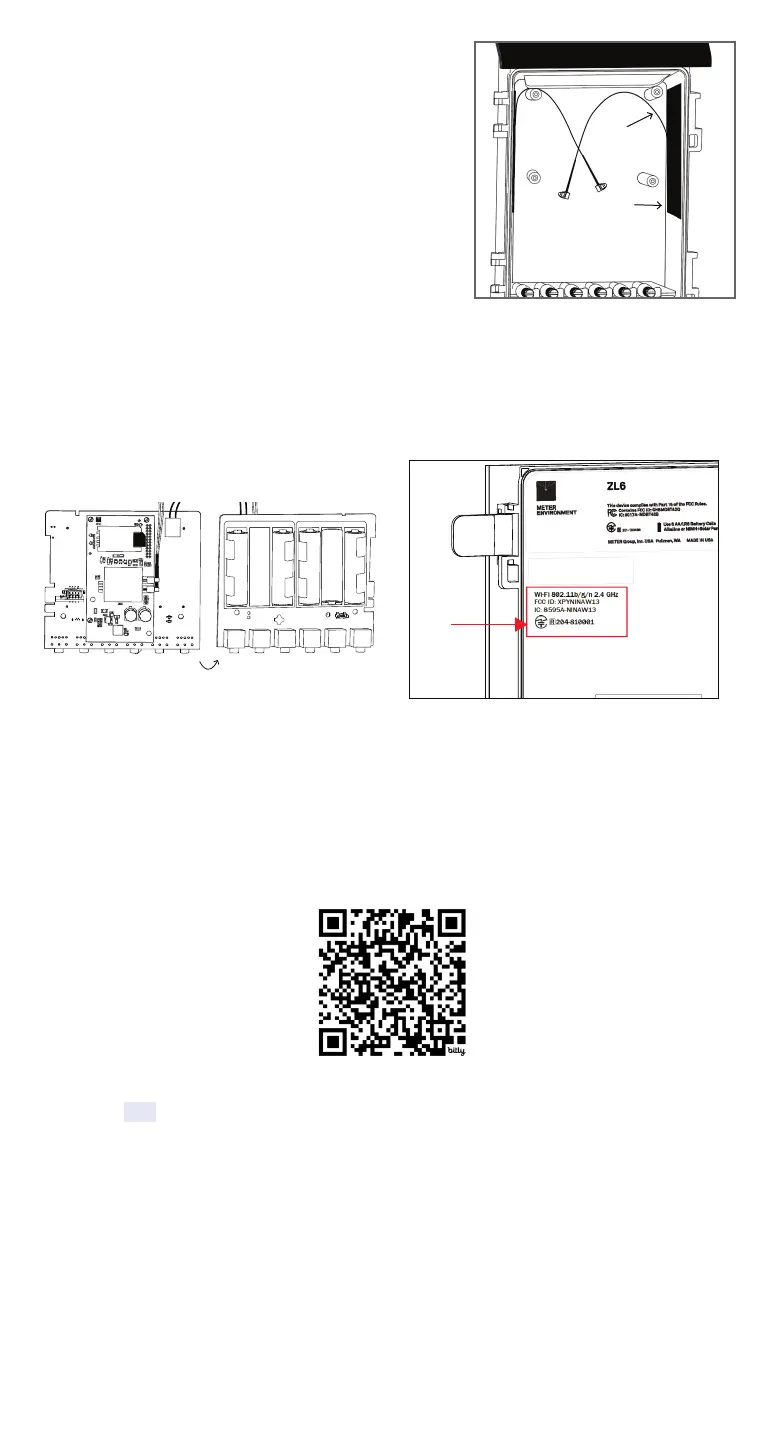
INSTALL SECOND ANTENNA
NOTE: Skip these steps if the kits doesn’t contain a second
antenna or a second antenna is already installed.
The second antenna is installed on the right side of
theenclosure with the cable oriented towards the top of
the ZL6.
14. Remove the adhesive backing from the antenna and
carefully affix it to the side of the enclosure.
15. Push the cable from the antenna on the right of
enclosure into the connector labeled ANT2.
Push until a click is heard.
22. Check for ZL6 configuration updates. The new cellular board or SIM may require this ZL6
configuration update to connect.
https://meter.ly/zl6-modem-swap
23. Use the TEST toolbar button in ZENTRA Utility Mobile orZENTRA Utility to test the
connection to ZENTRA Cloud.
Perform this test at least twice to ensure pending configuration changes from ZENTRA
Cloud are successfully received.
If the connection fails, see the ZL6 User Manual (metergroup.com/zl6-support) for
communication troubleshooting.
Device Serial Number:
z6-#####
Place new
certifcation
label here
Cellular Data Logger
TEST
SIM
card
ANT 2
ANT 1
FLIP
18. Align the board over the mounting posts.
19. Replace the screws.
20. Replace the removed battery.
21. Place new certification label on the inside
of the ZL6 case.
INSTALL AND RETURN MAIN BOARD TO ORIGINAL POSITION
METER Group, Inc.
E info@metergroup.com
W metergroup.com
EUROPE
E support.europe@metergroup.com
T +49 89 12 66 52 0
NORTH AMERICA
E support.environment@metergroup.com
T +1.509.332.5600
Position the
antenna cable
toward the top
Apply second
antenna here


 To Previous Page
 Loading...