EasyManua.ls Logo

METER EM50 Series - User Manual

METER EM50 Series
49 pages
Print Icon
To Next Page IconTo Next Page
Loading...
i
TABLE OF CONTENTS
1. Introduction .............................................................................................. 1
2. About the Em50 Logger Series ....................................................... 2
2.1 Em50 Logger Series Overview ....................................................................2
2.2 Specifications ............................................................................................2
2.3 Functionality .............................................................................................3
2.3.1 Reset Button .................................................................................... 3
2.3.2 Em50 Series Status Lights ............................................................... 3
2.3.3 Em50 Series Test Button .................................................................. 4
2.4 Software ....................................................................................................4
2.4.1 Em50 Series Data Logging Scheme .................................................. 5
2.4.2 Em50 Measurement Interval ............................................................5
2.5 How the Em50 Stores Data ........................................................................5
2.5.1 Data Storage Format ........................................................................5
2.5.2 Data Storage Size .............................................................................6
2.5.3 Measurement Span ..........................................................................6
2.5.4 Compatible Sensors .........................................................................6
3. Setup and Installation ........................................................................ 7
3.1 Installing the Batteries ..............................................................................7
3.2 Installing Software ....................................................................................7
3.3 Configuring in ECH20 Utility .......................................................................8
3.4 Field Installation ........................................................................................9
4. Software and Configuration ..........................................................10
4.1 ECH20 Utility Software Installation .........................................................10
4.2 Common Tasks in ECH20 Utility ............................................................... 11
13453-16
11.30.2019

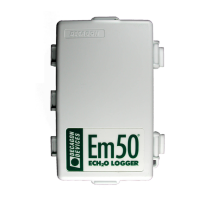
Table of Contents

Other manuals for METER EM50 Series

Questions and Answers

  • A
    Anthony HuffAug 16, 2025
    Why ECH20 Utility cannot connect to METER Data Loggers device?
    • R
      Raymond BlairAug 17, 2025
      If the ECH20 Utility is unable to establish a connection with your METER Data Loggers device, consider the following: * Verify your serial port selection in the Connect Via drop-down menu, ensuring it matches the COM port used for physical connection. * Check the serial cable connection to both the logger/DataStation and your computer. * Ensure the logger has sufficient battery power. * Try pressing the reset button on the logger or DataStation. * If you suspect a faulty cable, test with a different logger or use a spare METER Serial Cable Adapter or USB cable.
  • M
    Michael ClarkAug 19, 2025
    What to do if ECH20 Utility keeps reporting lost connection to METER EM50 device?
    • N
      ntuckerSep 12, 2025
      If the ECH20 Utility repeatedly loses connection to the METER Data Loggers device, you should check or replace your serial or USB cables. Additionally, you can increase the number of times ECH20 Utility attempts to send commands to the logger or DataStation.
  • S
    Steven Paul DDSAug 22, 2025
    How to fix ECH20 Utility stating radio modem is not responding for METER Data Loggers?
    • P
      parklauraAug 22, 2025
      If the ECH20 Utility indicates that the radio modem is not responding, ensure that the serial cable is securely attached to both your computer and your Rm-1. Also, verify that your Rm-1 has power and is turned on.
  • P
    Patrick JonesAug 25, 2025
    What to do if METER Data Loggers logger stopped making measurements?
    • J
      John TaylorAug 26, 2025
      If your logger has stopped taking measurements, verify that the measurement interval is not set to 0. If it is not 0, try pushing the reset button. If a reset is insufficient, initialize your Em50. Connect to the logger and choose "Initialize Device..." from the Device Tools submenu in the Actions menu.
  • B
    Brian BakerAug 27, 2025
    Why ECH20 Utility cannot connect to radio logger when it uses an Rm-1 with METER EM50 Data Loggers?
    • J
      Joshua Sanchez DDSAug 28, 2025
      If the ECH20 Utility fails to connect to a radio logger using an Rm-1, verify that your DataStation and Em50R share the same Channel and Subchannel, and that the DataStation is continuously powered. Ensure you are within radio range by performing a telemetry test. Increase radio signal strength by moving closer or using a high-gain antenna. Check that the antennas on the logger and Rm-1 are securely fastened. Also, make sure you wait 10 min between connection attempts for the same logger. Ensure your logger has good batteries and try pressing the reset button on your logger.
  • M
    Maria AllenAug 30, 2025
    What does it mean if sensor data shows "* * *" in the Scan window of METER Data Loggers?
    • T
      Thomas LynchAug 30, 2025
      If sensor data displays "* * *" in the Scan window, it could indicate a broken sensor. Ensure the sensor is fully inserted into the logger sensor port and that the sensor type shown in the Scan window matches the sensor actually connected to your logger.
  • A
    ashleykellySep 2, 2025
    How to troubleshoot METER EM50 logger that does not seem to be working correctly?
    • M
      Margaret AllenSep 2, 2025
      If your logger isn't functioning correctly or reliably, attempt to reset it by pressing the reset button. You can also connect to the logger and test the integrity of the firmware. If ECH20 Utility reports corrupt firmware, contact METER for assistance with reloading it. If the firmware tests good but the logger persists in malfunctioning, contact METER for repair or replacement options.
  • K
    kathrynhoustonSep 4, 2025
    What to do if ECH20 Utility keeps reporting it lost the connection to METER EM50 Data Loggers device?
    • A
      Alicia MorseSep 5, 2025
      If the ECH20 Utility repeatedly loses connection to the device, try increasing the radio signal strength by moving closer to the remote logger or using a high-gain antenna. You can also increase the Radio Connect Retries in the Communications tab on the Preferences form.
  • C
    Chad MooreSep 7, 2025
    How to resolve communication port issues with METER EM50 Data Loggers?
    • H
      Heather StevensonSep 7, 2025
      If the ECH20 Utility indicates that the communication port is in use by another application, even when no other programs are running, disable Microsoft's ActiveSync or Palm's HotSync system software while using the serial port with the ECH20 Utility.
  • N
    Nancy HenrySep 10, 2025
    How to fix USB to Serial adapter not showing in communication port picker for METER EM50 Data Loggers?
    • D
      Debbie HillSep 10, 2025
      To make the USB to Serial adapter appear in the communication port picker, enable 'Force find all Communication Ports' in the Preferences menu. Go to the Edit menu, click Preferences, then the Communication tab, and enable the check box at the bottom of the screen.

Summary

1. Introduction

2. About the Em50 Logger Series

2.1 Em50 Logger Series Overview

Overview of the Em50 series loggers, including models and general capabilities.

2.2 Specifications

Detailed technical specifications for the Em50 series loggers, covering ports, memory, and power.

2.3 Functionality

Details on the core functionalities of the Em50 series loggers, including buttons and indicators.

2.4 Software

Information on the software options available for the Em50 series loggers.

2.5 How the Em50 Stores Data

Explanation of how the Em50 logger stores collected sensor data and its format.

3. Setup and Installation

3.1 Installing the Batteries

Step-by-step guide for installing batteries in the Em50 series loggers.

3.2 Installing Software

Instructions for installing the ECH20 Utility software on a computer.

3.3 Configuring in ECH20 Utility

Guide to configuring logger parameters using the ECH20 Utility software.

3.4 Field Installation

Procedures for installing the Em50 and its sensors in the field.

4. Software and Configuration

4.1 ECH20 Utility Software Installation

Detailed steps for installing the ECH20 Utility software.

4.2 Common Tasks in ECH20 Utility

Common operations performed using ECH20 Utility, including configuration and data download.

4.3 ECH20 Utility Menus

Explanation of the different menus within the ECH20 Utility software.

4.4 ZENTRA Cloud

Overview of ZENTRA Cloud for remote data management and analysis.

5. Em50 G Cellular Communication

5.1 METER Data Service

How the Em50G uploads data to METER Data Service for remote access.

5.2 Cellular Service

Information on cellular service providers and compatibility for the Em50G.

5.3 Cellular Coverage

Factors affecting cellular coverage and network compatibility for the Em50G.

5.4 Em50 G Configuration and Settings

Steps to configure the Em50G for cellular communication and data uploads.

5.5 Communication Testing

How to test the cellular communication quality of the Em50G.

5.6 Downloading Data

Methods for downloading data from the Em50G via cellular connection.

6. Em50 R Radio Telemetry

6.1 Transmit Radio Telemetry

Using Transmit mode for Em50R loggers to send data to a DataStation.

6.2 Two-Way Radio Telemetry

Establishing two-way communication with Em50R loggers for data and settings.

6.3 Radio Settings

Configuring radio channel and subchannel settings for Em50R network communication.

6.4 Radio Performance

Factors affecting radio range and performance for Em50R telemetry.

6.5 Connecting via Rm-1 Radio Modem

How to connect to an Em50R using the Rm-1 Radio Modem.

6.6 DataStation Networks

Setting up and configuring DataStations for receiving Em50R telemetry data.

6.7 Download Collected Data

Retrieving collected data from the DataStation for analysis.

6.8 Data Processing

Processing collected data using DataTrac 3 or ECH20 Utility.

7. Caring for the Em50

7.1 Replacing the Batteries

Procedure for replacing batteries in the Em50 series loggers to maintain operation.

7.2 Long-Term Maintenance

Routine checks for long-term maintenance of the Em50 logger.

8. Troubleshooting

8.1 Customer Support

Contact information and support resources for METER products.

8.2 Terms and Conditions

Overview of METER's terms and conditions for instrument usage.

METER EM50 Series Specifications

General IconGeneral
Measurement ParametersVolumetric Water Content (VWC), Electrical Conductivity (EC), Temperature
Temperature Accuracy±1 °C
Connector Type3.5 mm stereo plug
IP RatingIP68
VWC Measurement Range0 to 100%
EC Measurement Range0 to 23 dS/m
Temperature Measurement Range-40°C to 60°C
Operating Temperature-40°C to 60°C
Power3.6V Lithium battery
Cable Length5 m (standard)
MemoryLogger dependent
Data Logging IntervalLogger dependent
Battery LifeLogger dependent
CommunicationLogger dependent
DimensionsLogger dependent
WeightLogger dependent

Related product manuals