31
EM50
Before you can use the telemetry options of your Em50R, you must configure the Em50R by
connecting it directly to your computer using your USB cable. Connect using ECH20 Utility
or DataTrac3 and set the Em50R Channel, Subchannel, and Radio Mode. See the section
on Configuring in ECH20 Utility for additional information on configuring the Em50 series
loggers. The Channel can be set from 0 to 6 inclusive (default is 0). The Subchannel can be
set from 0 to 65534 inclusive (default is 0). To use the radio logger with an Rm-1, the Radio
Mode has to be set to one of the two-way modes.
If you choose the two-way 6:00-18:00 mode, then connection via the Rm-1 can only take
place between the hours of 6:00 AM through 6:00 PM. We designed this mode was designed
to improve battery life by not keeping the radio on constantly. The other two-way modes can
be connected to 24 h a day.
After setting the Radio Mode, click the Apply button in ECH20 Utility. Disconnect from the
Em50R logger. Now, connect your computer to the Rm-1 by using a standard 9-pin serial
cable. (A USB version of the Rm-1 is also available.)
Choose the correct communication port in the Connect Via drop-down menu. For example,
if your Rm-1 is physically connected to your computers COM1 communication port, you
would choose "Rm-1 on COM1 Communication Port" in the Connect Via menu. Click the
"Connect"button.
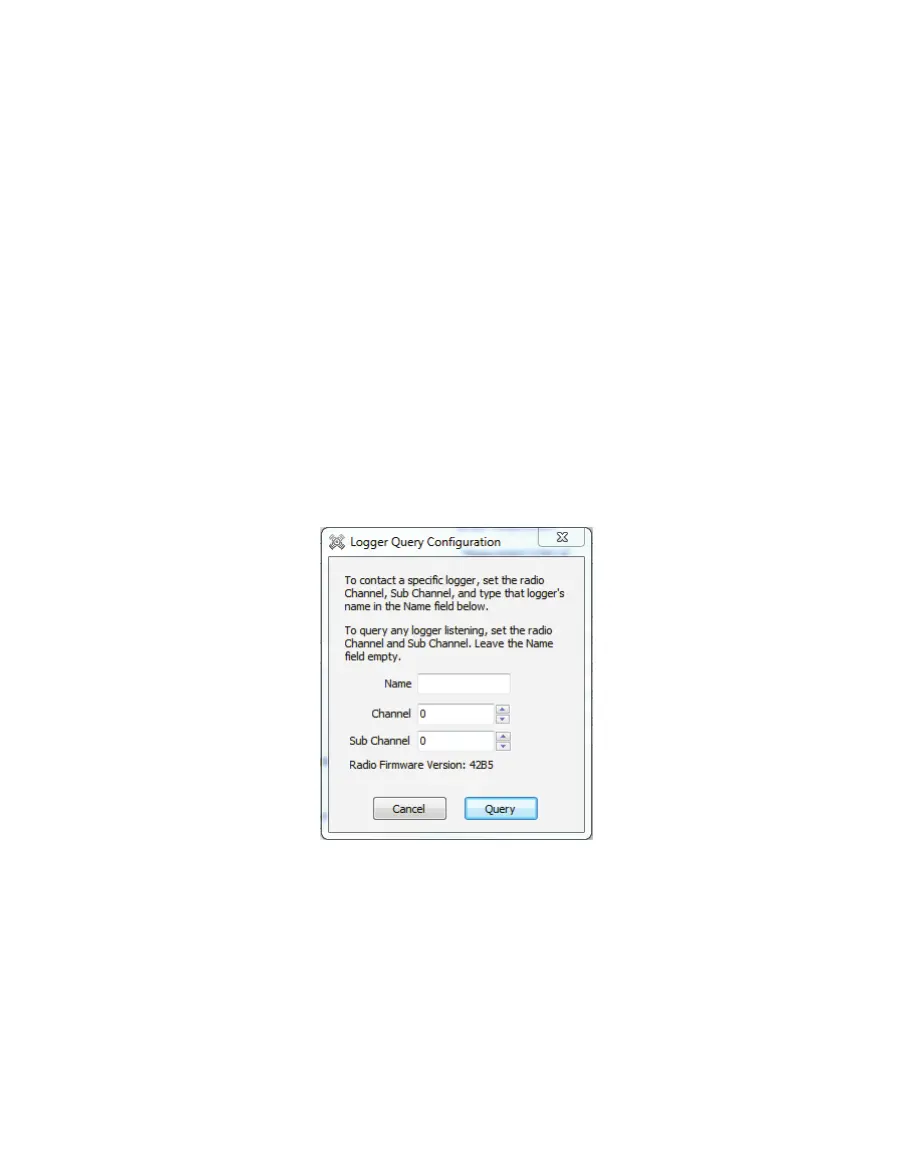
Figure11 Logger Query Configuration
The Logger Query Configuration form appears. To connect to a specific Em50R, type the
logger Name, Channel, and Subchannel. After typing the name, click the Query button. If you
want to connect to any available Em50R, pick the correct Channel and Subchannel, but leave
the Name field blank.
NOTE: To connect to a radio logger, the radio Channel setting must be the same for both the logger and the Rm-1. The
radio Subchannel setting must also be the same for both the logger and the Rm-1.


 To Next Page