EasyManua.ls Logo

METER ZL6 - User Manual

Default Icon
64 pages
Print Icon
To Next Page IconTo Next Page
Loading...
ZL6

Other manuals for METER ZL6

Questions and Answers

  • M
    Michele FordAug 12, 2025
    How to fix METER Data Loggers ZL6 logger not showing in COM port?
    • A
      Amanda StaffordAug 12, 2025
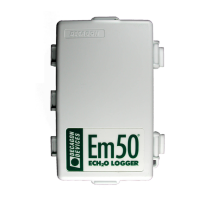
      If you're using a Windows computer, reinstall the USB driver from metergroup.com/zl6-support. Note that Mac computers running ZENTRA Utility do not require a custom USB driver. The Em50 driver and USB Cable Adapter will not work for the ZL6. Check that the USB cable is securely plugged into both the logger and the computer. Ensure the logger has good batteries. Try pressing the TEST button on the logger to reset it. Try connecting to a second logger to see if the problem is with the first logger. Also, try a different micro-USB cable, making sure it's not a charging-only cable.
  • R
    Ryan ChambersAug 16, 2025
    What to do if ZENTRA Utility reports lost connection with METER ZL6 Data Loggers?
    • J
      Jonathon KennedyAug 16, 2025
      If ZENTRA Utility reports a lost connection, first, check or replace the USB cable. Additionally, increase the number of times ZENTRA Utility tries sending commands to the logger: 1. Go to the Manage Preferences menu. 2. Select the Communication tab. 3. Increase the Direct Connect Retries.
  • J
    Justin GreenAug 20, 2025
    Why METER ZL6 Data Loggers are not working correctly?
    • J
      joel51Aug 20, 2025
      If your logger isn't working correctly, try these steps: Press the TEST button on the logger to reset it. Check the logger batteries, replacing alkaline batteries if they're close to 0% or recharging NiMH batteries if they're near 0%. Inspect the device for corrosion or water damage, and make sure the seals and gaskets are intact. If the problem continues, contact Customer Support.
  • P
    Phillip GuerreroAug 23, 2025
    What to do if METER Data Loggers stopped making measurements?
    • Q
      qellisAug 23, 2025
      If ZENTRA Utility indicates there's no new data or the logger has stopped making measurements, first, wait for at least the length of the measurement interval to ensure the logger has had enough time to record data. Make sure the logger is configured to measure data, verifying that the measurement interval is not set to Off. Check the battery, as the ZL6 will stop making sensor measurements when the batteries are extremely low. You can also press the TEST button to reset the logger.
  • S
    sheena02Aug 27, 2025
    Why METER Data Loggers show no response from sensor?
    • D
      Donald GarciaAug 27, 2025
      If sensor data shows 'No response from sensor' or downloaded data displays '#N/A', it means the raw data measured by the logger is outside the expected range for the sensor. Ensure the sensor stereo plug is fully inserted into the logger sensor port. Verify that the sensor type shown in the Scan window matches the sensor connected to the logger. Try switching the sensor to a known working port and scan again; if the sensor shows data, the original port may be damaged. If the 'No response from sensor' message persists, the sensor could be unplugged or broken. If the problem continues, contact Customer Support.
  • J
    Joseph VaughnAug 31, 2025
    How to fix METER ZL6 cellular uploads?
    • S
      Stephanie SalazarAug 31, 2025
      If cellular uploads have stopped working, try pressing the TEST button to reset the ZL6. Run the Cellular Communication Test in ZENTRA Utility to check for communication errors. Also, use the List Cellular Carriers function in ZENTRA Utility to confirm cellular carriers are operating in the area. If the issue persists, contact Customer Support.
  • M
    Mr. Derrick ReynoldsSep 3, 2025
    What to do if METER ZL6 sensor measurement data is incorrect?
    • B
      Brandy LopezSep 4, 2025
      If sensor measurement data doesn't seem correct, switch the sensor to a known working port and scan again. If the problem follows the sensor, the sensor may be damaged. Many issues affect the quality of the sensor measurement. Please see the sensor user manual for troubleshooting.
  • J
    Jacob HayesSep 7, 2025
    Why METER Data Loggers red ERROR light is always on?
    • M
      Monica PerezSep 7, 2025
      If the red ERROR light and/or green OK light are always on, check the logger batteries. Press the TEST button to reset the ZL6. If the problem continues, contact Customer Support.

Summary

Introduction

Operation

2.1 Installation

Guide to setting up the ZL6 logger and starting data collection.

2.2 Interfacing with ZL6 Using a Computer

Instructions for connecting the ZL6 to a computer via USB for configuration and data transfer.

2.3 Interfacing with ZL6 Using a Smartphone or Tablet

Steps for connecting the ZL6 to a mobile device via Bluetooth for configuration.

System

3.1 Specifications

Details on measurement, communication, and physical specifications of the ZL6 logger.

3.2 Hardware Components

Overview of the ZL6 data logger's physical parts and their functions.

Wi-Fi Communication

4.1 Configuring ZL6 for Wi-Fi Networks

Guide for setting up Wi-Fi connectivity for the ZL6 logger.

4.6 Incompatible Wi-Fi Networks

Information on Wi-Fi networks the ZL6 is not compatible with and workarounds.

4.7 Communication Test

How to test Wi-Fi connection quality for data transmission.

4.9 Troubleshooting Wi-Fi Connections

Solutions for common issues related to ZL6 Wi-Fi connectivity.

ZENTRA Software

5.1 ZENTRA Utility Mobile

Overview of the mobile app for ZL6 configuration and data download.

5.2 ZENTRA Utility

Guide to the desktop software for ZL6 configuration and data management.

5.3 ZENTRA Cloud

Instructions for using the web-based application for data viewing and configuration.

Service

6.1 Maintenance

Procedures for routine upkeep and care of the ZL6 data logger.

6.2 Troubleshooting

Solutions for common problems encountered with the ZL6 logger.

6.3 Customer Support

Contact information and support channels for METER customer service.

Appendix A. Compliance Certifications

A.1 USA

FCC compliance statements and radio module information for the USA.

A.2 CANADA

Industry Canada (IC) compliance statements and radio module information for Canada.

A.3 EUROPEAN UNION

CE mark and RF exposure information for European Union compliance.

A.4 JAPAN

TELEC/JATE certifications for radio modules used in Japan.

METER ZL6 Specifications

General IconGeneral
BrandMETER
ModelZL6
CategoryData Loggers
LanguageEnglish

Related product manuals