26
WIFI COMMUNICATION
4. WIFI COMMUNICATION
This section reviews the ZL6 Wi-Fi communications and configurations.
4.1 CONFIGURING ZL6 FOR WIFI NETWORKS
A ZL6 logger using Wi-Fi for communications with ZENTRA Cloud operates much the same
as the cellular-enabled version of the hardware as documented throughout this manual.
The key difference is a ZL6 with Wi-Fi hardware requires the relevant settings to enable a
connection to a Wi-Fi network. This is done using ZENTRA Utility Mobile. Once connected to a
Wi-Fi network, the logger operates similar to the cellular version.
Use ZENTRA Utility Mobile to configure the ZL6 for a Wi-Fi network. The process starts the
same for all supported Wi-Fi network types.
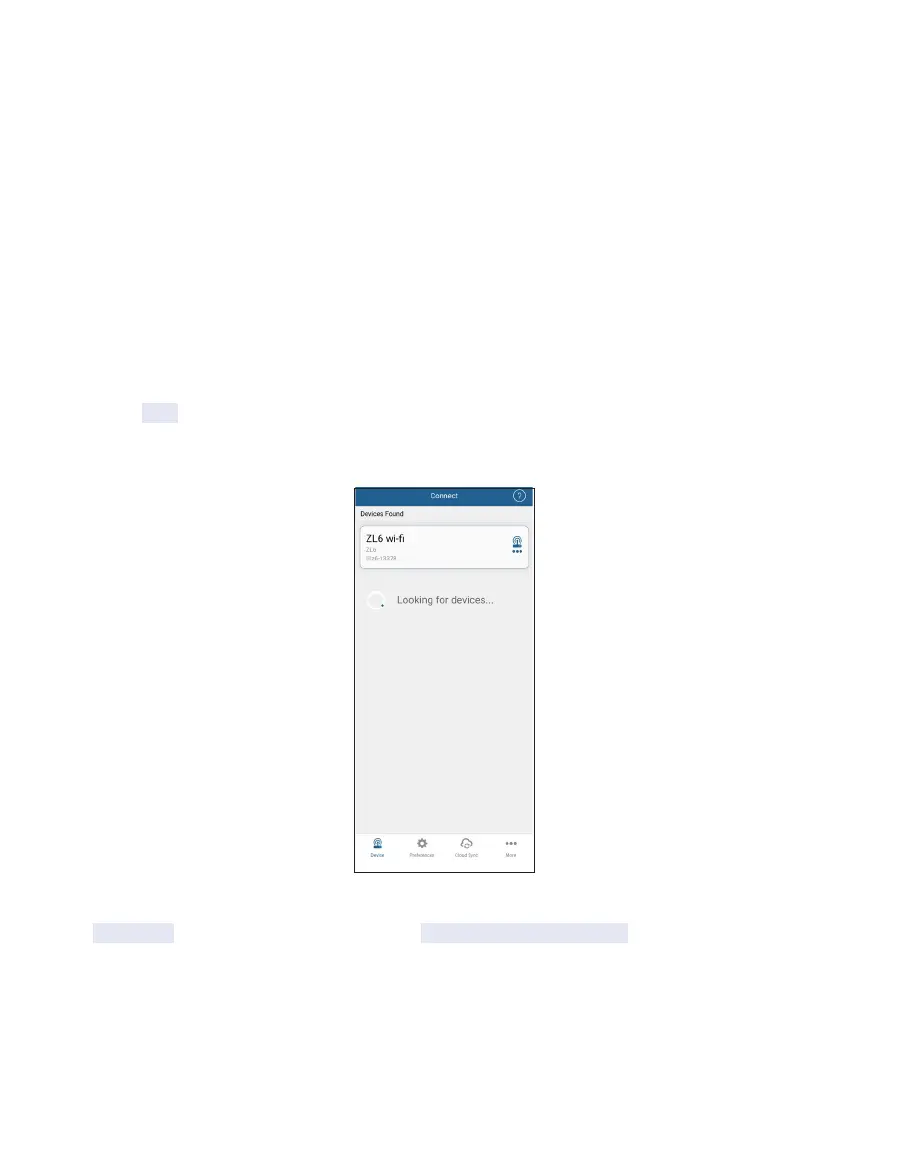
Press the TEST button on the logger to enable Bluetooth communications. Choose the
ZL6 from the Connect screen in the app. ZENTRA Utility will connect to the ZL6 and retrieve
the current configuration and status.
Figure16 ZL6 Wi-Fi connection process
Tap Configure on the main screen. Then tap Configure Wi-Fi Network to start the connection
process. ZENTRA Utility asks the ZL6 for a list of Wi-Fi networks within range of the logger.



 To Next Page